1
Drumdrops
60s Rogers Pop Kit
Manual
1
The information in this document is subject to
change without notice and does not represent a
commitment on the part of Drumdrops. The software
described by this document is subject to a License
Agreement and may not be copied to other media. No
part of this publication may be copied, reproduced or
otherwise transmitted or recorded, for any purpose,
without prior written permission by Drumdrops.
“Native Instruments”, “NI” and associated logos are
(registered) trademarks of Native Instruments GmbH.
Mac, Mac OS, GarageBand, Logic, iTunes and iPod are
registered trademarks of Apple Inc., registered in the
U.S. and other countries.
Windows, Windows Vista and DirectSound are
registered trademarks of Microsoft Corporation in the
United States and/or other countries.
All other trade marks are the property of their
respective owners and use of them does not imply
any affiliation with or endorsement by them.
Contact Us
Drumdrops
36 Leroy Street
London
SE1 4SP
United Kingdom
www.drumdrops.com
2
Table of Contents
1. Introduction (p.5)
2. About the 60s Rogers Pop Kit (p.7)
2.1
The Drum Kit (p.8)
2.2
The People (p.9)
2.3
The Recording Studio - The Bridge (p.11)
2.4
The Mixing Studio - The Square (p.11)
2.5
The Recording Equipment (p.12)
3. The Samples Packs (p.17)
3.1
The Multi-Velocity and Single Hits Packs (p.14)
3.1.1 Pack Contents (p.14)
3.1.2 Sampler Patches (For Kontakt, Battery, Drum Rack and EXS) (p.15)
3.1.3 Drum Machine Patches (For Maschine, Geist,
Studio One Impact and iDrum) (p.17)
3.1.4 Software Compatibility (p.18)
3.1.5 Loading the Patches (p.19)
3.1.5.1
EXS24
3.1.5.2
Battery
3.1.5.3
Kontakt
3.1.5.4
iDrum
3.1.5.5
Geist
3.1.5.6
Maschine
3.1.5.7 Studio One Impact
3.1.5.8
Drum Rack
3.1.5.9
Reason Refills
3.1.5.10 Renoise
3.1.5.11 TX16Wx (MV Pack Only)
3.2 Drum Replacement Pack (p.25)
3
3.2.1 Slate Trigger Pack (p.25)
3.2.2 Drumagog Pack (p.25)
3.2.3 DrumXchanger Pack (p.25)
3.3
All Samples Pack (p.26)
3.3.1 Kontakt Pack Samples (p.26)
3.3.2 Multi-Velocity (p.28)
3.3.3 Single Hits Samples (p.29)
One Shot Sample Pack (p.31)
3.4
4. Support and Account Notes (p.32)
4
4.1
Support (p.32)
4.2
Account Notes (p.32)
4.2.1
Use of the Packs (p.32)
4.2.2
The Drumdrops Account (p.32)
4.2.3
A Note on File Sharing (p.32)
1. Introduction
Drumdrops is the one-stop shop live drum sampling company, begun
in the year 2000 by head honcho engineer Mike Pelanconi. Over
more
than 10 years it has built up a catalogue of some of the most respected
live drum tracks in the business. Drumdrops became known as
the company to buy the highest quality multi-track drums, firstly
specializing in Reggae but now covering most genres including Ska,
Disco, Funk, Hip Hop, Rock, Blues and Pop.
Each of the drum tracks can be bought in three different formats. Drum
multi-tracks for those who want control over the individual drum’s
sound, drum stems for completed mixes of the drums, and drum loops.
What makes Drumdrops’ catalogue stand out from the crowd is the
detail that goes into recording it. We have used some of the finest
studios around the world including Olympic Studios, Tuff Gong and
Hollywood Sound Recorders, which have great recording rooms. We find
studios that have a great collection of vintage gear using old consoles
such as Neves and APIs. The microphone collections are top-of-therange and we record all of the drum tracks to 2” tape adding another
level of depth to the sound. All of the kits we use are tuned to perfection
and we always find the right kits for the job; Gretsch, Ludwig, Hayman,
Rogers and Slingerland amongst others. Finally, the professionals
we use are amongst the very best; incredible drummers and great
recording engineers. All of this combined creates the formidable
Drumdrops sound.
In 2011 Drumdrops teamed up with Miloco Studios to work together to
push the catalogue to the next level. First up was the new Drumdrops
website, which was built to sell the catalogue direct to Drumdrops’
fans. The website allows all the catalogue to be previewed on a trackby-track basis and allows clients to purchase by track or by the full
album. We then began recording new catalogue using a lot of Miloco’s
studios, which offered new recording rooms and new equipment. This
has helped make our catalogue even more varied but at the same time
sound great.
In 2013 Drumdrops began a brand new phase releasing the best
sounding live drums as sample packs. We decided that we had to
do
this right and that our samples had to stand up against the best
catalogues out there. So, we built a Drumdrops Kontakt Instrument
to give maximum control to the user. With the guidance of Channel
Robot’s incredible programming skills, we worked on producing an
Instrument that would do justice to the drum sounds we record.
5
The Drumdrops Kontakt Instrument gives full fader control over each
drum, offers reverbs and effects, has a randomization feature for added
realism and allows the user to adjust the velocity curves on each drum.
The latest version also includes a Step Sequencer and MIDI groove
player. Most importantly each instrument has an incredible amount
of samples. Usually in the range of 5000 to 7000 samples (although
some have 17000 samples) which help make the kit sound completely
realistic.
However, Drumdrops is of course a drum sample company, so we have
not limited our kits solely to Kontakt. We are currently building our kits
for BFD and will soon have BFD packs available for every kit. We also
offer the Multi-Velocity Pack that has sixteen velocities per articulation
and a simple Single Hits Pack which just three velocities per kit. These
two packs can be loaded into any sampler or drum machine that
supports 24 bit WAVs although we include patches for many different
types of software. The latest packs include patches for Kontakt, Battery,
EXS24, Ableton Drum Racks, Studio One’s Impact Soundsets, Reason
Refills, Maschine, iDrum, Geist and Renoise. We also sell our kits as
a Drum Replacement pack that comes with patches for Slate Trigger
V2, Drumagog V5 and DrumXchanger. Finally we have just introduced
a one-shot sample pack. It basically includes one sample from each
articulation. It is the cheapest way of hearing our samples and people
who purchased one of the hit packs from the last released kit will
receive this pack for free.
6
2. About The 60s Rogers Pop Kit
Perhaps the decade that shaped the modern world and pop culture
more than any other, the sixties certainly had a huge impact on music.
Everyone knows all about the Beatles and the Rolling Stones, but
alongside them were a host of other bands, singers and songwriters
pushing the boundaries of recording and pop.... Burt Bacharach, Joe
Meek, Dusty Springfield, Georgie Fame, Tom Jones, Scott Walker....
Many of the drummers and session musicians who played on these
hits had cut their teeth in the dance halls and big bands of the fifties so
had a certain swing and lightness of touch to their playing that makes
their grooves more interesting. They played more quietly too, not least
because they were often recorded on few microphones as part of a
much larger band, so balancing one’s own instrument to the room was
an important skill to acquire.
The styles played were diverse and often fused together... some Rock
and Roll and Skiffle grooves, old style Latin and dance rhythms... Blues
and Soul influences from America and of course the famous Merseybeat
sound and London scene too.... And let’s not forget a sharp suited
Michael Caine and the sparse jazzy vibe of John Barry’s soundtracks.
We’ve tried to recreate the pop drum sound of the 60s in this kit which
will over time be available in all the usual packs.
Recorded on a lovely old Rogers kit from the era and mic’d up old style
in a dry sounding booth, these samples will help add an authentic 60s
vibe to your songs, soundtracks and commercials.
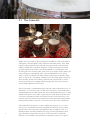
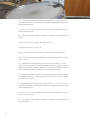
The kit we used is a Rogers Powertone from the late 1960s and consists
of a 22” kick drum, 13” rack tom and 16” floor tom. Perfect for the sound
we were after. We used two snare drums, a 1960s Ludwig 400 (again!) as
it is such a classic and a Ludwig 1950s classic Buddy Rich model.
The kit was tuned up and prepared by London session drummer Tim
Weller with Drumdrops engineer Ben Thackeray. Session drummer
Jonathan Atkinson was the drummer on sampling duties. The Rogers
was recorded during the same session as the Swinging 60s Pop Drops
Volume 1 drum tracks album, so you can hear exactly how the nonsampled kit sounds there.
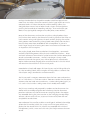
We used one of the smaller studios at our disposal, Miloco’s The Bridge
(where the kit resides) which has a very small live space which was
perfect for the sound of this kit. The kit was recorded with minimal
microphones (a Kick, snare and 3 kit mics) that helps recreate that 60s
sound.
7
2.1 The Drum Kit
Rogers was an American drum company founded in 1849 and based in
Covington, Ohio. Extremely well made and versatile drums, they were
closely associated with big band and swing drummers and famously
used by Buddy Rich and Louis Bellson, but they were also embraced
by other genres and used by Al Jackson (Booker T and the MGs) and
session great Earl Palmer. From 1964 until 1978, Rogers shells were 5-ply
construction of maple wood, with 5-ply reinforcement rings, giving
them a solid, full sound and wide tuning range. Many drummers view
them as equal to, if not better sounding, than the other great American
drum makers of the time Ludwig, Gretsch and Slingerland. It’s really
only due to bad luck and poor marketing decisions that they haven’t
maintained production to this day.
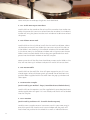
The kit we used is a PowerTone from the late 1960s and consists of a 22”
kick drum, 13” rack tom and 16” floor tom. The drums were fitted with
Remo coated ambassador heads and are tuned moderately high, as they
would have been in the 1960s, to give them a little more note. We used
a tiny bit of dampening here and there, but not much more than a bit
of gaffa tape just to take away some of the ring. We alternated between
two beaters on the bass drum, a hard felt and a soft lamb’s wool one.
8
We used two snare drums, a 1960s Ludwig 400 (again!) as it is such a
classic. As it is probably the most recorded snare of all time, it seems
sensible for it to be the most comprehensively sampled as well. In a
different room and with different turnings and mic placements, one
gets a different sound from it and it’s useful to hear it in different
contexts. An incredibly versatile drum it performs well in any genre
and at all tuning ranges from high and cutting to low and fat. Every
drummer worth his salt has one of these drums, and you’ll hear why.
The other snare is also a Ludwig, but older... A 1950s classic Buddy
Rich model. This 5.5” deep 3 ply mahogany shell with reinforcing rings
sounds warmer than the 400, but still produces a clear and crisp sound.
Tuned fairly high as well it nods towards a jazzier tuning and is less
abrasive than the meatier metal shelled 400.
The cymbals we used were 14” Avedis Zildjian hats, a Paiste 602 18” thin
crash and a Paiste 602 20” ride. Although strictly speaking these are
modern cymbals, the Zildjians are a range designed to rework the old
classic sounds, and the 602s are an old range originally manufactured
in the late 1950s and 60s and only recently reintroduced. They are
wonderfully dynamic and musical cymbals, soft and dark, and as such
they sit well in the overall sonic spectrum of the kit.
2.2 The People
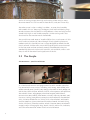
The Drummer – Jonathan Atkinson
As a freelance drummer and programmer based in London, Jonathan
has toured with many artists, including: Paul Young, Peter André, Kim
Wilde, Howard Jones, Jamelia, Boy George, Alexander O’Neal, Midge Ure,
Rick Astley, Gloria Gaynor, Belinda Carlisle, The Supremes, Nik Kershaw,
The Pointer Sisters, Kajagoogoo, The Three Degrees, Michael Ball,
Bananarama,Tony Hadley, Errol Brown, Tavares, Odyssey, Go West, ABC,
Five Star, Cutting Crew, Johnny Hates Jazz, Nick Heyward, The Weather
Girls, Curiosity Killed The Cat, China Crisis, The Emotions, Kid Creole
and the Coconuts, Jimmy Sommerville, Marc Almond, The Real Thing,
Sinitta, Shalamar, Chesney Hawkes, Hazel O’Connor, Boney M, Altered
Images, Evelyn ‘Champagne’ King, Toyah, Limahl, Bucks Fizz, and Sony
artist The Alice Band for whom he was musical director.
9
His recording credits include several projects for Beatles’ producer
Sir George Martin (including tracks for Celine Dion, and Phil Collins).
He has also recorded tracks for Grammy nominated producer Chris
Sheldon, BBC’s Doctor Who (Album, Concerts and TV series), Howard
Jones (Ordinary Heroes Album ’09, numerous live recordings and DVD’s),
Kim Wilde (Come Out And Play album 2011, Wilde Winter Songbook
2013), Japanese Megastar Kaela Kimura (Japanese #1 Album Feb’07),
Universal artist Hayley Westenra (fastest selling UK debut artist), Sir
Willard White (top 20 classical album), Kim Ritchie (US #1 singersongwriter), The Alice Band (top 5 UK radio hit), Andrew Lloyd Webber,
Kajagoogoo (Gone To The Moon Album ‘09), Music For The Queen’s
Diamond Jubilee (2012), Music for the Millennium Dome, Music for
Millennium Remembrance Day, cult rock band Velvet Jones, tracks for
Toyah, T’Pau, Swing Out Sister…….and Keith Harris and Orville.
http://www.jonatkinsondrums.com
The Recording Engineer – Ben Thackeray
Ben Thackeray has been engineering many bands for over 10 years.
After studying at Alchemea Ben began plying his trade at Mark Angelo
Studios until he landed a job at the famous Mayfair Studios in London.
At Mayfair he worked alongside some great Producers including Nigel
Godrich, Jim Abbiss, Ken Nelson, Tony Hoffer and Tom Elmhirst on
sessions with Radiohead, Coldplay and Supergrass.
After Mayfair Ben began engineering at Miloco Studios working for a
wide variety of acts including The Happy Mondays, My Bloody Valentine,
Bloc Party, Rachel Zeffira and many more.
For the last three years Ben has been recording and sampling many
drum kits for Drumdrops. With each kit taking about six weeks to
record and edit there is nothing that this man does not know about
drums.
10
https://milocostudios.com/engineers-producers/ben-thackeray/
2.3 The Bridge Recording Studio
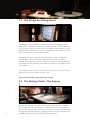
The Bridge studio in London is a great writing and recording studio.
We used this studio to try out the small drum booth and to show what
you can do in a smaller studio. The small booth suited the drum sound
perfectly. We used some of the great microphones that come with the
room and brought in a few more mic pre’s.
The Bridge is a great studio for writing projects. It has a large comfy
control room with two overdub booths. Based around an Audient
console, Avid HDX with a small selection of mic pre’s, compressors and
EQs it does the job perfectly. The studio also contains the Rogers kit that
we sampled.
This studio has been used by loads of great artists in the last few years Adele, Plan B and Tom Odell are just a few.
https://milocostudios.com/studios/the-bridge/
2.4 The Mixing Studio – The Square
g
11
Miloco’s The Square is based in the trendy Hoxton Square in London.
This studio was the first of Miloco’s studios and has been responsible
for many hit records over the years. The studio is used for recording and
mixing. The live room delivers a good tight drum sound and consists of
a wooden floor and fabric paneled walls and ceilings.
The control room is based around an SSL G-Series console but there
is plenty of outboard. The mic pre’s consist of API, GML, Calrecs,
Telefunkens and Neves. The room has a great collection of microphones
and recording was done on the pro tools HDX rig for clarity (especially
at low velocities).
Recently The Square has been used by acts such as The Vaccines, Hurts,
Plan B, Paulo Nutini, Lana Del Ray and Tom Odell.
The Kick mic was mixed through a Calrec PQ1161 and Cartec EQP-1A,
the snare through a Calrec PQ1161 and EL8 Distressor. The D19 and
Coles kit mics was mixed through a Calrec PQ1161. The M149 was
mixed through a Neve 1073 and the percussion through an EAR 822Q.
https://milocostudios.com/studios/the-square/
2.5 The Recording Equipment
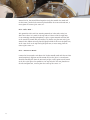
The equipment used was minimal. Ben was after a minimal 60s drum
sound and used five microphones direct into a combination of Mic Pre’s
including a Neve 1073, Chandler TG-2 amongst others. Ben used one
direct snare mic, a kick mic (about a foot away), two overhead kit mics –
a combination of an AKG D19 and a Neumann M149 and finally a Coles
4033 off from the Floor Tom.
Kick - AKG D12 –
The mic to go for if you’re after a vintage kick drum sound along with the
D25. The D12 has a nice warm low end and not too much added mid range
or top end. This was placed a meter away from the center of the snare drum,
directly in line with the center of the kick drum. BT
Snare – Electrovoice DS35 –
This is an interesting and pleasing choice for the only close mic on the whole
kit. It’s a dynamic mic and so handling sound pressure levels well and adds
great overall tone to the sound of the snare. This mic was placed just an inch
above the snare head, at the side of the drum, aimed at the center. BT
Kit 1 – AKG D19 –
12
This mic was reportedly used to record Ringo’s kit during some of the Beatles
recordings and so it seemed a like a good place to start with the mics around
the kit. I wanted to have a mixture of dynamic, ribbon and condenser mics
around the kit, that would blend together nicely, but would also work well
on their own if needed. The D19 was placed above the snare and rack tom, a
meter from the center of the snare. BT
Kit 2- Coles 4033 –
This particular Coles mic has amazing warmth to it that other mics just
don’t have. There isn’t much in the top end to it but used in the right way
it’s an amazing sounding microphone. It gives a great warmth and low end
to the overall kit sound and you could use it almost as a floor tom mic if you
wanted. This ribbon mic was placed slightly behind the kit near the floor tom,
at the same level as the top head of the floor tom, a meter away from the
center of the snare. BT
Kit 3 – Neumann M149 –
I wanted to have another mic above the kit that would work with the D19 but
sound completely different and the M149 did just the job. It’s a much more
detailed-sounding mic than the D19 and you get a really great overall sound
to the kit. It also gives the cymbals a nice top end. This mic was placed over
the ride and floor tom, a meter from the center of the snare. BT
13
3. The Samples Packs
3.1 Multi-Velocity and Single Hits Packs
The Multi Velocity and Single Hits Packs are sampler packs that can
be loaded into any DAW, sampler or drum machine that reads WAV
files. The Multi Velocity pack contains over 500 mono samples while
the Single Hits pack contains 138 mono samples. There are thirtyeight different articulations, which have been recorded in up to sixteen
velocity steps in the case of the Multi Velocity pack or three steps for
the Single Hits pack.
There are various templates for each of the samplers with different
MIDI map settings, for most of the more popular drum software
packages on the market. The samples themselves are 44.1kHz 24 bit
WAV files. The Single Hits Pack also contains 16 bit WAV samples for
legacy drum machines.
3.1.1 Pack Contents
Included with your Multi Velocity and Single Hits Packs are different
patches for Kontakt 5, Battery 3, Renoise Sampler, EXS24 and an Ableton
Live Pack for Drum Rack. The Multi Velocity Pack now includes multiout patches for the EXS24 for use in Logic X, as well as our original
stereo-out versions that are included in the Single Hits. The Multi
Velocity pack also includes a patch for the free TX16Wx sampler.
We now also include MIDI loop files that work with our Default MIDI
map. There are loops for various musical styles, in various tempos and
time signatures.
There are also some drum machine patches for Maschine, Geist,
Impact, Renoise and iDrum and a couple of Reason refills for the NN-XT
sampler and the Redrum drum machine included with the pack. All of
the patches can be used in any DAW that supports these samplers as
well as the standalone versions of the software.
You will find a folder called Samples contained in the pack. This folder
contains the samples that have been used to create the patches.
The Kontakt, Battery, Drum Rack, TX16Wx, Renoise, NN-XT and EXS24
patches use all of these samples, as they include all of the thirty-eight
articulations that have been recorded. The drum machine patches only
use sixteen of the key articulations due to the number of pads except
for Redrum which only allows a maximum of 10 samples to be used.
14
You can use the WAV files for drum replacement, by either importing
directly in your DAW or a drum replacement plug-in. (or you can
buy our drum replacement pack which has patches for Slate Trigger,
Drumagog and DrumXchanger included). You can also easily create
your own patches for any pieces of software that we haven’t included
with this pack.
3.1.2 Sampler Patches (for Kontakt, Battery, Drum
Rack and EXS)
A total of thirty-eight different articulations have been recorded and
are included with this pack. Each articulation has been recorded in up
to sixteen velocity steps for the Multi Velocity Pack and three velocity
steps for the Single Hits Pack. Each has it’s own associated MIDI note.
15
Drum
Articulation
MIDI Note
Kick Drum
Soft Beater Hard Beater Centre Edge Rimshot Centre Undamped Edge Undamped Rimshot Undamped Sidestick Snares Off Closed Full Closed Open Quarter Open Half Open Three Quarters Open Edge Closed Full Edge Closed Edge Open Quarter Edge Open Half Edge Open Three Quarters Edge Open Pedal Shut Pedal Open Centre Centre Centre Bell Edge Centre Edge Hit Scrape Hit Shake Hard Soft B0/35 C1/36 D1/38 E1/40 D#1/39 E4/76 F4/77 G4/79 C#1/37 A4/81 F#1/42 G#3/68 A#3/70 B3/71 C4/72 A#1/46 D#4/75 F#4/78 G#4/80 A#4/82 C#5/85 D#5/87 G#1/44 A3/69 B1/47 G1/43 D#2/51 F2/53 E2/52 F#2/54
G2/55
A#0/34 A0/33 G#0/32 G0/31 F#0/30 F0/29 Snare Drum Hi Hat Rack Tom Floor Tom Ride Crash Guiro Tambourine Shaker 16
3.1.3 Drum Machine Patches (For Maschine, Geist,
Studio One Impact, Redrum and iDrum)
The patches for Maschine, Geist, Studio One Impact and iDrum use the
same samples as the patches for Kontakt, Battery, Drum Rack and EXS24.
However as they only use sixteen pads, just the key sixteen articulations
have been used to create them. Also there is a limitation on the amount
of velocity samples that can be used for each drum machine. Below is a
table showing how many velocity steps are used for each articulation,
for each piece of software.
Multi-Velocity Pack
Kick Snare Snare Undamped Snare Sidestick Hat Pedal Shut Hat Fully Closed Hat Closed Edge Hat Closed Hat Open Quarter Hat Open Rack Tom Floor Tom Ride Ride Bell Ride Edge Crash 17
iDrum 1 1 1 1 1 1 1 1 1 1 1 1 1 1 1 1 Geist 8 8 8 8 5 8 8 8 8 8 8 8 8 8 8 8 Maschine 16 16 16 16 5 12 12 12 12 12 16 16 10 10 10 10 Impact 8 8 8 8 5 8 8 8 8 8 8 8 8 8 8 8 Single Hits Pack
Kick Snare Snare Undamped Snare Sidestick Hat Pedal Shut Hat Fully Closed Hat Closed Edge Hat Closed Hat Open Quarter Hat Open Rack Tom Floor Tom Ride Ride Bell Ride Edge Crash iDrum 1 1 1 1 1 1 1 1 1 1 1 1 1 1 Geist 3 3 3 3 3 3 3 3 3 3 3 3 3 3 3 3 Maschine 3 3 3 3 3 3 3 3 3 3 3 3 3 3 3 3 Impact 3 3 3 3 3 3 3 3 3 3 3 3 3 3 3 3 3.1.4 Software Compatibility
Our templates were made with the following versions of the software
listed below. If you own earlier versions of the software the templates
may not load up. We would advise you to either upgrade to a current
version or create your own templates using the samples provided.
Battery 3 – v.3.2.3
Kontakt 5 – v.5.2.0
EXS24 – Logic X v. 10.0.7
Impact – Studio One v2.5.1
Drum Rack – Ableton 9 Suite v.9.0.5
Geist – v1.0.0.7
Maschine – v1.8.0
iDrum – v1.73.625
Reason - v7.0.1
Renoise – v3.0.0
TX16Wx – v.2.4.0 (MV Pack Only)
18
3.1.5 Loading The Patches
3.1.5.1 EXS24
SH Pack - Place your EXS patches in the Sampler Instruments folder that
contain your other EXS24 patches. Create a Sampler Instrument Folder
in Logic and then create load the EXS24 sampler onto the track. You can
then load the patches from the menu in the EXS load window.
MV Pack - Stereo Out - Place your EXS patches in the Sampler Instruments folder that contain your other EXS24 patches. Create a Sampler
Instrument Folder in Logic and then create load the EXS24 sampler onto
the track. You can then load the patches from the menu in the EXS load
window.
MV Pack - Multi Out - Place your EXS patches in the Sampler Instruments folder that contain your other EXS24 patches. Then place your
Instrument patch file in the following folder: Music > Audio Music Apps
> Patches > Instrument.
Create a new Logic X session and then create a Software Instrument
track. Ensure that the Library window is open. In the top left hand corner of the Library window you will see a menu for User Patches. Click
on that that and then select your instrument from the menu. The patch
will load onto your Sampler Instrument track.
Alternatively if you just want to open the EXS patches without all the
extra processing, then you can load either the multi out or the stereo out
versions from the load menu within EXS as usual, as long as the patches
are in the Sampler Instruments folder.
3.1.5.1 Battery
Select the file menu from within the Battery window and find the template that you wish to load in the window that appears. Click on Choose
in the bottom right-hand side of the window once you have done this. If
at this point you are shown a missing samples message, simply choose
the Browse Folder option at the bottom of the window and then select
the SAMPLES folder that you downloaded with the Drumdrops MultiVelocity and Single Hits Pack. Select Choose at the bottom of the window
and your kit will load.
19
NB. If you have to find the SAMPLES folder using this method, it would
be a good idea at this point to re-save the kit, ensuring that just the
patch only option is highlighted at the bottom of the save screen. That
means that the template will know where the samples are, the next time
you open it.
3.1.5.3 Kontakt
Go to the files menu from within the Kontakt window and find the template that you wish to load in the window or alternatively just drag and
drop your chosen nki file into the Kontakt window. If at this point you are
shown a missing samples message, simply choose the Browse for folder
option at the right of the window and then select the SAMPLES folder
that you downloaded with the Multi-Velocity or Single Hits Pack. Select
Choose at the bottom of the window and your kit will load.
NB. If you have to find the SAMPLES folder using this method, it would be
a good idea at this point to re-save the kit, ensuring that just the patch
only option is highlighted at the bottom of the save screen. That means
that the template will know where the samples are, the next time you
open it.
3.1.5.4 iDrum
Go to the folder icon in the top right-hand corner of the iDrum window.
Click on it and select Open. Select the iDrum template that came with
your Drumdrops Multi-Velocity or Single Hits Pack download. Click on it
and then click on Open at the bottom of the window.
3.1.5.5 Geist
Go to the Load menu in the bottom right-hand corner of the Geist window. Select Load preset from the menu. Find the Geist saved file that
comes with your Drumdrops Multi-Velocity or Single Hits Pack download
in the pop up window. Select the file and click on Open at the bottom
right hand corner of the window.
3.1.5.6 Maschine
Go to and click on the small arrow next to where Group A is displayed
in the Pattern Editor window and a menu will appear. Select Open from
the menu. Find and select the Maschine save file(s) that come with your
Drumdrops Multi-Velocity or Single Hits Pack download in the pop up
window. Click Open at the bottom of the window. Alternatively open the
Maschine application. Double click on the Maschine saved file(s) that
20
come with your Drumdrops Single Hits Pack download.
3.1.5.7 Studio One Impact Soundsets
Double click on the soundset file to install the soundset into Studio One.
Select the preset that you want to load from the soundset list window in
Studio One. Drag the preset into the main window of Studio One to load
the preset.
3.1.5.8 Ableton Drum Rack
Double-click on the .alp file to install the Live Pack into Ableton. Select
the location or create a new folder that you want to install the files to.
If the folder is not showing in the Ableton window, click on Add folder
in the Places menu in the Ableton window and navigate to your chosen
folder. Once installed, double-click or drag your preferred Drum Rack
preset into the Ableton window to load the sampler.
Note: Do not install the files into the Ableton Factory Packs folder as the
files will not show up in Ableton and you will not be able to use them.
3.1.5.9 Reason Refills
Double click on the Refill file. That will open Reason for you if it’s not
already open. Select whichever patch you would like to load from the
patches folder supplied within the Refill from the pop-up window and
select open.
3.1.5.10 Renoise Sampler
(Patch made by Jon Halford - https://soundcloud.com/theftofcarbon/)
Double Click on the Renoise .xrni file supplied with your download. Your
renoise application will open if it’s not already and the kit will be loaded
into the sampler.
3.1.5.11 TX16Wx
(Patch made by Suleiman Ali - burzukh.bandcamp.com)
Load the TX16 sampler onto an instrument track in your DAW. Drag in
one of the patch files into the main TX16 window and the patch will
load. There are patches for the whole kit as well as individual drums.
21
Additional TX16Wx notes from Suleiman Ali:
TX16WX is a small, FREE, and quite powerful soft sampler that has been
making waves for the last two years. A number of intuitive features
make it one of the best cost-effective drum samplers right now.
http://www.tx16wx.com
TX16Wx Installation
Please skip this section if you already have and use TX16Wx.
1. Download the latest version TX16Wx (32 bit or 64 bit / Mac or Win)
from:
http://www.tx16wx.com/downloads. It would be advisable for future
reference to download the Quick Start Guide and the User Manual pdf
files as well for future reference.
2. Run the installer and ensure that the VST .dll file was installed in
the correct folder (where your DAW / VST Host usually looks for virtual
instruments (VSTi).
Fire up your host / DAW and insert TX16Wx on a track. Open the interface. You will see this GUI:
22
Loading the Kit
Open the folder icon in the top left corner.
It will now open a browser window to load a performance patch (.txperf
format). This format contains all the information necessary to load up
the ready-to-go drums.
Browse to the TX16Wx folder included in your Drum Drops MV pack. Go
to either the stereo out or multi-out sub-folders and select the respective
MV Kit .txperf file to open.
Then it will start loading up the kit samples that will take a few seconds.
Note:
In some cases, it may ask you to locate the first sample so it can auto-load all
the others from the location. I this case just point it to the correct file manually or use the search button in the browser window to get to it. Once this first
sample is selected, the rest is automatically loaded.
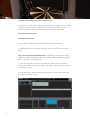
The loaded kit will look like this:
At this point you can drop a MIDI groove into the track and hear the
drums loud and clear! Or, if the track is enabled to receive MIDI, you
could play on your MIDI controller device. Hit away Bonzo!
23
The ‘programs’ included in the kit are shown on the left side with names
like KICK, SNARE, TOMS, RIDES, CRASHES etc. Each program contains all
the relevant samples that will be displayed on the right topside mapped
across the keyboard. The right bottom side will display all the program
samples as a list (called the group list).
If you want to modify the kit from within the sampler, it is advisable to
read the Quick Start guide (or even better, the User Manual) for TX16Wx
available from:
http://www.tx16wx.com/downloads
You can tweak the volume and panning for each program from the left
side pane, or you could go in deep via selecting samples from the group
list. Once you have selected the samples you want to tweak, you can
modify the ASDR envelope, velocity sensitivity, individual panning, the
filters, modulations etc all via the bottom pane.
It would be prudent to make a copy of the Drumdrops TX16Wx sub-folder before tweaking the files, as any accidental saving would overwrite the
old files. You could always Save As multiple tweaked-to-taste versions of
the same kit.
Enjoy!
24
3.2
Drum Replacement Pack
The Drum Replacement Pack contains three different drum replacement
software patches. The ones currently included are Slate Trigger V2.0,
Drumagog V5.0 and DrumXchanger V1.4. Each software patch utilizes
different samples depending on what the software can support. All
the samples are saved in the software’s own format. Slate Trigger - tci
format, Drumagog - gog format, DrumXchanger - splx format.
3.2.1 Slate Trigger Pack
The Slate Trigger Packs have been created using samples from our
Kontakt Pack. The samples have been mapped with sixteen layers of
velocity and five round robins. There are files for the kick drum, snare
drum and toms and you have can choose whether to trigger the close
mics or kit mics for each drum. Just go to the Browser section of the
Trigger plug-in and drag the file that you wish to load onto the blank
space at the bottom of each fader.
3.2.2 Drumagog Pack
The Drumagog pack has been built again using samples from out Kontakt pack, enabling you change the balance between close and kit mics.
The pack contains eight levels of velocity with four round robins. We
have included files for the kick drum, snare drum, toms and also the
hi-hat. If your version of Drumagog contains the Auto Hi Hat Tracking
feature, then the hi-hat samples will automatically follow the opening
and closing of the hi-hat track.
3.2.3 DrumXchanger Pack
The DrumXchanger Pack contains mono mixed samples from our Multi
Velocity Pack. This drum replacement plug-in has no option for changing
the balance of the close and kit mics. The pack contains eight levels of
velocity with no round robins. The snare also contains a rimshot sample
that has it own adjustable trigger threshold.
25
Trigger
Drumagog
DrumXchanger
Velocity Amount
16
8
8
Round Robins
5
4
0
3.3
All Samples Pack
The All Samples Pack contains The Multi Velocity pack, The Single Hits
Pack, the Drum Replacement Pack and we have also included a folder
of Kontakt samples that are taken from our Kontakt pack (we do not
include the Drumdrops Kontakt instrument in this pack - this can
only be bought in the Kontakt 5 pack). You can either use the packs
using our own software patches found in each pack or build your own
patches from the samples provided in the Multi-Velocity pack or the
Kontakt pack. The Multi Velocity pack samples are mono samples of
each articulation mixed from a combination of the kit mics. The Kontakt
samples are the seperate mic samples of each articulation with 3 round
robins included. To learn about how we label these samples please read
the sections below:3.3.1 Kontakt Pack Samples
The Kontakt Pack samples contain the same 44.1k 24 bit WAV samples
that we use in our Drumdrops Kontakt Packs. These include close mic,
overhead, and in most cases, room samples for each articulation of each
drum. This kit contains thirty-eight separate articulations and there
are three round robin samples for each giving a total of 3735 individual
samples.
Each audio file has its own unique catalog number so that we can be
sure that no sample is ever duplicated. You may need to know a little
about how that system works in order to use the samples effectively. For
example:
L400_SNR_CNOH_HT_015_V01_RR01
L400 – This set of letters refers to the make of drum, in this this case
Ludwig 400.
SNR – These letters refer to the drum itself, SNR is short for snare.
CN – These letters contain information about the type of hit. CN stands
for Centre. If the snare were hit at the edge then these letters would be
EG. If the snare was dampened when it was recorded then the letters
would be DC.
26
CL – These two letters stand for the mic position – in this case CL is short
for Close Mic. If the samples were for the overheads then these letters
would be OH.
HT_015 – This is simply the kit number – each Drumdrops kit has it’s
own unique number.
V01 – This refers to the velocity number – as louder hit would contain a
higher number.
RR01 – This last set of characters refers to the Round Robin, or alternate
hit number. There are five of these for this kit.
The hi-hat files use a slightly different system.
ZDJN_HAT_C1EGCL_HT_015_V01_RR01
BONO – The manufacturers name and type, in this case Zildjian.
HAT – As for the snare these letters stand for the drum itself, in this case
a hi-hat.
C1 – These two characters refer to the hat articulation, C1 is fully closed.
There is also C2 (closed), C3 (open quarter), O1 (open half), O2 (open
three quarters) and O3 (open). In the case of the pedal articulations
these letters are FS (pedal shut) and PO (pedal open).
EG – These letters refer to the fact that these samples were recorded at
the edge of the hat. These letters will be missing in the case of the centre
hi-hat samples.
CL - These two letters stand for the mic position – in this case CL is short
for Close Mic. If the samples were for the overheads then these letters
would be OH.
HT_015 – This is simply the kit number – each Drumdrops kit has it’s
own unique number.
V01 – This refers to the velocity number – as louder hit would contain a
higher number.
RR01 – This last set of characters refers to the Round Robin, or alternate
hit number. There are five of these for this kit.
27
3.3.2 Multi-Velocity
The Multi Velocity samples contain the mixed mono 44.1k 24 bit WAV
samples that we use in Multi Velocity Pack. There are the same thirtyeight articulations as we have recorded for the Kontakt Pack and the
sample count comes in at over 500.
Each audio file has it’s own unique catalog number so that we can be
sure that no sample is ever duplicated. You may need to know a little
about how that system works in order to use the samples effectively. For
example:
L400_SNR_CNOH_HT_015_V01
L400 – This set of letters refers to the make of drum, in this this case
Ludwig 400.
SNR – These letters refer to the drum itself, SNR is short for snare.
CN – These letters contain information about the type of hit. CN stands
for Centre. If the snare were hit at the edge then these letters would be
EG. If the snare was dampened when it was recorded then the letters
would be DC.
CL – These two letters stand for the mic position – in this case CL is
short for Close Mic. If the samples were for the overheads then these
letters would be OH.
HT_015 – This is simply the kit number – each Drumdrops kit has it’s
own unique number.
V01 – This refers to the velocity number – as louder hit would contain a
higher number.
The hi-hat files use a slightly different system.
ZDJN_HAT_C1EGCL_HT_015_V0
BONO – The manufacturers name and type, in this case Zildjian.
HAT – As for the snare these letters stand for the drum itself, in this
case a hi-hat.
28
C1 – These two characters refer to the hat articulation, C1 is fully closed.
There is also C2 (closed), C3 (open quarter), O1 (open half), O2 (open
three quarters) and O3 (open). In the case of the pedal articulations
these letters are FS (pedal shut) and PO (pedal open).
EG – These letters refer to the fact that these samples were recorded
at the edge of the hat. These letters will be missing in the case of the
centre hi-hat samples.
CL - These two letters stand for the mic position – in this case CL is
short for Close Mic. If the samples were for the overheads then these
letters would be OH.
HT_015 – This is simply the kit number – each Drumdrops kit has it’s
own unique number.
V01 – This refers to the velocity number – as louder hit would contain a
higher number.
3.3.3 Single Hits
The Single Hits samples contain the mixed mono 44.1k 24 bit WAV samples that we use in Multi Velocity Pack. There are the same thirty-eight
articulations as we have recorded for the Kontakt Pack and the sample
count comes in at 138. The Single Hits pack samples are mixed from a
combination of the close mics and kit mics. We also include most of the
sampler patches found in our Multi Velocity Packs. See our Multi Velocity Packs for more details.
Each audio file has it’s own unique catalog number so that we can be
sure that no sample is ever duplicated. You may need to know a little
about how that system works in order to use the samples effectively. For
example:
L400_SNR_CNOH_HT_015_01
L400 – This set of letters refers to the make of drum, in this this case
Ludwig 400.
SNR – These letters refer to the drum itself, SNR is short for snare.
29
CN – These letters contain information about the type of hit. CN stands
for Centre. If the snare were hit at the edge then these letters would be
EG. If the snare was dampened when it was recorded then the letters
would be DC.
CL – These two letters stand for the mic position – in this case CL is
short for Close Mic. If the samples were for the overheads then these
letters would be OH.
HT_015 – This is simply the kit number – each Drumdrops kit has it’s
own unique number.
01 – This refers to the velocity number – as louder hit would contain a
higher
The hi-hat files use a slightly different system.
ZDJN_HAT_C1EGCL_HT_015_01
BONO – The manufacturers name and type, in this case Zildjian.
HAT – As for the snare these letters stand for the drum itself, in this
case a hi-hat.
C1 – These two characters refer to the hat articulation, C1 is fully
closed. There is also C2 (closed), C3 (open quarter), O1 (open half), O2
(open three quarters) and O3 (open). In the case of the pedal articulations these letters are FS (pedal shut) and PO (pedal open).
EG – These letters refer to the fact that these samples were recorded
at the edge of the hat. These letters will be missing in the case of the
centre hi-hat samples.
CL - These two letters stand for the mic position – in this case CL is
short for Close Mic. If the samples were for the overheads then these
letters would be OH.
HT_015 – This is simply the kit number – each Drumdrops kit has it’s
own unique number.
01 – This refers to the velocity number – as louder hit would contain a
higher number.
30
3.4 The One Shot Sample Pack
This is the new starter sample pack. It includes one sample of each articulation. The samples come as a 24 bit and 16 bit WAV so you can load
them into any piece of software that supports WAVs. We don’t include
any patches with this pack so you will have to build your own. It is a
great pack for drum machine users or if you want to check out the basic
sound of the kit before purchasing a more expensive pack.
31
4. Support and Account Notes
4.1
Support
It is important that we get the feedback to make our products better. If
you have any issues with the quality of the product or if you have any
questions please let us know and we shall to get back to you as soon as
possible. Email [email protected].
4.2
4.2.1
Account Notes
Use of the Packs
Once you have purchased a Drumdrops pack you are free to use the
contents on a commercial release. As long as you have proof of purchase
you can use the packs for your own music and you don’t need to get a
licence from us. Credits to Drumdrops are very much appreciated but
they are not essential.
However, you cannot create new sampler patches and share the samples.
If you create new sampler patches (without the samples) this is fine and
encouraged. If you make any new or exciting ones please let us know
and we may include them in future updates to the packs.
4.2.2
The Drumdrops Account
It is against our terms to create multiple accounts especially to take
advantage of offers. Any offending accounts may be deleted. Currently,
if you buy material from Drumdrops these products will remain in your
account meaning you can re-download them when you need to. See it
as a long-term back up policy. However, if this is abused we may delete
offending accounts without warning. It is also against our terms to
create accounts using temporary email addresses. We know a few people
do this to claim the free stuff. Come on guys, play fair.
4.2.3
A Note on File Sharing
We know file sharing happens and we know that some people seem
addicted to uploading stuff to torrents. We know people who upload to
the torrents can actually earn money from advertising on their pages,
probably earning more than us.
32
Drumdrops is a small company and spend a lot of money to make these
high quality products. If our customers file share we may
be forced
to stop updating that product, and ultimately, we may stop making
products altogether. For us to continue bringing out good, quality
product we need to sell it. We are not looking to be millionaires, we
are wanting to create great content and we want to make enough so
everyone involved makes something out of these products for the hard
work they put in. Remember, we cannot go on tour or sell merchandise
or stream our products to recoup costs in other ways. We rely on the
income from the sales to keep making new product.
A customer recently made use of one of our offers (which we stopped as
a result) to start systematically downloading the catalogue for free. His
argument was that the product cost too much. Firstly, we don’t believe
the product is too expensive for the work that goes in; and secondly,
would that guy go into a store and take an iPad because he thought it
was too expensive? We doubt it.
We fully understand that not everyone can afford everything we do,
but we start packs from £ 3.00 / pack and have a multitude of packs at
different price points. For those who register accounts with us, we will
continue to offer deals and if we want to give away product, then please,
out of respect for the work that we do, let us do the giveaways rather
than you.
If you play fairly then we will continue to deliver. It would be a huge
shame for a few individuals to ruin what we do for everyone else who
enjoys these products. What goes around comes around, and if you’re
giving other people’s work away for free, then the next time some fucker
breaks into your house and steals your laptop... well, maybe you had it
coming. Don’t forget that it works the other way, too.
Thanks for reading.
33
Purveyors of the finest live drum multi-tracks, stems,
drum loops, drum samples and single hit kits.
www.drumdrops.com
34