1
C h a p t e r 3 : D oing Re al St uf f w it h SPE ED
Matching Region Lengths
This is useful for drum loops or similar to get the length of one
region (or selection) of audio to match the length of another without
changing pitch.
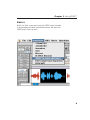
Assuming that the SPEED plug-in is displayed, first select the region
that has the desired length. Then go to the Calculator Control Panel
and select one of the Length modes in the speed calculator. Hit the
Copy arrow to copy the original length into the modified length. Make
sure that the modified length is locked, with a red lock icon displayed.
Then select the target region that you want to change the length (you
may have to move the floating SPEED plug-in window out of your way,
but don't close it). Return to the SPEED plug-in and note that the
original length now shows the length of the currently selected region
but the locked modified length remains the same as before. Hit the
Process button and the target region will have the same length as
the first region.
Shortening a Commercial Spot
Okay, so you have the proverbial 35 second spot that you must squeeze
into 30 seconds of air time. Select your 35 second spot and select
SPEED from the AudioSuite menu. Click on the Calculator control
panel and select the speed calculator mode: Length in Seconds. Both
the original and modified length will show 35 seconds. Click on the
modified length value, type in 30, and hit return. Now it says 30
seconds.
Done? Not quite. Hit Preview to see how it sounds or hit Process
to just write the change to disk. Now reward yourself with a cup of
coffee for all of your hard work.
17