1
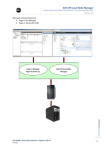
www.eaton.com 2.9 Using IPP with Hyper-V Server R1, R2 or Hyper-V Manager After IPP installation, follow these 3 steps to use IPP or refer to the IPP User Manual 2.9.1 Step 1 (Access) Local access (for Hyper-V Manager on Windows 2008) From the system where Intelligent Power® Protector is installed, you can use the following shortcut: Start -> Programs -> Eaton -> Intelligent Power Protector ->Open Eaton Intelligent Power Protector Remote access (for Hyper-V Server or Hyper-V Manager on Windows 2008) From a remote machine, you can type the following URL in a Web browser https://<name or IP address of computer hosting IPP>:4680/ or http://<name or IP address of computer hosting IPP>:4679/ In SSL mode, accept the certificate (by clicking on Yes) (enter admin as Login / admin as Password and click on the Login button) 2.9.2 Step 2 (Configuration) When started, the application automatically performs a Quick scan. Using the Quick scan operation, you will discover: =>Serial line connected UPSs (RS232 or USB) The discovered UPS connected through (RS232 or USB) is automatically assigned as the Power source (the Status icon is Green ) => Networked UPSs through broadcast within a few seconds (Network Management Cards 66102 The discovered UPS connected through (Network) are not automatically assigned as the Power source (You have to select the node and click on the button Set as Power Intelligent Power Protector – Extension for Microsoft Hyper-V & Hyper-V Server Hyper-V is a registered trademark of Microsoft Inc. Page 13/15