1
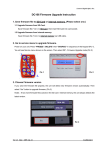
3. A window displaying a live image (see below) will appear.
4. Press [Setting]: When the Camera Settings window pops up, the live
image can be adjusted. The operation is identical from both the remote
control and the control panel. Refer to Chapter 7 Control
Panel/Remote Control Buttons and On-screen Menu for more
information.
5. Press [Capture] to capture images in Microsoft Word.
6. Press [Cancel] to exit.
8.18.4 Setting up the DC166 as a Webcam for Skype
The DC166 can be used as a webcam for instant message (IM) software
such as Skype and MSN. Operation with any IM program is similar. In
Skype, for example, complete the following steps:
1. Open the Skype application and choose [Tools] > [Options].
2. Select [Video Settings], check [Start my video automatically when I am in
a call] and select [Visual Presenter V2] as the desired webcam, as
shown below.
English - 31