1
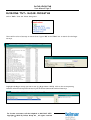
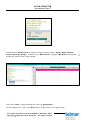
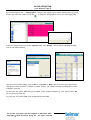
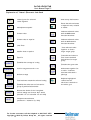
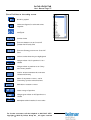
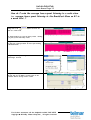
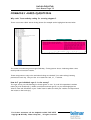
RAJAR CROSSTAB User Manual Page 21 the Editor grid. Click on Tab again to run the report. Style sheets can be selected before or after coding. If you have a preferred style of presentation you can set this as your default style sheet by selecting ‘Save Style Sheet as Default’ from the ‘Options’ menu. This style sheet will then automatically be adopted when you enter TNT+. If you have selected an alternative and want to return to the default without exiting TNT+, select Open Default Style Sheet from the Options menu. SAVE OWN CODES Once you have coded your tables, columns and rows you can save any or all of these parts in an Own Codes file for use again later. This enables the user to quickly make new runs using precoded parts of old runs. For example, if you have coded in your rows some very commonly used demographic groups which you will need to use again in the future, with the same survey, saving them as Own Codes allows you to input them again as precoded product files from the code menu. When your coding is complete select ‘Save Own Codes’ from the ‘Codes’ menu. In the ‘Save Own Codes’ window tick the part(s) of the run, which you want to save as Own Codes (Table, Columns or Rows) and enter a code description. Click on OK and then enter a file name. Your codes will appear under this title. To open your Own Codes file, exit Crosstab first and re-enter selecting the same survey. Enter the codes menu and double click on ‘Own Codes’. The name of your file will appear underneath. Double click on this and then select your codes as normal. PRINTING AND PRINT PREVIEW Preview Print preview can help you design your report, by showing what it will actually look like when printed. It is useful with such things as getting the optimum column widths. Click on the ‘File’ menu and on ‘Print Preview’. Printing To print your report, click on the ‘File’ menu and on ‘Print’. If you also need to print a copy of your codes click on the ‘Audit Report’ box in the Print window so that a cross appears. If you want to print out only your codes and code descriptions click on ‘Print Audit Report’ from the ‘File’ menu. For further assistance call the Helpdesk on 020 7467 2575 Copyright 2012 By Telmar Group Inc., All rights reserved