1
Lesson 1 Basic Data Analysis
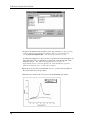
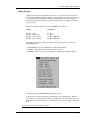
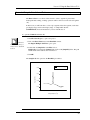
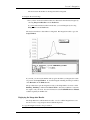
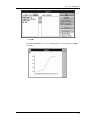
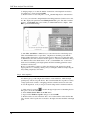
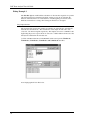
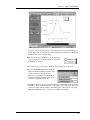
SAMPLE1DSC_CP.BASE copies to the Y2 text box.
· Click in the Operator: text box, and type a "+" in the operator text box.
· Click OK.
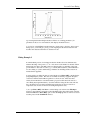
The original Sample1 data is restored, since the baseline which was subtracted earlier
has now been added back.
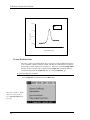
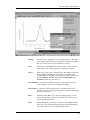
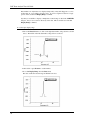
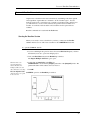
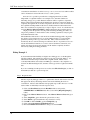
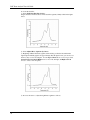
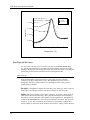
· Now that you have retrieved the baseline data, go ahead and fit a curve using model 3.
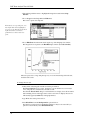
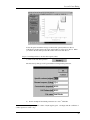
Select 2 State w/dCp Cursor Init from the DSC menu. Then follow the same steps
as outlined for the previous two models. Click on Done! to exit the fitting session.
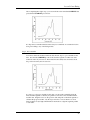
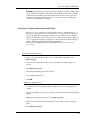
To format the fitting parameters text
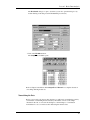
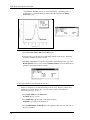
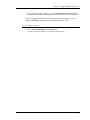
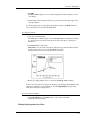
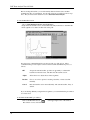
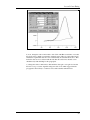
· Double-click on the text in the plot window.
The Text Control dialog box opens.
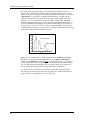
· Change the text style (for example, change font to Roman, and point size to 10).
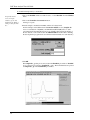
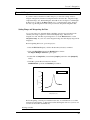
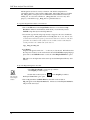
Note that to ensure a true What-You-See-Is-What-You-Get text display on screen, you
should select the Print View mode from the View menu. View mode does not affect
output so, for the sake of screen refresh speed, it is usually adequate to use Page
View, Window View, or Draft View, all of which are faster.
· Click OK.
Calibration
21