1
CASSi User’s Manual
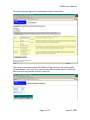
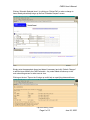
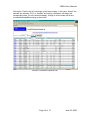
Clicking the “View Schedule” button will recall the schedules for the selected items.
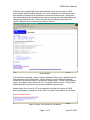
Schedule Listing
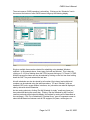
This screen gives tremendous flexibility in viewing schedules. Starting from the upper
left corner of the screen, the left and right yellow arrows quickly go to the previous and
next day’s schedule display. The yellow box recalls today’s schedule. “Jump to Date”
selects a new starting date for the schedule display, type in the new date and click “Go”
(or just hit the ENTER key). The two small aircraft symbols select the previous and next
aircraft category (maybe if all the C-172s are busy, a C-172SP might be available). “1
day, 3 days, and 7 days” changes the total number of days of schedule displayed, click
the button to the left of the text and click “Go” (or just hit the ENTER key). Clicking on
the tail number of the aircraft brings up a more detailed list of aircraft capabilities (IFR,
multiengine, retractable gear, etc.) which includes a detailed specification sheet
(including aircraft / instrument panel photographs and basic weight and balance
information).
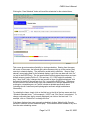
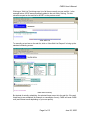
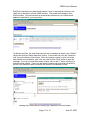
To schedule the items, simply click on the little box to the left of the item name and click
“Schedule Selected Items.” In this example, “415PZ” and “Flat, Ronen” are selected. To
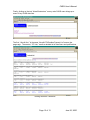
change a schedule item that is currently displayed, just click on the item itself. For
example, click on “Zakian/Flat” to change the time.
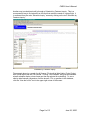
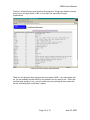
If the items displayed are ones commonly scheduled, clicking “Make this My Favorite
schedule” saves the current schedule display. This schedule can be recalled at any time
from the main scheduling screen.
Page 5 of 13
June 25, 2000