1
6 - Maintenance
6.2.4.6
Calibrate Touchscreen Function
If the touchscreen does not seem to accurately register your taps on the screen, you can use the Calibrate Touchscreen function to recalibrate it. The Calibrate Touchscreen function presents a series of
targets that you tap. If there is a difference between the location you tap and the target’s actual coordinates, the difference is saved and the offset is used to interpret subsequent screen taps.
The function can be performed at any time.
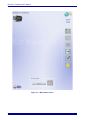
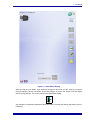
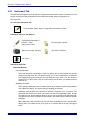
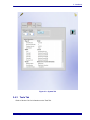
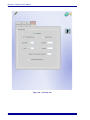
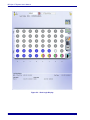
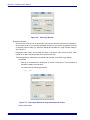
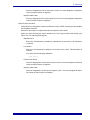
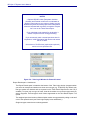
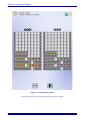
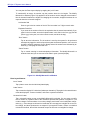
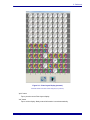
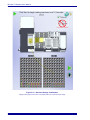
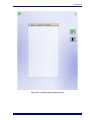
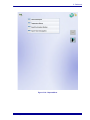
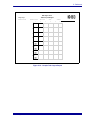
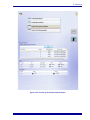
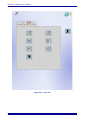
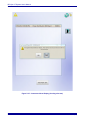
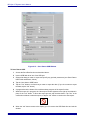
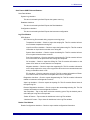
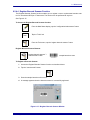
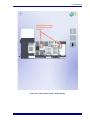
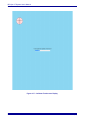
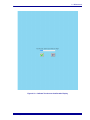
See Figures 6-17 and 6-18.
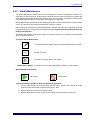
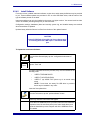
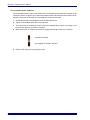
To Access the Calibrate Touchscreen Function:
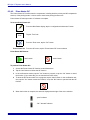
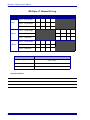
From the Main Status display, tap the “configuration/maintenance” button
Tools
Tap the “Tools” tab
From the Tools menu, tap the “calibrate touchscreen” button
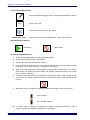
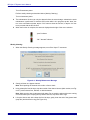
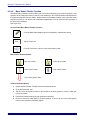
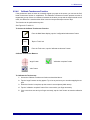
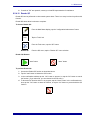
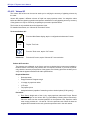
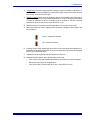
Calibrate Touchscreen Buttons:
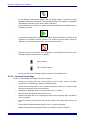
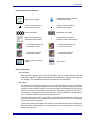
“target” button
“calibration complete” button
“redo” button
To Calibrate the Touchscreen:
1
Access the Calibrate Touchscreen function as described above.
2
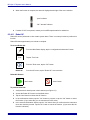
Tap the “target” buttons as they appear. Try to be as precise as you can when tapping the targets.
3
When the function is complete, tap the screen in several places (blank areas).
4
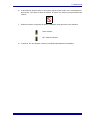
Tap the “calibration complete” button if the cursor tracks your finger accurately.
5
If the cursor does not track your finger accurately, tap the “redo” button to start the calibration
over.
500005363(02)
6–35