1
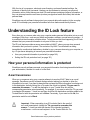
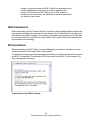
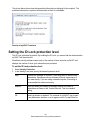
With the rise of e-commerce, electronic record keeping, and mass financial mailings, the incidence of identity theft increased. Hackers can use malware to intercept your personal information online, while thieves can steal CDs and laptops containing customer information, or they can intercept sensitive mail items (such as pre-approved credit card offers) that include personal data. ZoneAlarm security software helps protect your personal data online and out in the everyday world. ID Lock keeps your personal information safe from hackers and identity thieves. Understanding the ID Lock feature Every time you or someone else using your computer enters personal information into an e-mail message or Web form—such as your credit card number, address, or social security number— it is possible that the information could be stolen. To help prevent that from happening, the ID Lock ensures that your personal information is only sent to sites you trust. The ID Lock feature provides a secure area called myVAULT, where you can store personal information that you want to protect. The contents of myVAULT are blocked from being transmitted to unauthorized destinations, whether by you, someone else using your computer, or by a Trojan horse attempting to transmit your personal information. How your personal information is protected (on page 149) Setting the ID Lock protection level (on page 151) How your personal information is protected ZoneAlarm security software prevents your personal information from being transmitted without your authorization, whether in e-mail or on the Web. E-mail transmission When you or someone using your computer attempts to send myVAULT data in an e-mail message, ZoneAlarm security software displays an alert asking you whether to allow the information to be sent. If you want to always allow or always block the information from being sent to this destination, before clicking Yes or No select the check box labeled "Do you want to remember this answer..." to add the destination to your Trusted Sites list with the corresponding permission set automatically. For example, if you were to select the "Do you want to remember this answer..." check box and then click Yes, the destination would be added to the Trusted Sites list with the permission set to Allow. Conversely, if you were to click No, the permission would be set to Block. Important - When responding to an ID Lock alert that is the result of an e-mail transmission, clicking the "Do you want to remember this answer..." check box adds the domain of the intended recipient’s e-mail server—not the e-mail recipient—to the Trusted Sites list. For 149 Some features are only in premium products