1
ownCloud User Manual, Release 7.0
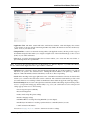
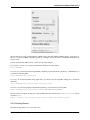
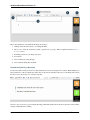
• Share with user or group field – Enables you to specify users or groups with whom you want to share
the event.
• Share visibility pulldown menu – Enables you to specify the level of information that is shared. The possible
levels include:
– Show full event – Displays full event details to those with whom the event is shared.
– Show only busy – Displays only that you are busy during this event; no event details are provided.
– Hide event – Hides the event from the users or groups specified.
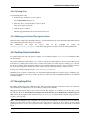
To share an event:
1. Specify the users or groups with whom you want to share (or hide) the event.
2. Define the level of visibility that you want the users or groups to have.
3. (Optional) Click the Send Email button to share the event details using an email.
4. Click the Save event button to save your changes.
The Calendar app saves and closes the event window.
5.2.6 Exporting and Importing Events
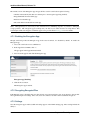
The Calendar app enables you to export and import event or entire calendars to or from other calendars.
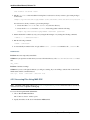
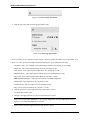
Exporting Events
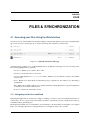
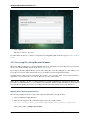
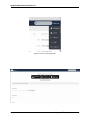
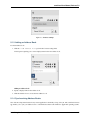
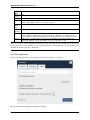
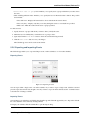
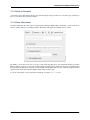
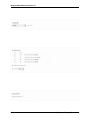
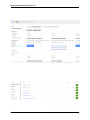
Figure 5.9: Exporting an event
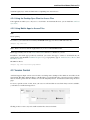
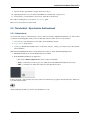
You can export either a single event or an entire calendar. If you want to export a single event, click the event and
press the export button in the bottom right corner. If you want to export an entire calendar, use the “Calendar” button
as described in “Creating a calendar”.
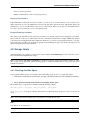
Importing Events
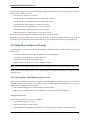
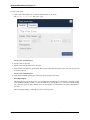
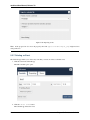
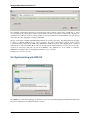
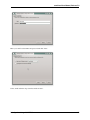
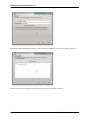
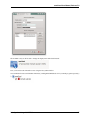
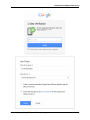
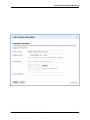
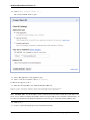
You can import your calendar as an iCal file using the Files app. The Calendar app enables you to import the calendar
into a new calendar or into an already existing calendar.
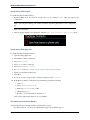
To import your calendar, click the calendar file to open the import dialog.
5.2. Using the Calendar App
47