1
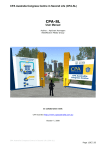
CPA Australia Virtual Congress
Quick Start Guide
Logging on and getting to the event.
If you are using an Avatar provided by CPA Australia, logging in will take you directly
to the Virtual Congress site landing pad.
If you are using your own Avatar, use the following Slurl to get to the event –
http://slurl.com/secondlife/Bracket/51/98/28/?title=CPA%20AUSTRALIA%20CONGRESS%20
CENTRE
1 View from the CPA Australia Virtual Congress site landing pad.
Logging into Second Life can sometimes take 2 or 3 attempts, so please
don’t leave it until the last moment to join the Virtual Congress.
Second Life may ‘freeze’ if you try to do too much too soon, so when you
do arrive at the Virtual Congress site, wait till the environment has fully
loaded before moving around too much. This may take up to 20-30
seconds depending on your internet connection speed and computer
speed.
944851_3
Moving around.
During the Virtual Congress Session, you will be able to walk, jump and even fly.
Walking:
You’ll be able to access all of the Virtual Congress by simply taking a walk around..
The arrow keys control the
direction of your movement.
Flying:
You won’t need to fly to get around the Virtual Congress site, but if the urge takes
you…
Use the Home key to start or stop flying.
You can also click on the Fly button at the bottom of the
Second Life software screen.
The Page Up and Page Down
keys control your height while the
Arrow keys control the direction
of your flight.
944851_3
Sitting down and standing up.
In order to optimize your experience during the presentations, an amphitheatre has
been created with enough seating for all the attendees. There are also sofas and
chairs throughout the Virtual Congress site if you need a break.
To sit down – use your mouse to right click on the seat or object you wish to sit on.
Select ‘sit here’ from the circular menu that appears in the centre of your screen.
To stand up – a ‘stand up’ button will appear at the bottom of your screen once you
have sat down somewhere. Select it to stand up.
Changing your view.
Although the default view will be the best option for most situations, you have full
control over your view of your surroundings. For example, during the presentations,
you may want to get a better look by zooming in on the presenter or their slides.
·
Click and drag on your avatar’s back to take a look around.
·
CTRL+0 to zoom in. CTRL+8 to zoom out. CTRL+9 to reset the zoom.
·
ALT+click and drag on another object to zoom in/out and pan around it.
Hitting the esc key twice will reset your view.
944851_3
Communication.
Chat: To use the Chat functionality, you will need to open up the Local Chat window.
Simply select the ‘Communicate’ button (1) at the bottom of the Second Life Window
and then the ‘Local Chat’ tab (2). Type into the chat box (3) and hit return to join the
conversation.
We recommend that you keep this window open at all times as it displays a history of
all the chat conversations going on around you, including the presentations.
You will need to click on your Avatar to resume moving around.
Voice: The presentations will be given using Second Life’s Voice Chat functionality.
However, in case you are unable to get Voice Chat working, you will be able to follow
along in the Local Chat window.
Once you have Voice Chat set up,
use the talk button (1) along the
bottom of the screen to enable your
microphone.
See the User Manual, or
http://wiki.secondlife.com/wiki/Voice
_Mentors:_Getting_Started_with_V
oice, for more detail on Voice Chat.
If you are using Voice Chat, please ensure that the ‘Talk’ button is off
(not highlighted) during all presentations.
944851_3
Multimedia
There are a number of video screens located within the virtual congress site. In order
to have these play automatically, confirm that you have the following settings
selected.
·
Play Streaming Music When Available
·
Play Streaming Media When Available
·
Automatically play media.
Once these setting are applied, you will see a small multimedia control panel near
the bottom right of your screen. You can use this panel to control the media you are
watching.
Depending on the speed of your internet connection, playing multimedia
may affect the performance of Second Life. If you notice performance
issues whilst multimedia is loading or playing, try selecting stop on the
control panel.
944851_3