1
Uploading Songs
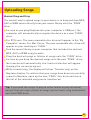
Converting Songs in iTunes® - PC
With the iTunes ® program open, left click your Main Music Library
so it is highlighted.
Once highlighted, go to your ‘Edit’ tab (located at the top left of the
screen) and select ‘Preferences’.
Under the ‘General’ tab select the ‘Import Settings’ button.
Change your ‘Import Using’ options from AAC encoder to MP3
encoder.
Left click OK to exit ‘Import Settings’ and another OK to exit
‘Preferences’.
To convert the desired track, right click and select ‘Create MP3
Version’.
You will notice that a second copy of that song will be created as a
MPEG audio file. You can now drag the MPEG files to the “FINIS”
drive.
Converting Songs in iTunes® - Mac
With the iTunes program open, click your Main Music Library
so it is highlighted.
Once highlighted, go to your ‘iTunes’ tab (located at the top left of the
screen) and select ‘Preferences’.
Under the ‘General’ tab select the ‘Import Settings’ button.
Change your ‘Import Using’ options from AAC encoder to MP3
encoder.
Click OK to exit ‘Import Settings’ and another OK to exit ‘Preferences’
Click the desired track you wish to convert. Once highlighted go to
the ‘Advanced’ Menu and select ‘Create MP3 Version’.
You will notice that a second copy of that song will be created as a
MPEG audio file. You can now drag the MPEG files to the “FINIS”
drive.
8.