1
24. SD card formatting
1.
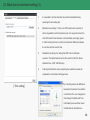
Take out the micro SD card that is inserted in the black box, and connect it to a computer.
2.
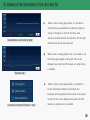
Selecting the
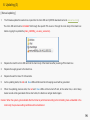
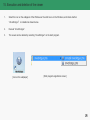
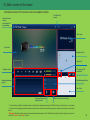
button on the viewer’s main screen will bring up the SD card formatting tab, which will help format the SD card as shown
in Figure (1).
3.
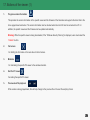
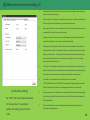
Format drive: Shows the location of the drive where the micro SD card is inserted.
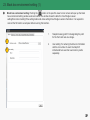
4.
Pushing the format start button will bring up a window that will help confirm or cancel the formatting process.
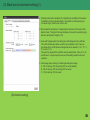
5.
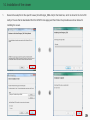
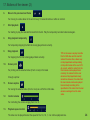
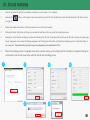
Pushing the confirm button will display a window for formatting the SD card. The window will show the micro SD card’s memory, file system type,
current assignment unit, and post-formatting assignment unit. Pushing the start button will initiate the formatting process. “Quick formatting” is
also supported. “General formatting” may take longer hours depending on the specifications of PCs.
6.
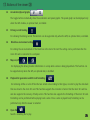
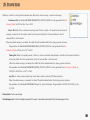
When the formatting process is completed, there will be a window coming up for notifying that the formatting is completed. Pushing the
confirm button and then the close button will finish the SD card formatting process.
1
2
4
3
5
6
36