1
Project:
Document Group:
File Name:
Version:
Cato
05 IT\IT extern\Installation\EN
Installationsplan_EN
37
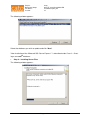
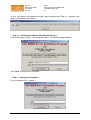
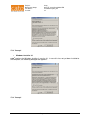
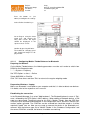
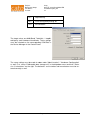
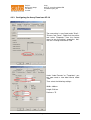
Press the button "3" (see
above) to configure the settings.
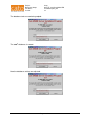
Select "Define function keys"
Go to Page 2 using the lower
arrow keys and remove the
entry with "1/10d". No figure
should be displayed in the
square next to "1/10d".
Confirm by pressing OK twice.
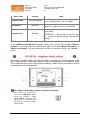
The button for changing precision should no longer be displayed now!
4.1.1.1
Configuring Mettler-Toledo Balances for Bluetooth
Preparing the Balance
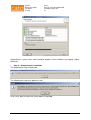
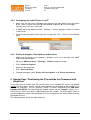
On the Mettler-Toledo balance, the following parameters must be set in order to switch from
RS232 to the Bluetooth mode:
"...." -> System-> Periphery
Set "BTS Option“ as Host → Define
Select ANSI/WIN as CharSet.
Click "OK" three times and then "Exit“ to return to the regular weighing mode.
Preparation Windows / Laptop
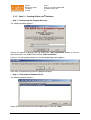
Make sure Bluetooth is activated on your computer and that it is able to detect new devices.
If in doubt, refer to the respective user's manual.
Establishing the connection
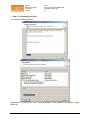
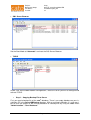
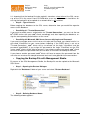
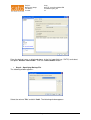
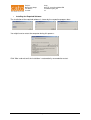
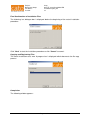
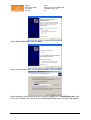
In the Bluetooth Manager, first select "Add hardware". The Bluetooth balance's name is "Balance“, followed by the BTS Option's MAC address. When adding a Bluetooth device, a PIN
code must be entered. The default value for this PIN is "Mettler-Toledo“. Now the SPP Data
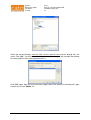
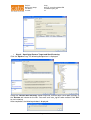
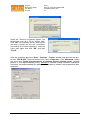
service must be activated and configured. In the configuration mask, leave the "Secure Connection" option activated. The COM Port can be selected but should be noted as it will be
required in cato® later on. Now you are ready to connect the device in the Bluetooth environment. With the balance type set to "Mettler-Toledo“ in the "Hardware Configuration" and
the correct COM Port selected, the balance should be now working.
Page 39 of 70