1
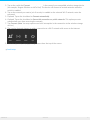
3. Tap on the music tracks you want to add to the playlist. A check mark appears on the selected tracks. Tracks are added to the slideshow in the order of selection. To deselect a single item, tap on it. To deselect all files, tap Deselect All on the bottom left corner. To select all files in the view, tap Select All on the bottom left corner. 4. Tap Actions on the upper right and choose Add to playlist. 5. Choose from the following: Create a new playlist. Tap New Playlist on the lower left and enter a name. Tap Confirm. Add to an existing playlist. Add the music by tapping on the existing slideshow. You can listen to your saved playlists at any time. Go to the Music library and tap on the Playlists folder. Tap on the playlist you want to hear and tap the play icon. back to top Viewing Documents View a document 1. On the Start Page, swipe your finger from right to left to navigate to Documents. The Start Page shows you a small preview of the documents on your storage device. If you do not see the document you want to view, tap on the arrow next to Documents to view the entire library. 2. Tap on the document you want to view. 3. Choose the app to use with the document. Rename a document 1. On the Start Page, swipe your finger from right to left to navigate to On . is the name of your storage device (e.g. On LaCie Fuel or On Seagate Wireless). If the folder you want to view is not displayed on the Start Page, tap on the arrow next to the product name to reveal all the contents on the device. 2. Browse for the document you want to rename. 3. Enable the app bar to select a document. From the top of the screen, swipe your finger down. 4. Tap on the document. A check mark appears on the item that you select. Note: The rename option is not available if more than one item is selected. To deselect a single item, tap on it. 5. Tap Actions on the lower left corner and tap Rename. 6. Type the new name and tap Confirm. back to top Manage mul ple documents Windo ws 5/21/15 15