1
4.0
JAVA CONFIGURATION SETTINGS FOR LIEBERT RDU-S
Before logging into the Liebert RDU-S Web pages, verify that Java Version 1.7 Update 21 is installed on your
computer.
1.
2.
3.
4.
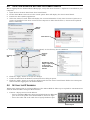
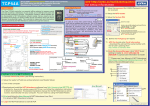
Open the Java Control Panel from the Control Panel.
On the Start Menu enter Java in the search option. This will display the Java Control Panel.
Launch the Java (32-bit) application.
Select the “About” button. This will display the version information. Verify that Version 7 Update 21 or
greater is installed. If the Java version on the computer is older than Version 7, Java must be updated
before continuing.
“About”
Button
Java Version
5. Under the Security tab of the Java Control Panel, set the Security Level to Medium.
Security
Level
Slider
Security
Tab
Disable the Java
Plug-in option by
removing the
check mark from
the box
6. Click the “Apply” button to accept the changes
7. Under the Advanced tab disable (uncheck) the Java Plug-in option.
8. Click the “Apply” button to accept the changes and close the Java Control Panel. Follow the subsequent
instructions for logging into the Liebert RDU-S.
5.0
SETTING THE IP ADDRESS
Follow these instructions to set the IP address of the Liebert RDU-S. This step is required for communication
with the Liebert RDU-S using the Web interface.
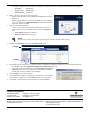
1. Connect a laptop and set its IP address:
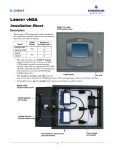
• Insert a standard Ethernet cable (not included) into the Ethernet
port on the front panel of the Liebert RDU-S, shown at right.
• Insert the other end of the cable into a laptop’s Ethernet port.
Ethernet port
3
Liebert® RDU-S™