1
Color, Fills, and Transparency
3.
321
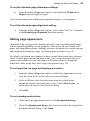
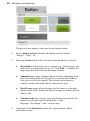
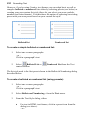
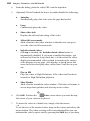
Drag the Shade/Tint slider to the left or right to darken or lighten your
starting color, respectively. You can also enter a percentage value in
the box (entering 0 in the input box reverts to the original color).
Object tinting can also be applied via the Swatches tab—adjust
via slider or direct input.
WebPlus automatically adds used colors to the
Swatches tab.
Tint
Site Palette in the
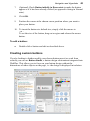
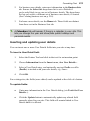
To change the current palette:
•
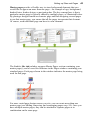
Click the
Palette button to view and adopt colors from a
standard RGB, WebSafe, or selection of themed palettes. Colors can
be added, edited or deleted from the Site Palette but not from other
palettes.
Using color schemes
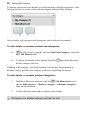
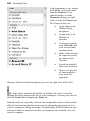
WebPlus offers an impressive selection of color schemes that can be selected
when creating a site using a design template or from scratch. If you choose a
template-based site, the selection of a color scheme will set the look and feel of
your site with respect to color, as all templates are already "schemed". Selecting
each scheme dramatically changes the colors of page elements in your page
layout with just one click!
When you initially create your site from a template you can select either one of
three color schemes designed specifically for that template design, or just use
any of the global color schemes. See Creating a site using a design template on
p. 20.
Creating schemes from scratch
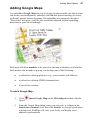
Websites created from scratch can use any global color scheme—but you'll have
to initially assign scheme color to objects (see p. 321) as they are created to
make color scheming work. This will allow dramatic color change if you
subsequently change schemes.