1
188 Working with Text
Tables cannot be imported.
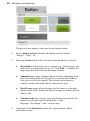
To import text from a file:
1.
(Optional) If using an existing empty text frame, select the frame. If
inserting text into a populated text frame, click for an insertion point
(or select a portion of text to be replaced).
2.
Choose Text File... from the Insert menu.
3.
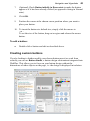
From the Open dialog, select the format of the source file to be
imported and locate the file itself.
4.
Check the Retain Format box to retain the source file's formatting
styles. Uncheck the box to discard this information. In either case,
WebPlus will preserve basic character properties like italic, bold, and
underline, and paragraph properties like alignment (left, center, right,
justified).
5.
Click Open.
The text will be imported into the pre-selected text object or a new text frame.
For HTML frames, the text may overflow your frame. To resolve this, see
Controlling overflowing frame text on p. 191.
For Creative frames, if all of the imported text cannot fit into the active text
frame you'll be prompted via dialog to either create extra frames to
accommodate overflow text (click Yes) or place the overflow text in a hidden
overflow area (click No).
Understanding text frames
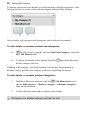
Typically, text in WebPlus goes into HTML text frames, which work equally
well as containers for single words or standalone paragraphs and articles. You
can also use artistic text for standalone text with special effects, or table text
(see Creating text-based tables on p. 219) for row-and-column displays.
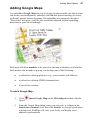
What's a text frame?
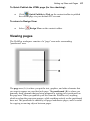
A text frame is effectively a mini-page, typically containing frame text in one or
more paragraphs that flow through the frame. In WebPlus, frame text is called a
story.