1
Accessing Third-Party Tools
3
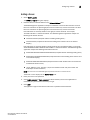
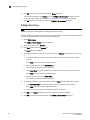
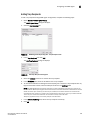
Changing an Option on a Device’s Shortcut Menu
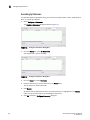
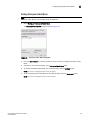
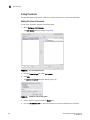
You can change the parameters for a tool that displays on a device’s shortcut menu.
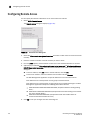
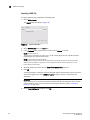
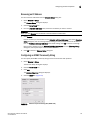
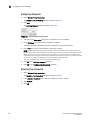
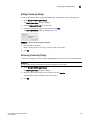
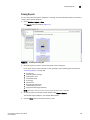
1. Select Tools > Setup.
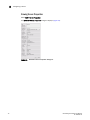
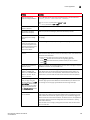
The Setup Tools dialog box displays.
2. Click the Product Menu tab.
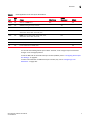
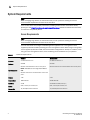
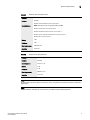
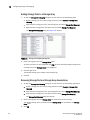
The Product Popup Menu Items table displays all configured shortcut menu options.
3. In the Product Popup Menu Items table, select the menu item you want to change.
The settings for the selected menu item displays in the fields at the top of the dialog box.
4. Edit the fields, as necessary.
5. Click Edit.
NOTE: You must click Edit before clicking OK; otherwise, your changes will be lost.
6. Click OK to save your work and close the Setup Tools dialog box.
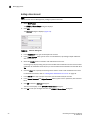
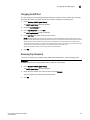
Removing an Option from a Device’s Shortcut Menu
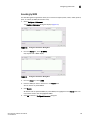
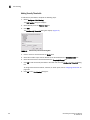
You can remove a tool that displays on a device’s shortcut menu.
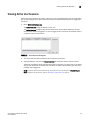
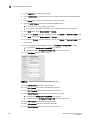
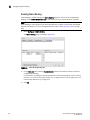
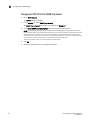
1. Select Tools > Setup.
The Setup Tools dialog box displays.
2. Click the Product Menu tab.
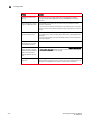
The Product Popup Menu Items table displays all configured menu options.
3. In the Product Popup Menu Items table, select the menu item you want to remove.
4. Click Remove.
NOTE: You must click Remove before clicking OK; otherwise, your changes will be lost.
5. Click OK to save your work and close the Setup Tools dialog box.
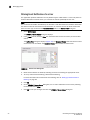
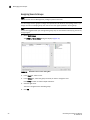
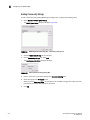
Launching a Telnet Session
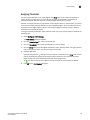
You can use Telnet to log in and issue command line-based commands to a switch.
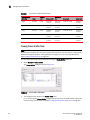
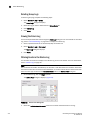
1. On the Physical Map, select the switch to which you want to connect.
NOTE: The switch must have a valid IP address. If the device does not have a valid IP address, the Telnet
selection will not be available on the Tools menu or the shortcut menu. You must right-click the device
icon, select Properties, and enter the device’s IP address before you can open a Telnet session.
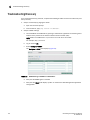
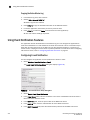
2. Select Tools > Product Menu > Telnet.
The Telnet session window displays.
NOTE: On Linux systems, you must use CTRL + BACKSPACE to delete text in the Telnet session window.
EFC Manager Software User Manual
53-1000663-03
127