1
5
Managing Products
Hiding Routes Between Two End-Products
NOTE
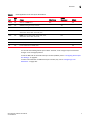
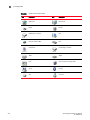
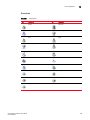
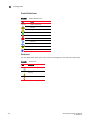
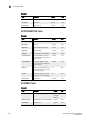
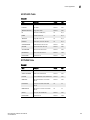
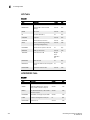
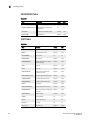
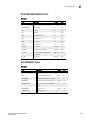
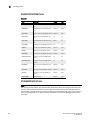
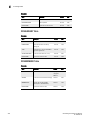
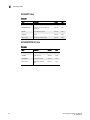
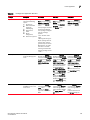
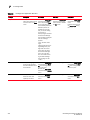
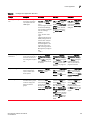
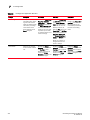
This feature is only available for fabrics consisting solely of manageable products (refer to Table 22
Product Icons on page 243).
You can use the Hide Route feature to hide routes that Fibre Channel frames must take between
two end-products in a multiswitch fabric. You must show routes before you can hide routes. For
instructions, refer to “Showing Routes Between Two End-Products” on page 165.
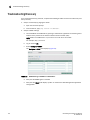
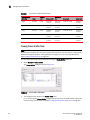
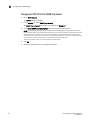
To hide the route, right-click the route (line between end-nodes), or the fabric that includes the
route you want to hide and select Hide Route.
Viewing Properties of Routes Between Two End-Products
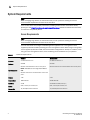
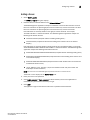
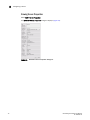
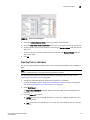
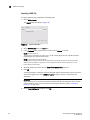
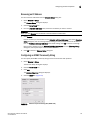
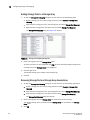
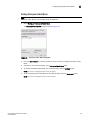
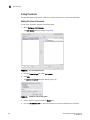
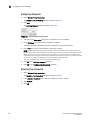
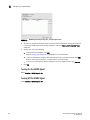
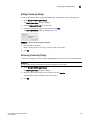
1. To view the properties of a route, right-click the route and select Properties.
The Route Properties dialog box displays.
2. Review the source and destination ports, as well as route details.
3. Click Close to close the dialog box.
Changing a Fabric’s Properties
You can view and change a fabric’s properties.
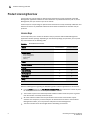
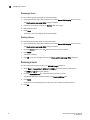
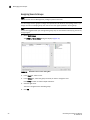
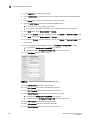
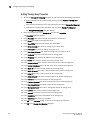
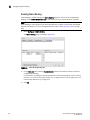
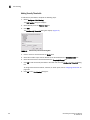
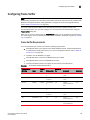
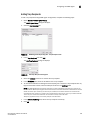
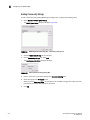
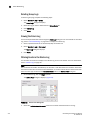
1. On the Physical Map, right-click a fabric icon or the background of an expanded fabric and
select Properties from the menu.
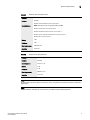
The Fabric Properties dialog box displays.
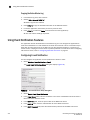
2. View the fabric’s information and edit the nickname, if desired.
NOTE: If you segment a fabric, the Fabric’s nickname follows the assigned principal switch.
3. Click OK to update the fabric’s properties.
166
EFC Manager Software User Manual
53-1000663-03