1
chapter 1 - Starting PassIcon SecUsb
it is recommended that users read all articles and manual from PassIcon
website(www.PassIcon.com) before using AKCS PassIcon SecUsb.
This manual contains functions, installation and un-installation information of
AKCS PassIcon SecUsb. It was intended to help PassIcon users.
All program, documentation, and images are AKCS's property. You may not
alter, reproduce or resell without the permission from AKCS.
System requirement
system requirement for PassIcon SecUsb
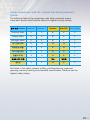
• operating system: windows XP, vista, 7 (32/64 bit)
• USB file system: FAT32
• USB memory: minimum 512MB
program execution speed may differ depending on your system.
Updates will be done automatically when connected to the internet.
Customer support
if you have any questions or inquiries, use bulletin board from AKCS
homepage or contact us to below addresses
homepage:http://www.PassIcon.com
email: [email protected]
phone:02-2103-5131
PassIcon Introduction
PassIcon is the "21st century password" using "image (graphic) icon" to meet
the today's high security standard. PassIcon provides high security and
protects from many harmful hacking. It is a new personal authentication
solution.
4/18