1
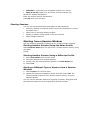
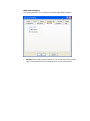
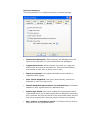
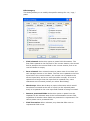
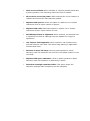
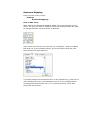
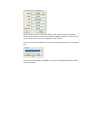
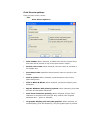
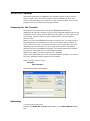
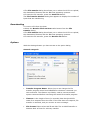
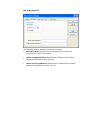
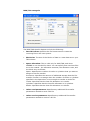
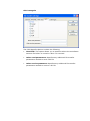
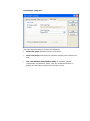
Starting a Session Profile from the Run Command Line To start the session: Select Start and then Run. Type the following command in the Command Line field and then select OK. For example: C:\PROGRAM FILES\Quick3270\QUICK3270.EXE C:\PROGRAM FILES\QUICK3270\MY.ECF where MY.ECF is the Session profile stored in the C:\PROGRAM FILES\QUICK3270\ directory. Starting Multiple Sessions You can use an already configured layout icon from the Explorer or from the Start menu to to start two or more Session profiles at the same time (Display and Printer. If you created an icon for your layout file, you can start multiple session profiles just by selecting the icon. Creating and Saving a Profile You should create a profile for each session that connects to a different host or requires different session options. To create and save a profile: 1 Open a new session using the New Session Command in the File menu or by clicking the New Session button in the toolbar. In the Open New Session dialog box enter the IP address or host name you wish to associate with the new profile, then click on the Config button. 2 Customize the session to your preferences. For example, size the Quick3270 window and select the options you want from any category available for the terminal type you have selected. 3 To save a new profile, select the Save As button. A dialog box appears. You can save a profil as the default profile. Use the Save as default Session Command in the File menu. After then, all session started without a session configuration file on the commande line will use this default setting. Working with Layouts Layouts allow you to open one or more windows in a prearranged position on your screen. Desktop layouts are especially useful for running multiple sessions. For example, you may consistently work with three display sessions and one printer session. In addition, you may have a KeyPad open for each display session. If saved in a layout, the session windows and the KeyPads will always appear exactly as you like them. Using a desktop layout involves the following two tasks: First, create the layout by defining how windows will appear on your screen. Second, open the layout. The layout positions the windows as defined.