1
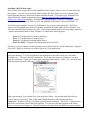
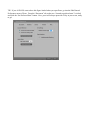
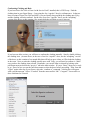
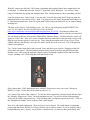
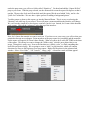
In our image_map node, let’s change the “image_source” parameter. Click on the word “none” and a
dialog box will appear.
Use the “Browse” button on the dialog box to find an image you like. I’m using a modified version of a
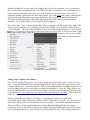
cloudscape I have posted on my deviantart stock account. (http://karibousstock.deviantart.com/#/d2smj9r) Once you have selected a picture file and clicked “OK” you are ready
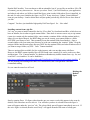
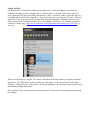
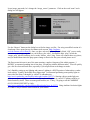
to connect your image_map node to your diffuse color value. Just find the little “plug” beside the
“image_map” title bar, and drag it over to the “diffuse_color” plug. Poser will connect these two places,
and you should then notice the prop square change so that it now has your selected picture on it!
The Poser material room is one of the most amazing, complex, fun parts of the whole program. I
HIGHLY recommend spending lots of time here, just playing with the different nodes. You will quickly
get a feel for what each node does, especially if you stop between each change to render.
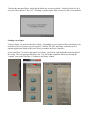
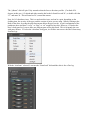
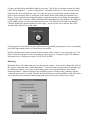
Let’s finish by setting up our lighting and camera. Lighting is a HUGE portion of what makes a render
look realistic. Frankly, the default Poser lights stink. I recommend purchasing some quality lights to
start with (like Shiny 1 through 4 by vikike176 at Renderosity,
http://www.renderosity.com/mod/bcs/index.php?vendor=380315). Starting with pre-made light sets
gives you a chance to dissect what the artist has made and duplicate it yourself. Lighting could be an
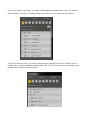
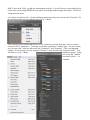
entire tutorial by itself! There are some good freebies, too. Today, I’m going to use the AMBIENT
OCCLUSION LIGHT SET by Lully,
http://www.renderosity.com/mod/freestuff/details.php?item_id=55373. Using Ambient Occlusion lights
is a GREAT way to achieve some realism in your renders.