1
geometry. It may contain morph dials that alter parts of that geometry, but these parts are not
broken down as separate body parts, the way a figure/character is. One thing worth noting…
Props get twitchy if you have them loaded to a scene with no figures. It is best to load your
figures first, and then add a prop. Even if you do not plan on RENDERING the figure, add it
anyway and make it invisible. This is because props appear under the body-part list of figures in
Poser. (If I want to render a scene that only contains props, I will frequently load a small bellybutton-ring figure, make it invisible, and THEN load the props I am interested in.)
•
Lights: Contains light files (.ltz). As expected, light files change the lighting in your scene.
They can be used in two ways, 1) they can REPLACE the current lighting in your scene, or 2)
they can be ADDED to the current lighting in your scene.
•
Camera: Contains camera files (.cmz.) These files alter the settings on your scene’s
camera/cameras.
•
(Materials): This folder contains two kinds of files. The first, .mt5, will change the material
settings on ONE material group. The second, .mc6, will change the material settings on several
groups at once. For example, if am examining the material for skirt’s belt buckle in the Material
room, I can use a .mt5 file to change just the appearance of the belt buckle. If I use a .mc6 file, I
will alter ALL the materials in the skirt. If the .mc6 file contains data on material groups that
don’t exist in the skirt, Poser will even ask if you want to add them.
I have the Materials folder in parentheses because in versions 7 and older of Poser, the material
folder only appears when you are inside Poser’s material room. Even in Poser 8 and Pro, the
materials folder can’t be used outside the material room, though you can browse its contents at
any time.
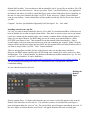
So there are your library folders, in a nutshell. These folders allow you to browse, add, and modify
items in your scene.
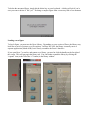
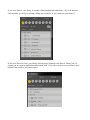
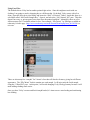
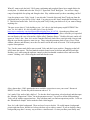
Let’s start by adding Vicky to our scene. Open the “figure” tab in your main Poser library. Find the
folder called “DAZ People.” Open it, and double click on “Victoria 4.2” She should now appear in
your scene.