1
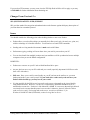
b. the encoding scheme being used.
SETTING UP
1.
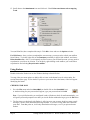
Go to the Tools menu and select Options. Scroll down and click on the Attachments icon.
2.
For Encoding Method choose MIME.
3.
You can also set the encoding method message by message. Click on the third down arrow from the
left in the button bar of the message window and choose MIME.
SENDING ATTACHMENTS
1.
Create a new message (or reply to an existing message) and type your message as you normally
would.
2.
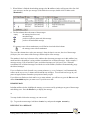
To attach a document, go to the Message menu, and select Attach File (or double click on
the Attach File icon).
3.
A dialog box will appear. Locate the file you want to attach, then click on Open.
4.
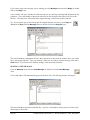
The attachment’s name should now appear on the Attached: line. Click on Send to send your
message. Eudora will encode the attachment and send it.
RECEIVING ATTACHMENTS
If someone has sent you an attachment, you will see an icon with the name of the file at the bottom of the
e-mail message. You can find the converted file in the following default folders:
C:\Program Files\Qualcomm\Eudora\Imap\Dominant\INBOX\Attach (IMAP) or
C:\Program Files\Qualcomm\Eudora\Attach (POP).
When you forward a message with an attachment, the attachment will be automatically forwarded unless
you had deleted or moved the attachment file from the Attach folder. To open the attachment, doubleclick on the icon at the bottom of the e-mail message.
Note: If you move your attachment from the designated Eudora attachment folder, Eudora will not be
able to find the attachment.
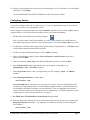
Quitting Eudora
When you are finished with Eudora, you can quit it by going to the File menu and selecting Exit. If your
Inbox is large, it may take a few minutes to close Eudora.
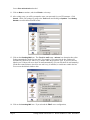
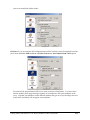
Button Bars
Here is a brief explanation of some of the button bars you might see in Eudora. For a more detailed
explanation, please refer to the Eudora manual. (See the section Getting Help for information on
obtaining the Eudora manual.)
Page 14
Getting Started with Eudora 5.1 Win95/98/ME/NT/ 2000 WIN9X003