1
MAILBOX WINDOW
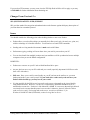
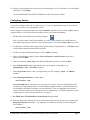
The button bar below appears at the top of any Mailbox window.
1
1.
2.
3.
4.
5.
6.
7.
2
3
4
5
6
7
8
9
10
Delete selected message(s)
Open In mailbox
Open Out mailbox
Check for new mail
Create new message
Reply to selected message(s)
Reply to all recipients of selected message(s)
11
12
13
14
15
16
9.
10.
11.
12.
13.
14.
15.
Open previous message(s)
Open next message(s)
Attach file to message
Find message(s)
Open Address Book
Print selected message(s)
Get help on an item (click on button, then
click on the item you want help on)
16. Pure Voice (allows you to attach voice
messages to your e-mail)
8. Forward selected message(s)
NEW (OR REPLY TO) MESSAGES
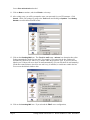
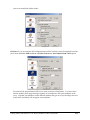
The button bar below appears when creating new messages or replying to messages:
1
2
3
4
5
6
7
8
9
10
11
12
1.
Message’s priority (blank is Normal). It is informational only and changing the priority will not
make your message get to receiver any faster or slower.
2. Whether or not to include a signature in message. This icon means the standard signature will be
included.
3. Attachments format. Click and hold down the mouse button on the arrow to change the format. In
the above example, any attachments to the message would be encoded using MIME.
4. down: (recommended) MIME Quoted-Printable (QP) encoding will be used if necessary
up:
MIME QP encoding will never be used
5. down: text attachments will be sent separately from message
up:
text attachments will be included in the body of message
6. Toggle message word wrap on/off
7. down: pressing tab in the body of message inserts spaces
up:
pressing tab in body of messages takes the cursor to the To: line
8. down: keep copy of message in Out mailbox after sending
up:
do not keep copy of message
9. (Sponsored and Paid modes only) If this is on, the message to your recipients includes a Notify
Sender button that when clicked creates a message notifying you that the original message has been
viewed. This function does not work in all cases.
10. If this is on, invisible text symbols, such as carriage returns, tabs, and spaces appear in the message,
You can see these symbols only in your composition window. They do not appear in the message
you send.
11. Mood watch status.
12. Click this button to send your message.
Getting Started with Eudora 5.1 for Win95/98/ME/NT/2000 WIN9X003
Page 15