1
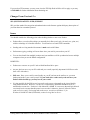
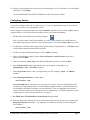
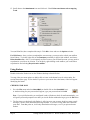
15. Scroll down to the Attachments icon and click on it. Check Delete attachments when emptying
Trash.
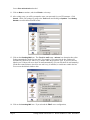
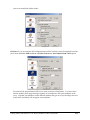
You (and John Doe) have completed the setup! Click OK to close and save the Options window.
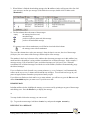
For IMAP users: Once you have completed the account setup, you may need to refresh your mailbox
list in Eudora. To do this, right-click on the Dominant personality in the left side window, and choose
Refresh mailbox list. Also, if you frequently use Pine to access your UH mail account, you may need to
resynchronize your inbox on occasion. You do this by right-clicking on the mailbox you would like to
resynchronize and selecting Resynchronize mailbox.
Using Eudora
Double-click on the Eudora icon on the Windows desktop to launch Eudora.
You may either use menu options or double click on icons on the button bar to do various tasks. See
section Button Bars (page 15) for details. If you hover your cursor above the button, a label will appear
identifying the button.
CHECKING FOR MAIL
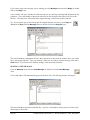
1. Go to the File menu and select Check Mail (or double click on the Check Mail icon).
A window asking for your password will appear; type your password and click OK.
Note: if you quit Eudora after you configured it and set Eudora to check for mail automatically, you
will get the password prompt the next time you invoke Eudora without having to go to the File menu.
2. The first time you check mail with Eudora, it will sign on to your account, check how many e-mail
messages you have, then download all message headers. If you have a large Inbox this could take
some time. From that point on, it will only download new messages, even if you quit and restart
Eudora.
Page 8
Getting Started with Eudora 5.1 Win95/98/ME/NT/ 2000 WIN9X003