1
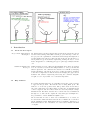
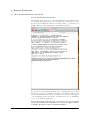
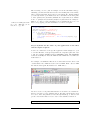
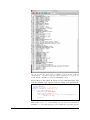
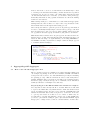
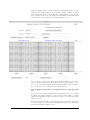
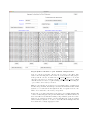
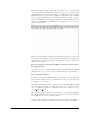
The known effects text file is the same way and it must be in the same
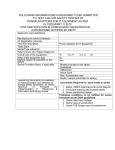
order as the SNPs. This means (looking at the above screenshots) that
SNP CWAW1335 has effect 0.0324 and so on. This information ordering
information is used by Validate to assign true effect sizes to all the SNPs
in your outputs (and in doing so labels all others as zero). Also, Validate
uses the information from the known SNPs file to label all SNPs in your
output as either TRUE or FALSE based on whether or not they are
included in that file.
This is how performance measures are inherently generated, so this must
be included. By default, Validate includes classification measures such
as AUC and so you must include known SNPs file. However, the known
effects file is optional.
Step 3-C) Upload your known SNPs file and the known effects
file using the DE.
Upload both of these text files using the Discovery Environment. This is
extremely easy to do. It also does not matter where you upload them to.
Step 3-D) Run Validate!
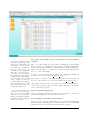
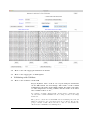
It’s time to run Validate finally! Open up the Apps icon on the DE and
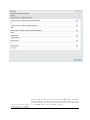
select Validate. Then you need to just fill in the form. Select a name and
a description of your choice.
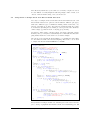
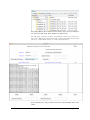
Then fill in the inputs section. For the folder containing GWAS/QTL,
you input the folder that contains all of your tool outputs. In our
case, our PLINK outputs are contained in the folder dalanders/analyses/my Validate folder.
The truth file is what we have been referring to as the known SNPs file,
and the effects file is what we have been referring to as the known effects
file. Again, they need to be in that format.
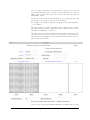
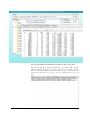
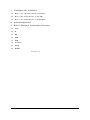
On the column names and additional options tab, input the names of
columns that we discussed earlier. For us, it was P, SNP, and BETA.
18
Validate: A Workflow for Evaluating GWAS/QTL Tools