1
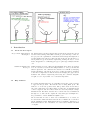
→ These are mainly just example codes. Although you are
welcome to copy ours.
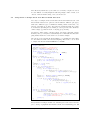
The following code is to just an example of how the submission may go
assuming your known-truth data sets are in something like a raw format,
where each known-truth data set is stored in a single file. rPlant assumes
you already include your iPlant data store username in the files path,
so that ”iplant/home/username/simulations” is just written as ”simulations” or ”iplant/home/username/analyses” is just written as ”analyses”.
This is, of course, because validating your credentials allows you to not
have to keep typing you user information over and over again.
>
>
>
>
>
+
i n s t a l l . packages ( ” rPlant ” )
require ( rPlant )
V a l i d a t e ( ” username ” , ” password ” )
mydir <− L i s t D i r ( ” s i m u l a t i o n s ” )
f o r ( i i n 1 : nrow ( mydir ) ) {
SubmitJob ( j o b . name=NULL,
a p p l i c a t i o n=” myGWASapplication ” ,
+
f i l e . path=” s i m u l a t i o n s ” , f i l e . l i s t = l i s t ( mydir [ i , 1 ] ) )
+
print ( i )
+ }
Step 1-C) Find out the name of your application on the API,
and the inputs required.
You need to make sure of the specific application name assigned to your
tool in the API and of any special parameters or inputs required in order
to run. For example, PLINK requires a PEDMAP format. The PEDMAP
format is essentially two files, the .PED and the .MAP file for each knowntruth data set.
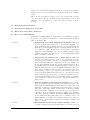
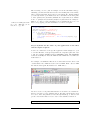
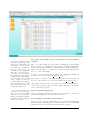
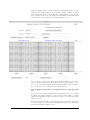
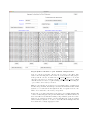
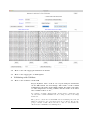
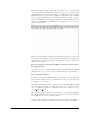
For example, our simulation files are stored in a shared folder, where each
odd file number is a .PED and each even is a .MAP. Each odd is a .PED
file and the subsequent file number is a .MAP like so:
As can be seen, for our particular structure we would need to submit two
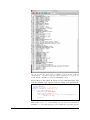
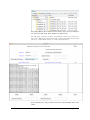
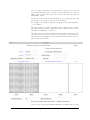
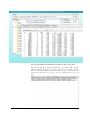
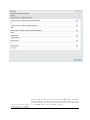
files for each run. So let’s walk through it. We first can list all the apps
in order to find ours (which we have already installed), so that we can
get the exact name that we need to use for the SubmitJob function.
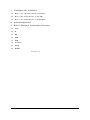
> ListApps ( )
Validate: A Workflow for Evaluating GWAS/QTL Tools
7