1
DecoderPro3®User’sGuide
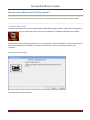
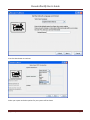
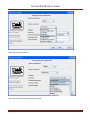
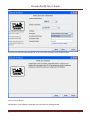
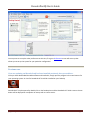
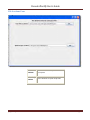
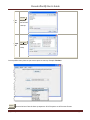
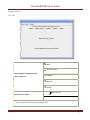
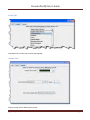
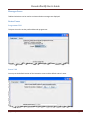
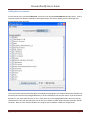
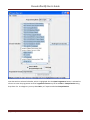
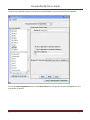
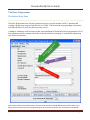
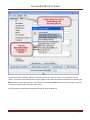
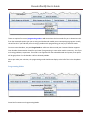
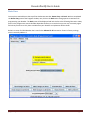
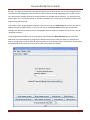
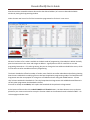
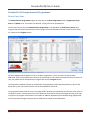
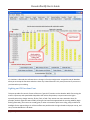
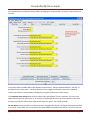
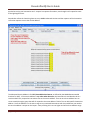
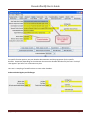
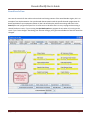
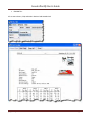
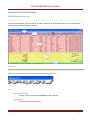
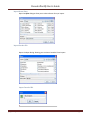
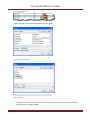
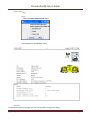
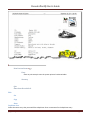
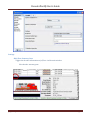
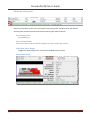
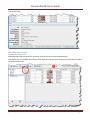
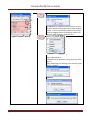
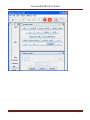
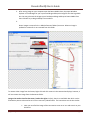
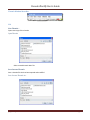
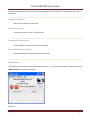
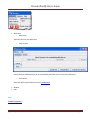
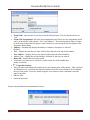
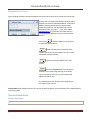
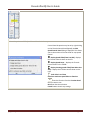
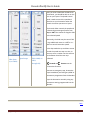
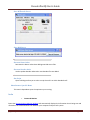
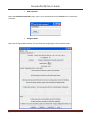
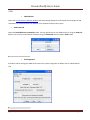
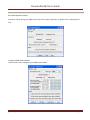
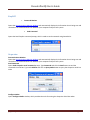
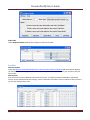
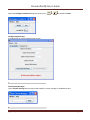
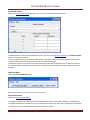
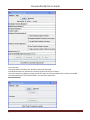
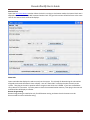
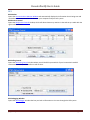
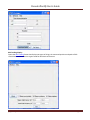
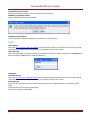
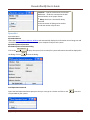
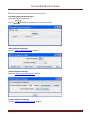
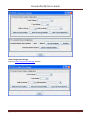
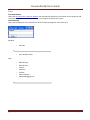
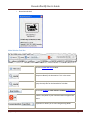
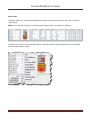
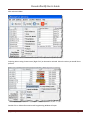
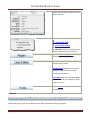
2. After storing image on your computer open the Roster Media Pane, then open Windows Explorer or File Manager for your system and drag and drop the image file into the large black box. You may also save the image to your Desktop and drag and drop to Roster Media from there. DO NOT try to drag and drop from a website. 3. Roster images are stored in the <JMRI Preferences folder>/resources. When an image is updated or removed it is not removed from this folder. To remove either image from the Roster, Right click and click remove in the context that displays, however, it will not remove the image from the Resources folder. Image to be used as icon for that roster, head to the right: similarly, there is a small black box which can be filled with a picture to be used as an icon for roster entry identification. The instructions are the also similar: 1. Next you must find the image of the Locomotive to use as an icon and store it on your disk drive. [Typetext]
Page93