1
IPython Documentation, Release 1.2.1: An Afternoon Hack
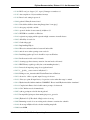
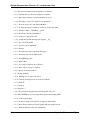
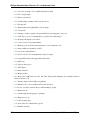
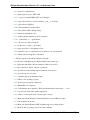
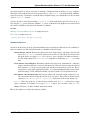
4.8.3 Running with a different URL prefix
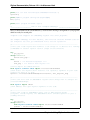
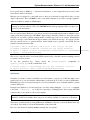
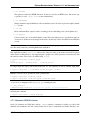
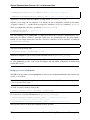
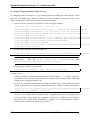
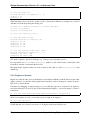
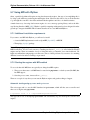
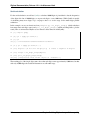
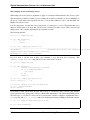
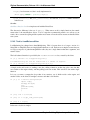
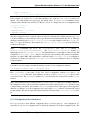
The notebook dashboard (the landing page with an overview of the notebooks in your working directory) typically lives at the URL http://localhost:8888/. If you prefer that it lives, together
with the rest of the notebook, under a sub-directory, e.g. http://localhost:8888/ipython/,
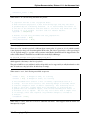
you can do so with configuration options like the following (see above for instructions about modifying
ipython_notebook_config.py):
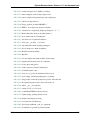
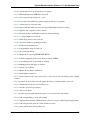
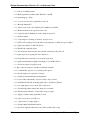
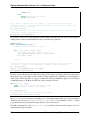
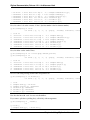
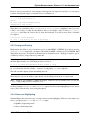
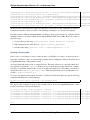
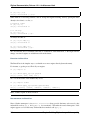
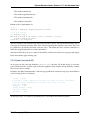
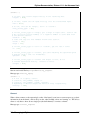
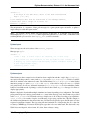
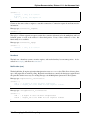
c.NotebookApp.base_project_url = '/ipython/'
c.NotebookApp.base_kernel_url = '/ipython/'
c.NotebookApp.webapp_settings = {'static_url_prefix':'/ipython/static/'}
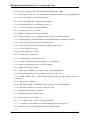
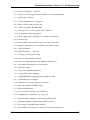
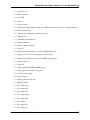
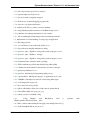
4.8.4 Using a different notebook store
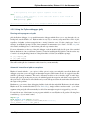
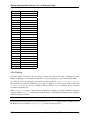
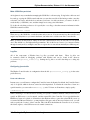
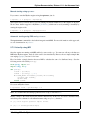
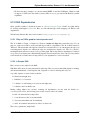
By default, the notebook server stores the notebook documents that it saves as files in the working directory of the notebook server, also known as the notebook_dir. This logic is implemented in the
FileNotebookManager class. However, the server can be configured to use a different notebook manager class, which can store the notebooks in a different format.
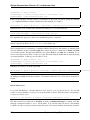
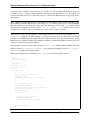
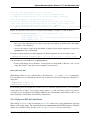
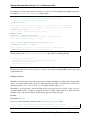
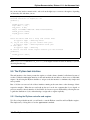
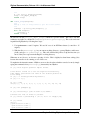
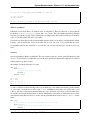
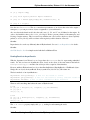
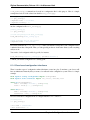
Currently, we ship a AzureNotebookManager class that stores notebooks in Azure blob storage. This
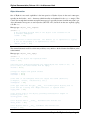
can be used by adding the following lines to your ipython_notebook_config.py file:
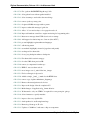
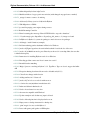
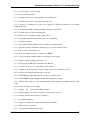
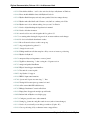
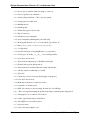
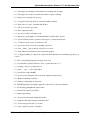
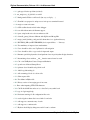
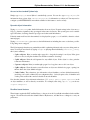
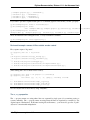
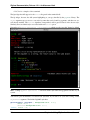
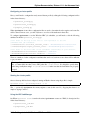
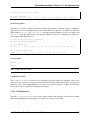
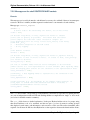
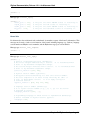
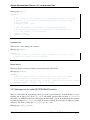
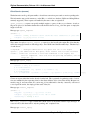
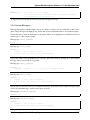
c.NotebookApp.notebook_manager_class =
'IPython.html.services.notebooks.azurenbmanager.AzureNotebookManager'
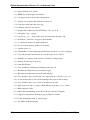
c.AzureNotebookManager.account_name = u'paste_your_account_name_here'
c.AzureNotebookManager.account_key = u'paste_your_account_key_here'
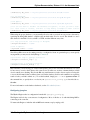
c.AzureNotebookManager.container = u'notebooks'
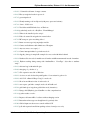
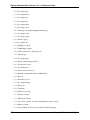
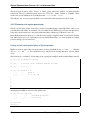
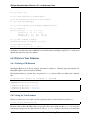
In addition to providing your Azure Blob Storage account name and key, you will have to provide a container
name; you can use multiple containers to organize your notebooks.
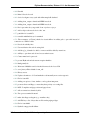
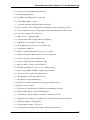
4.8.5 Known issues
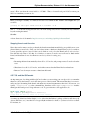
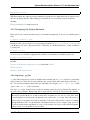
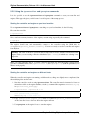
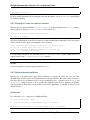
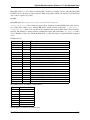
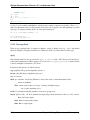
When behind a proxy, especially if your system or browser is set to autodetect the proxy, the notebook web
application might fail to connect to the server’s websockets, and present you with a warning at startup. In
this case, you need to configure your system not to use the proxy for the server’s address.
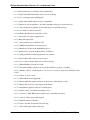
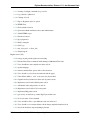
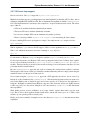
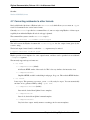
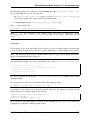
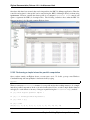
For example, in Firefox, go to the Preferences panel, Advanced section, Network tab, click ‘Settings...’, and
add the address of the notebook server to the ‘No proxy for’ field.
4.8. Running a notebook server
257