1
used in case that installation CD is not available.
Chapter III Search equipment and log in to the network
camera
1: Make sure the equipment is properly connected with the network and power.
2: The router must support DHCP (Dynamic Host Configuration Protocol),
because dynamic IP addresses obtaining is one of the factory settings of
camera.
3: The camera can not be immediately used when power connection is OK,
system initialization will cost about 20 seconds.
1: Search Equipment
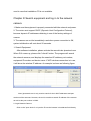
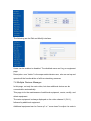
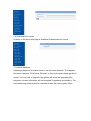
After software installation, please activate the search tools ipcamtools.exe.
When GUI comes up, please click "refresh" button. The program will search
the network cameras, and displays the searched IP address, port number,
equipment ID number and device name. If WIFI wireless connection is in use,
it will show the wireless IP address. An example is shown as following figure.
Note: (ipcamtools.exe is only used to search for the LAN IP addresses and port
numbers of the cameras. However, the tool is not able to search IP address of the camera
as well as the port number in WAN.
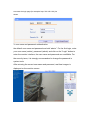
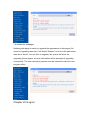
2: Login Network Camera
Click on the "open device" or input the IP into the browser in its address field directly