1
PrintFleet Optimizer
Using PrintFleet Optimizer
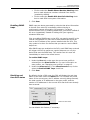
Groups can be deleted at any time. Associated subgroups and
devices will be either deleted or moved, depending on what option
you choose.
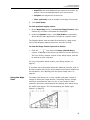
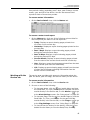
To delete a group:
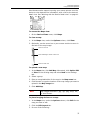
1. On the Settings menu, point to Group Management, and then
click Manage Groups.
2. Click to select the group you want to delete.
3. Click Remove.
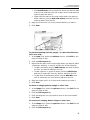
4. In the box that appears, do one of the following:
•
Click to select Delete this group and all associated subobject(s).
•
Click to select Delete this group and re-assign all
associated sub-object(s), and then select a group from
the Move To list.
5. Click Remove Group.
6. In the dialog box that appears, click OK.
Note
Assigning
devices to
groups
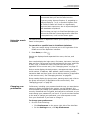
Users cannot delete groups they have been given
specific access to. For example, if a user is given
access to the Widgets group, they cannot delete
the Widgets group, but they can delete any child
group of Widgets (provided they have full access
to the Manage Groups screen).
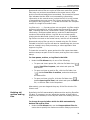
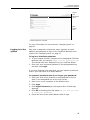
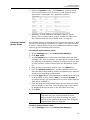
Each device must be assigned to a group. By default, devices will be
placed into the group that the DCA is targeted to. Devices can be
moved to any existing group after they are first discovered.
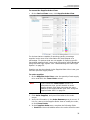
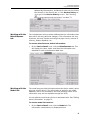
To assign devices to groups:
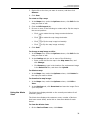
1. On the Settings menu, point to Group Management, and then
click Organize Devices.
2. Select the group that contains the devices you want to move to
a different group.
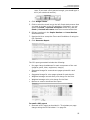
3. Click to select the check box beside each device you want to
move to another group.
4. Click and drag one of the selected devices (it will automatically
drag all selected devices) to the group you want them moved to.
64