1
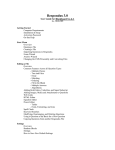
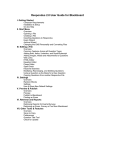
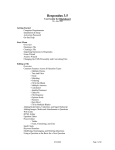
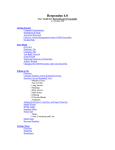
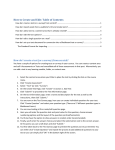
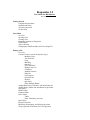
Start Menu (Blackboard Personality)
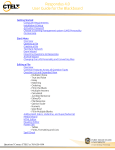
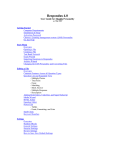
Overview of Start Menu
Opening a File
Creating a File
Importing Questions to Respondus
Exam Wizard
Archive Wizard
Changing the CMS Personality and Converting Files
Overview of Start Menu
The Start menu provides the ability to Open a Respondus file, Create a new file, and Import
questions from a text file. The Exam Wizard provides the easiest way to create an exam from an
existing set of questions. The Archive Wizard allows you to archive an exam or survey,
including all media components and equations, with a single click.
Opening a File
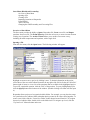
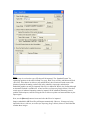
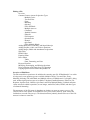
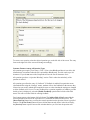
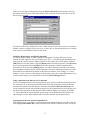
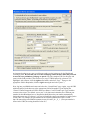
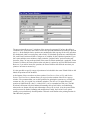
From the Start menu, click the Open button. The following window will appear:
Highlight an exam or survey project by clicking it once. To obtain information on the project,
select either of the two center buttons located to the top right of the file list. Select the “Item List”
button (right of center) to view a list of the questions that are available in the highlighted project.
To preview a particular question, click the “title” of the question. To open a highlighted project,
click the [Open] button at the bottom of the window. (Double-clicking a file name will also open
it.)
Respondus allows projects to be organized within folders. For example, you can place the exams
for a particular course within a folder rather than having exams for all courses listed together. To
create a new folder, click the “Create New Folder” button located second from left. To navigate
down a level within a folder, double-click on the folder itself. To navigate up a level, click the
“Up One Level” leftmost button on the row.
5