1
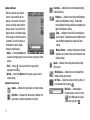
Rename a Group
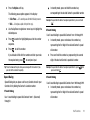
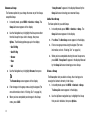
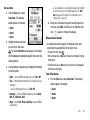
The Rename option lets you change the name any of the Groups,
except No Group.
1.
In standby mode, press MENU ➔ Contacts ➔ Group. The
Group List screen appears in the display.
2.
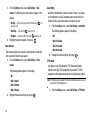
Group List screen showing your renamed Group.
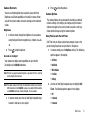
Add a New Group
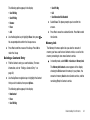
The New option lets you add Groups.
1.
Use the Navigation key to highlight the Group name other
than No Group that you wish to change, then press
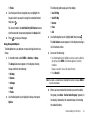
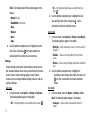
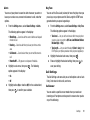
Options. The following options pop-up in the display:
• Send Txt Msg
• Send Pic Msg
• Rename
• Erase
• Add
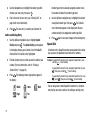
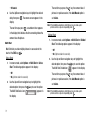
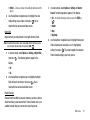
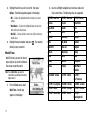
3. Use the Navigation key to highlight Rename, then press
.
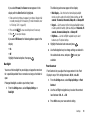
The Rename Group screen appears in the display.
4.
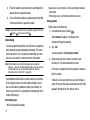
“Group Renamed” appears in the display followed by the
Enter changes to the group name using the keypad. (For
Group List screen appears in the display.
2.
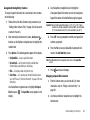
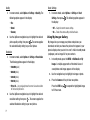
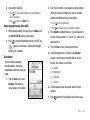
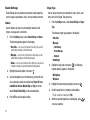
Press New. The New Group screen appears in the display.
3.
Enter a new group name using the keypad. (For more
information, refer to “Entering Text” on page 28.)
4.
When you have completed your changes to the Group
name, press SAVE.
43
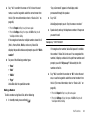
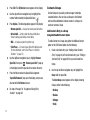
When you have completed entering the new Group name,
press SAVE. “Group Saved” appears in the display followed
by the Group List screen showing your new Group.
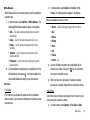
Erase a Group
The Erase option lets you delete a Group, thus freeing you to
reassign the Contacts formerly in the Group.
1.
In standby mode, press the MENU ➔ Contacts ➔ Group.
The Group List screen appears in the display.
more information, refer to “Entering Text” on page 28.)
5.
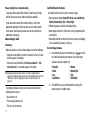
In standby mode, press MENU ➔ Contacts ➔ Group. The
2.
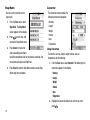
Use the Up/Down navigation keys to highlight the Group
that you wish to delete, then press Options.