1
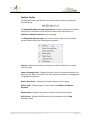
Administration Configuration
This is where the system configuration takes place. Only authorized system
administrators should see this icon. Refer to the Remote Console Administration
Manual for more information in this area.
Log-Off
The Log-Off Icon allows the user to log out and return to the login page.
Reports
The Remote Console can provide reports in many ways. A new activity is established if
there is a period of time in between input triggers, such as a motion detector or visual
motion detection. This is a configurable time under system settings but is defaulted to
15 min. This means that if the there are no activities for a 15 min stretch the next trigger
will start a new activity.
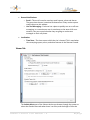
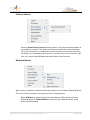
Date Filter
For all report types it is possible to select a date range. This date range allows
you to select just the range of reports that you or the client might want to
review without transferring extraneous information. This is done by clicking the
Date Filter icon, shown below.
Clicking this icon will open a new menu. From the menu, select the date range
that you would like to view. The currently selected range is displayed to the
right of the Date Filter icon. Only reports from this time period will be visible in
the standard reports.
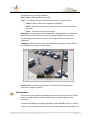
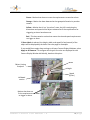
Selecting Date or Date Range from the menu will cause a new window to appear.
Simply click the arrow to the right of the date and select the appropriate day, as
shown on the next page.
Remote Console User Manual 7.0
20 | P a g e