1
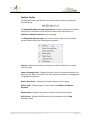
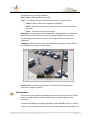
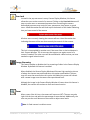
and select either preview and print or save image. You will then be asked where
to store the image. In some instances the image may not be available. This is
most likely due to another user having the camera in a user lock mode. In this
case the images were not able to be gathered.
At the bottom of the report you will see who this report was sent to.
Time-Lapse
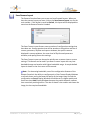
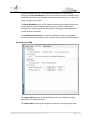
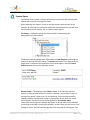
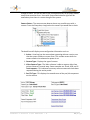
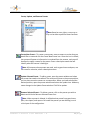
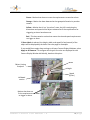
Time-Lapse videos are accessed through this point. Select the time lapse you
would like to see and the available videos will be shown in the details window.
Click on the video that you would like to view.
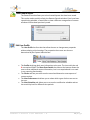
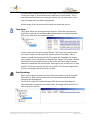
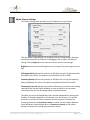
In some cases the Time-Lapse may be aborted. This means that someone had
the camera locked over the end of the capture section. Remember, when a
camera is locked, automated tasks like Time-Lapse are suspended and images
are not taken. This is indicated as an aborted Time-Lapse. A Time-Lapse is a video
file and the file link includes the type of file, in this case Time-Lapse, its status,
aborted or completed, the camera name, the length of the actual file as if it were
played in 15 frames / second, and the size of the file. The file size is important if
you are retrieving the file off site from the SMS.
User Recordings
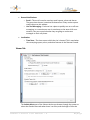
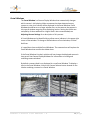
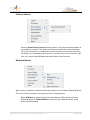
When a user requests a custom live recording, this is where it can be retrieved.
Select the site, date, and the camera that you recorded on and the available
recordings will be displayed.
The link to the video file includes the type of file (in this case Recording), its
status (aborted or complete), the camera name, the length of the actual file, as
well as the size of the file.
Remote Console User Manual 7.0
23 | P a g e