1
KMX Analytics Documentation
4. The Workspace Window
4.4.5 Saving a brush
Brushes are an easy way for a user to select documents of interest. To retain the work performed to
create a brush, the user can choose to save the documents contained by a brush to a file for later use. To
save a brush right click on the desired brush and choose Save brush.... The user is then prompted to
select a location where the brush can be saved. This creates a <name>.brush file, with the name defined
by the user, containing the accession numbers of the documents contained in the brush.
4.4.6 Loading a brush
The user can choose to load the content of a brush that was saved at a prior time. To load a brush the
user either selects a current brush or creates a new brush and right clicks on the selected brush. From the
context menu select Load brush.... The user is prompted to select a brush file. The items will just be
selected in the color of the brush that was selected to load the brush in. The name of the brush selected
when the user choses to load a brush will be assigned the name of the brush file.
4.4.7 Exporting the brushing legend
As brushing is the ideal tool to highlight sections of the visualization it follows that the user needs some
method to export the meaning of each brush. There are two options to export the current brushes view
legend. Both are selected from the Brushes view context menu.
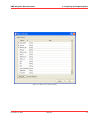
• Copy all labels to clipboard - Copies the brush legend to the clipboard
• Save all labels - Saves the brush legend to a file
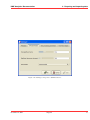
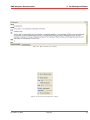
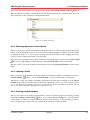
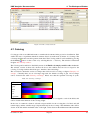
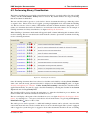
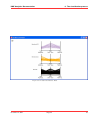
The resulting clipboard image or file will resemble the figure illustrated in figure Brush legend.
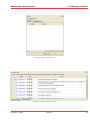
Figure 4.14: Brush legend.
4.5 Filtering
The Filter and Query window provides the user with a means to identify interesting areas of the visualization and hide the rest. The Filter and Query window can be enabled by pressing the Filter and Query
button on the toolbar or by selecting Window → Filter and Query.
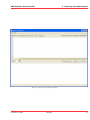
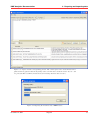
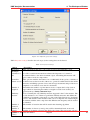
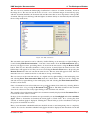
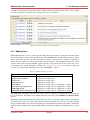
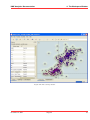
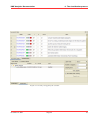
The resulting Filter and Query window (see figure Filter and Query view.) consists of two tabs. The first
tab contains the Filter Builder, a table based filter editor. The second tab enables the user to specify a
filter using a manual text query.
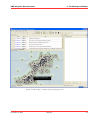
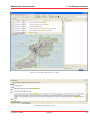
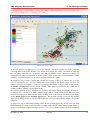
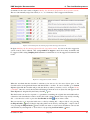
If filters have been defined, not all documents will be visible when the workspace is opened. If this is
the case, a warning will be shown at the top of the window. By clicking on the warning text, the filters
will be disabled and all documents will be shown. The warning text will be updated to remind the users
that the filters are now disabled.
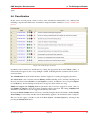
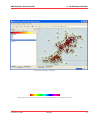
If filters have been defined (see Filter and Query view.), not all documents will be visible when the
workspace is opened. If this is the case, a warning will be shown at the top of the documents table. By
November 4, 2011
Treparel
29