1
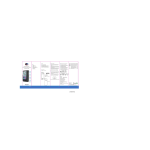
TV Upgrader
Enjoy 3D movies and play 3D games on your 2D TV
Caution :
To ensure this TV upgrader works at its best,
please read the user manual carefully before
operation and keep for future reference.
User Manual
Product Description
Before
---3D TV programs or movies can not be displayed normally on the regular 2D TV .
Users can only see the images below on 2DTVs after connecting 3D signals :
(Side-By-Side)
(Top-and-Bottom)
(Frame Packed)
Now
--- You can enjoy amazing 3D effect on the regular 2D TV at home through TV upgrader !
---TV upgrader supports sources from HD Multi-Media player, 3D Blu-ray Disc player ,
3D TV channels and 3D games.
--- TV upgrader supports 3D multi-formats(side by side, top-and-bottom and frame packed)
Note:
The sources of movies , TV programs and games must be in 3D format)
Specification
Specifcation
1.4a(3D)
Frame Packed(FP)
Side-By-Side(SBS)
Top-and-Bottom(TAB)
Xbox
HD Cable Box, 3D Blu-ray disc player
1080 i/p @ 50/60hz
720p @ 50/60hz
2D TVs
Two 3D glasses, one HDMI Cable(1.5m/ 4.9Ft),
one remote control, one power adapter and one user manual
1
Connect
HD Cable box
3D Blu - ray dist player
PS3
Wii
HD Multi-Media Player
HDMI output
from the above devices
AC 110-240V
TV upgrader
HDMI OUTPUT
HDMI INPUT-1
or
TV HDMI INPUT
2
HDMI INPUT-2
DC IN(5V/1A)
How to Enjoy 3D effect
Menu
1. Turn on the TV upgrader
( LED will show color green)
MENU
2. Select HDMI input signal
( HDMI 1 or HDMI 2);
---If signal selection is wrong,
the "Warning" notice will be
displayed:
TV
Upgrader
Arrow
"OK"
Buttons
Input Signal
Selection
Mode
INPUT
MODE
Enjoy 3D movies and play
3D games on your 2D TV
4.1. Mode
2D Bypass
---Bypass mode
2D to 3D
--- If the signal input is in 2D format,
the TV Upgrader will output 3D signal
directly if choose "2D to 3D".
(This function is not recommended)
3D-SBS to 3D
3. Press MENU button to setup or check the
setting items:
---If the signal input is 3D side by side,
please choose “3D- SBS to 3D”.
3D-TAB to 3D
4. Press MENU or MODE button to
enter Mode Sub-Menu
--- If the signal input is 3D
Top-and-Bottom,please choose
“3D-TAB to 3D”.
Note:
If the signal input is 3D Frame Packed
,the TV Upgrade will automatically
identify and play.
3
5. 3D Brightness Adjust :
Press Arrow and “OK”buttons to adjust
3D brightness.
7, Language selection:
( Chinese, English and Spanish)
Enter 3D Brightness. Use left and right
buttons to adjust the brightness.
8. Product Version:
Special 3D tea blue glasses
6. Information check:
In Play mode, press“OK”button to check
on your TV Upgrader's information .
Users need to put on special 3D glasses to
enjoy the 3D effect.
(Two pairs of special 3D glasses are
included in each TV Upgrader package)
For more 3D glasses options, you are
welcome to contact the assigned local
agents for more information.
CAUTION
To ensure a better 3D effect, please wear
the glasses included in the TV Upgrader
package or purchase from the assigned
local agent only. Otherwise the 3D effect
will be reduced and even damage your
eyes.
Note:
The setup will be saved automatically
after confirmation .
4