1
Using the copyboard connected to a computer
When the copyboard and a computer are connected by USB cable, the copyboard is recognized as an
external memory device (removable device). Below is the procedure for copying the "CBImage.JPG" file from
this device onto the computer. The format in which the image files are stored can be set to "JPEG". For North
American models only, image files are stored in PDF format.
Notice
• Only one sheet’s worth of data can be stored in the copyboard’s internal memory.
When the storage procedure is performed successively on the copyboard, the data is overwritten.
• The image data in the copyboard's internal memory is cleared when the USB connection between the copyboard and
computer is cut off.
• Do not save data from a computer into the copyboard's internal memory.
• The copyboard's internal memory cannot be formatted from a computer.
• Do not disconnect the USB cable or access the copyboard while the data is being saved after pressing the copyboard's
Save ( ) button/. Doing so may cause operation of the computer to become unstable.
• Do not press any operation buttons on the main unit while the copyboard's internal memory is being accessed from the
computer. The response time could be long and the operation may not be possible.
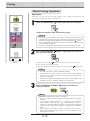
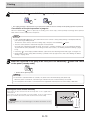
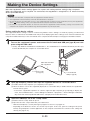
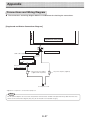
Turn on the copyboard's power and connect the PC dedicated USB port (type B) and computer using the USB cable.
• Usually, with Windows XP/Windows Vista/Windows 7, the standard driver is installed automatically and the copyboard is identified by the computer as a removable device.
USB cable included
with copyboard
To computer's USB
port (type A)
To PC dedicated
USB port (type B)
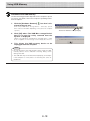
On the computer, open "My Computer", and
from there open the copyboard identified as a
removable device.
(1) Double-click the "My Computer" (or "Computer") icon to
open it.
(2) When the device icon for the copyboard (displayed as a
removable disk) is double-clicked, the copyboard’s internal memory opens.
The "CBImage.jpg" file is the scanned image file.
- The "setup" folder contains the copyboard settings file.
- To check the copyboard’s operation as a device, rightclick [My Computer] (or [Computer]) to display the menu,
then at Administration -> Device Manager in Windows 7
(Properties -> Device Manager in Windows XP), check
that "PLUS Copyboard USB Device" is displayed as the
disk drive name.
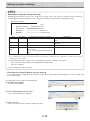
(3) Copy the "CBImage.jpg" file to [My Documents], etc., on
the computer.
To disconnect the USB cable, follow the procedure in step 3
on the previous page.
E-19
Drag to My Documents