1
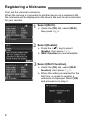
Registering a Nickname
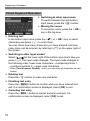
Virtual Keyboard Operation
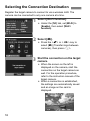
Switching to other input areas
To switch between top and bottom
input areas, press the <Q> button.
Moving the cursor
To move the cursor, press the <U>
key in the top area.
Entering text
In the bottom input area, press the <V> or <U> key to select
characters and press <0> to enter them.
You can check how many characters you have entered, and how
many more can be entered, by referring to [*/*] on the upper right of
the screen.
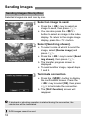
Switching to other input modes*
Select [
] at the lower right of the bottom area. Each time you
press <0>, the input mode changes. The input mode changes in
the following order: lower-case characters9numbers/symbols 1
9numbers/symbols 29upper-case characters.
* When [Touch control: Disable] is set, you can enter all characters on one
screen.
Deleting text
Press the <L> button to erase one character.
Finishing text entry
Press the <M> button to confirm what you have entered and
exit. If a confirmation screen is displayed, select [OK] to exit.
Canceling text entry
Press the <B> button to cancel text entry and exit. If a
confirmation screen is displayed, select [OK] to exit.
10