1
Volume Setting Guidance
Your Juno Tower is equipped with a powerful Adapto™ feedback suppression engine that helps
avoid harsh squealing noise that would normally occur when a microphone gets too close to a
speaker. Nevertheless, try to use volume settings for daily use that give good audibility without
constantly activating the feedback suppression engine.
The chart below shows the volume settings for the Pendant and Pass-Around microphones that are
adequate for a typical classroom environment (600 - 900ft2 /56 - 84m2). If more volume is required
for a large or noisy room, you may notice the Adapto engine activating and at a high volume or
short distance, the engine may not be able to maintain a pleasant audio quality. If feedback occurs,
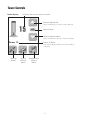
move away from the Tower, remain behind it while talking, or lower either the master volume or the
volume for the microphone that is causing the feedback. (See pages 12, 13)
Recommended:
Master Volume
Pendant Microphone Volume
Student Microphone Volume
18 - 20
5-6
4-5
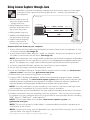
System Integration Guidelines
Today’s modern classroom has a host of electronic devices used to support the instructional
environment. Many of these devices are connected together via a Personal Computer that typically acts as the control point for these devices. Projectors, Interactive White Boards, Document
Cameras, Paging Interfaces, etc, are all typically connected to a classroom PC. In addition to these
devices there are often other support devices used to make these connections.
Your new Juno Tower is another electronic device that can also be connected to your classroom
PC. But unlike the other electronic devices mentioned above, the Juno Tower contains a sensitive
Infrared radio receiver. To ensure that the Juno Tower is providing good performance, it is important to follow good installation practices.
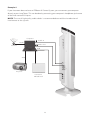
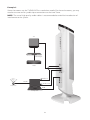
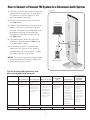
When the Juno Tower is connected to the classroom PC, it is now sharing a common ground reference with all the other devices connected to the PC. If one or more of the devices has a poor
or noisy ground reference, its poor performance can influence other devices connected to the
same reference and this includes your Juno Tower. To help ensure the best performance possible,
please refer to the installation guidelines below:
1. C
onnect the Juno Tower’s external power supply to a wall outlet. Do not use extension cords
and if a power strip is needed, ensure that it is of good quality.
2. Do not position the Juno Tower where sunlight can directly shine on the Tower. The Tower uses
infrared signals to link the transmitter to the receiver. Sunlight contains infrared energy and will
reduce the system’s performance.
3. Use good quality audio cables when connecting the Tower to the classroom PC.
4. T
he USB cable provided with your Tower System has been qualified by FrontRow. Use this cable
whenever possible. If another length of cable is needed, it must be certified for USB 2.0 or better.
5. C
onnect the USB cable directly to the classroom PC. Do not connect via an External USB Hub device.
6. A
void running the USB and audio cables connecting your Juno Tower to the classroom PC with
other cables. Noise can be present on the other cables that can be transferred to the cables
connecting the Juno Tower to the classroom PC.
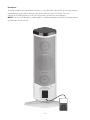
NOTE: Your Juno Tower has 2 ports for charging and programming FrontRow microphones. These
ports should not be used to connect other devices to your computer.
5