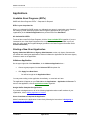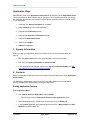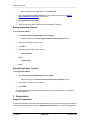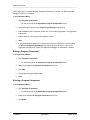
1
DCA SAGE USER GUIDE SAGE User Guide ______________________________________________________________________________ Introduction The System for Administering Grants Electronically (SAGE) is a web-based application used by the Department of Community Affairs (DCA) to accept and approve grant applications and manage executed grants. Municipalities, developers, non-profits, and all other eligible agencies submit their applications and manage their DCA Grants using SAGE. SAGE Technical Requirements Recommended operating systems SAGE has been designed and developed for the two most popular operating systems, Windows and Macintosh. Windows Requirements— Windows 95 or higher MAC Requirements— OS 7.5 or higher running on a PowerPC processor Other operating systems— SAGE has not been tested and is not supported on other operating systems such as Linux and UNIX. Internet Connection Requirements To use SAGE, you must have a connection to the Internet. No ideal connection speed is necessary to access the site. A standard modem connection (a phone line that plugs into the back of a computer) is acceptable; however, the faster your connection to the Internet, the more efficiently SAGE will run. Computer Software Requirements and Configurations Internet You will need an Internet Browser to access the system. SAGE was designed specifically for use with Internet Explorer 6.0 or higher or Netscape Navigator 6.0 or higher. Older versions of Internet Explorer or Netscape Navigator can access SAGE, but some of the functionality of the system may be lost or cause errors. Internet Explorer is the recommended browser. Email Both DCA staff members and the SAGE system use email to send notifications and announcements to applicants and grantees. All SAGE users need email access. Adobe Acrobat Adobe Acrobat Reader 4.0 or higher is required to use some of the features of SAGE. 11/28/2007 Introduction Page 3 of 58 SAGE User Guide ______________________________________________________________________________ Login To access SAGE, you must have a Username and Password (see Getting Started). To login to SAGE, go to https://njdcasage.state.nj.us/Portal.asp, enter your Username and Password in the appropriate fields, and click Login. SAGE Login Icon To add a SAGE icon to your PC Windows desktop— • At the SAGE login screen (https://njdcasage.state.nj.us/Portal.asp) right click your mouse on an empty section of the screen • Select Create Shortcut in the pop up box • Click OK at the confirmation box Forgot Your SAGE Password? • Click the Forgot Your Password? link on the SAGE login screen. − • Enter your first name, last name, and email address in the appropriate fields − • You will be taken to the Request User Name and Password screen. The information must match the information stored in SAGE that identifies you as a SAGE user Click Send − You will be emailed a new password If that doesn’t work, contact the SAGE Help Desk [email protected] or (609) 292-8134. Username You shouldn’t forget your SAGE Username, because it is created from your own name. SAGE automatically assigns user names that consist of the first initial of your first name combined with your last name—no spaces. If more than one person has the same name in SAGE, the system will add a sequential numeral (1,2,3, etc.) after the last name (no spaces). For example— Name SAGE Username John Jones jjones John Jones jjones1 John Jones jjones2 Longer and Hyphenated Names SAGE Usernames have a maximum of 11 characters, so if your first initial and last name add up to more than 11 characters (including a hyphen, no spaces) your name will end at the 11th character. For example— 11/28/2007 Name SAGE Username Clarice Sabree-Sylla csabree-syl Introduction Page 4 of 58 SAGE User Guide ______________________________________________________________________________ SAGE Details Task List Each time you log into SAGE, check the Task List on the left side of the screen. Items listed in your Task List are your SAGE “to do” list. To begin working on a task, click its underlined hyperlink. Searching See Start Menu for information about using Quick Links to search. Back and Forward When working with SAGE, use the navigational links that SAGE provides, instead of the Internet browser’s Back Á and Forward  buttons. Otherwise, you may not be seeing the most accurate, current data—and, sometimes, if you use Back Á and Forward Â, SAGE may “hang up” on you. Refresh If you do use the Back Á and Forward  buttons, and you want to make sure you have the latest SAGE data, click your Internet browser’s Refresh button. Scroll Up or Down SAGE pages can be large. Be sure use the scroll bar (at the far right side of the screen and on the bottom) to scroll up, down, left, or right to see information that may be above or below your current location. Automatic Logout For security reasons, SAGE automatically logs out after it is idle for 45 minutes. “Idle” means you haven’t clicked a link, saved a page, or sent anything to the Web Server. Sending and Saving Data SAGE is a web-based application. While you are working in the system, information is not sent to and from the SAGE database until you click a button, like Save, Submit, etc. Click Save periodically while you are working in SAGE (especially when you are filling in a long form, or if you leave your desk for awhile). If your Internet connection is broken or if SAGE automatically logs you off in the middle of entering data, your work will be lost and you’ll need to re-enter your information. Required Fields A data input field with a red asterisk (∗) in SAGE must have information entered into it for the form to be saved and accepted. If you encounter a field with a red asterisk, but you have no information to enter, type “N/A” into the field. 11/28/2007 Introduction Page 5 of 58 SAGE User Guide ______________________________________________________________________________ Pop Ups If you are using a Popup Blocker, turn it off to use SAGE. Confirmation Boxes When you click Save, Submit, Delete, etc. in SAGE, the system displays a confirmation box, asking if you are sure you want to complete the action. Click OK or No at this box, and the command will either be executed or cancelled. Certification Boxes When submitting certain reports, the system will display a Certification Box, asking for your Password. Read the statement in the box, and, if you agree, enter your regular SAGE Password and click OK. Pending Items— If you have an Amendment, Revision, or Financial Status Report in progress, you cannot submit an additional Amendment, Revision, or Financial Status Report for the grant until the pending matter is approved and executed by DCA. Application or Grant Contacts To see or work on an application or grant, Agency Contacts must be given access to the application or grant by the Application or Grant Administrator. Contacting DCA If you have a question about a grant or application, contact your Application or Grant Manager. To email your Application Manager, click his or her Name in the green information box at the upper left side of the Application Menu. If you have a question about SAGE – or if you’re not sure who can help you – contact the SAGE Help Desk [email protected] or (609) 292-8134. 11/28/2007 Introduction Page 6 of 58 SAGE User Guide ______________________________________________________________________________ Getting Started To begin using SAGE, your Agency needs to— 1. Be registered in DCA SAGE (see Requesting Access to SAGE) 2. Develop an Agency Contact list that includes at least two contacts who will be your Executive Director and Financial Officer (see Adding Agency Executives to SAGE) 3. Submit an Agency Information Update (see Creating and Submitting an Agency Information Update) Is your agency currently registered in DCA SAGE? SAGE Registration pertains to agencies, not individuals. Your agency may have already been given SAGE access. If your agency has received a DCA grant or loan within the past few years, you are probably already registered in the SAGE system, even if you have never used SAGE. All New Jersey municipalities and counties are registered in SAGE. If you need a SAGE Username and Password, and you work in an agency that may currently have access to SAGE, contact your chief executive (SAGE calls this person an Agency Authorized Official) to be added as an Agency Contact—do not attempt to register yourself. DCA will not consider requests for access by anyone other than an agency’s highest executive. If you cannot establish whether or not your Agency is registered in SAGE, or if your SAGE Agency Authorized Official is no longer available, contact the SAGE Help desk. 1. Requesting Access to SAGE If your agency is not registered in the SAGE system, go to the SAGE login screen at https://njdcasage.state.nj.us/Portal.asp on the Internet (or, go to the NJ DCA home page and click the SAGE icon). • At the SAGE login screen, click the Request SAGE Access hyperlink (in the Login box) − You will be taken to the Access Request Information screen • Type in your name and email address in the appropriate fields • Enter information about your Agency in the remaining fields • − Fields marked with a red asterisk (*) are mandatory − When your agency’s information is successfully transmitted to the system, you will be returned to the SAGE login screen − When DCA receives and verifies your information, you will get an email with a Username and Password for your Agency Authorized Official Click Save 11/28/2007 Getting Started Page 7 of 58 SAGE User Guide ______________________________________________________________________________ • If the name of your agency is currently in the DCA SAGE database, you will receive the error message “Agency name already exists. SAGE will not allow two agencies with the same name.” Your agency may already be registered to use SAGE or NJ may have more than one agency with the same name Contact the SAGE Help Desk • To login to SAGE, at https://njdcasage.state.nj.us/Portal.asp, enter your Username and Password and click Login 2. Adding Agency Executives to SAGE Part of establishing your agency profile in DCA SAGE is identifying the people who will be serving as your Executive Director and Financial Officer. The first Contacts you add to your Agency Contacts list will be those two names. You won’t be assigning them their titles in this step—you will do that when you create and submit an Agency Information Update. See Adding Agency Contacts. • Give the contacts who will be your Executive Director and Financial Officer a System Security Level of Agency Administrator or Agency Authorized Official − • SAGE sets a limit of two Agency Authorized Officials per agency You may add more Agency Contacts (executives or staff members) at this time, or continue later 3. Creating and Submitting an Agency Information Update An Agency Information Update provides fundamental information about your organization to the Department of Community Affairs. You will be able to initiate and work on a grant application before your Agency Information Update is approved, but you will not be able to submit the application until your Agency Information Update has been received and approved by DCA. For instructions on creating your Agency Information Update, see Initial Agency Information Update. After DCA has received, reviewed, and approved your Agency Information Update, you may be asked to submit specific documentation about your organization. Each year, you will be required to renew your Agency Information Update to verify your information and make changes, if necessary. See Annual Agency Information Update. SAGE will post a notice on your Agency Authorized Official and Agency Administrator’s Task Lists when it’s time to submit the renewal. If your Agency information changes during the year (before your annual update is due), submit a new Agency Information Update immediately. See Mid-year changes to your Agency Information Update. 11/28/2007 Getting Started Page 8 of 58 SAGE User Guide ______________________________________________________________________________ Start Menu When you login to SAGE, you are automatically brought to your personalized Start Menu. The SAGE Start Menu is divided into functional sections. • Task Bar • System Messages • Initiate an Application • Task List • Quick Links Task Bar At the top of the screen, a green bar displays— • Start Menu button, highlighted in dark green (because that’s where you are right now) • Agency Info button • Your agency name and your personal SAGE access level (above the bar, in the upper right corner) • Your user name (click on it to change your own user information and/or password) The boxes in the green Task Bar are actually “buttons” that will take you to other locations within SAGE or allow you to Logout. Other SAGE screens will display additional buttons. System Messages The green box on the top left of the screen displays messages from SAGE administration. To read the message(s), click System Messages. Initiate an Application (SAGE calls a Grant Program an RFP – Request for Proposal.) The Initiate an Application box allows you to— • Review DCA Grant Programs for your type of agency • Select a Grant Program • Start a new application (Apply for a new Grant) • Review the complete list of DCA grant programs 11/28/2007 Start Menu Page 9 of 58 SAGE User Guide ______________________________________________________________________________ If no grant programs are currently available for your type of agency, the Initiate an Application box will say, “There are no RFPs available to you at this time.” If you find a program in the complete list of RFPs, but it is not available in your Initiate an Application box, call or email the person listed under Contact Information. Task List The Task List is formatted in a hierarchical pattern— • Main topics • Sub-topics • Hyperlinks Your Task List is customized to your unique role in your organization and the Application and/or Grant process (as defined in SAGE). If an item is on your Task List, it requires your attention. To start or continue working on one of the tasks, click its underlined hyperlink. Quick Links Quick Links is customized to your unique role in your organization and the Application and/or Grant process (as defined in SAGE). Use it to search for your— • Applications • Grants • FSRs (Financial Status Reports) • Agency Information Updates • System Messages (that you have saved) • Audit Log • Agency Information • Contact (user) Information • Attachments that DCA is expecting to receive from you Quick Links also allows you to access the User Manual and Training Videos. Searching with Quick Links At your Start Menu, in Quick Links— • Click the View [whatever you want to search] hyperlink − 11/28/2007 This will take you to a Search page Start Menu Page 10 of 58 SAGE User Guide ______________________________________________________________________________ • Click Clear to remove any previously entered search criteria • OPTIONAL—Enter criteria to narrow down your search • Click Search • Scroll down to see your results • Click the magnifying glass 11/28/2007 for the item you want Start Menu Page 11 of 58 SAGE User Guide ______________________________________________________________________________ Agency Information Update Initial Agency Information Update After you register to use SAGE, you will be required to submit more detailed information about your agency to DCA—in electronic and possibly hard copy format. You may not submit a Grant Application or Financial Status Report (payment request) until your Agency Information Update has been received and approved by DCA. A message at the top of the Agency Authorized Official and Agency Administrator’s Task Lists will say—Agency Information Update, Submission Required. • Select the Click here to create an Agency Information Update hyperlink − • This will take you to the Search Agency Information Updates screen (Do not Search) Click the Create Update button − You will be brought to the Agency Information Update screen Agency Information • The Agency Information tab will be selected • Click the Edit button • Enter or edit your agency’s information in the appropriate fields or select choices from the pull down lists • When you get to the Executive Director and Financial Officer fields, use the pull down lists to select names from the Agency Contacts you previously created. − • • If you do not have the required names in the drop down list, click Save, leave the Agency Information Update function, and go to Adding Agency Contacts. Add the appropriate names to your Agency Contacts list, and then go back to creating your Agency Information Update. When you get to the Certificate of Corporation field, choose one of the three selections— − I will/have mailed this attachment − I assert that this attachment does not apply − Agency has received grants from DCA; attachment already on file If you selected “I will/have mailed this attachment,” send your Certificate of Corporation to— State of New Jersey Department of Community Affairs Office of Fiscal and Grant Services PO Box 800 Trenton, NJ 08625-0800 • Complete the page and Save 11/28/2007 Agency Information Update Page 12 of 58 SAGE User Guide ______________________________________________________________________________ Service Areas In this section, select the area that your agency serves—the entire State of NJ, one or several counties (sometimes with an additional town), or one or several municipalities • Click the Service Areas tab − The Counties Areas Benefiting page will be displayed If your agency serves the entire State of New Jersey— • Scroll down the list of counties to the very bottom • Select 2200: State-Wide (NJ) • Click Add If your agency serves one or several counties— • Scroll down and select the county − • To choose several counties, hold down the Ctrl key (with Macintosh, use the Command key) and click on the counties one-by-one Click Add − If you serve a town outside your county, follow the directions below to add it If your agency serves one or several municipalities— • Choose the Municipalities tab • Select the county where your town is located • Click List • Click on the appropriate municipality − • To choose several municipalities, hold down the Ctrl key (with Macintosh, use the Command key) and click on the town names one-by-one Click Add Comments (Optional) • To include information you feel is relevant to further define your agency, click the Comments tab • Click Add • Enter your comments in the text field • Save 11/28/2007 Agency Information Update Page 13 of 58 SAGE User Guide ______________________________________________________________________________ Submitting the Agency Information Update Only the Agency Authorized Official or Agency Administrator can submit an Agency Information Update. • Click Submit Update. Modifications Required If DCA needs additional or corrected information for your Agency Information Update, the Agency Authorized Official and Agency Administrator will receive notices on their Task Lists—Agency Information Update, Modifications Required. • Click the Submission Required hyperlink − This will bring you directly to the Agency Information Update screen • Click the Comments tab to see what needs to be changed or added • Follow the same procedures as if this were your initial Agency Information Update • Be sure to Save each page you change In Service Areas, if you need to delete a county or town— • Click the selection box ; for the county or town • Click the Delete button You may add your own comments to those made by the reviewers. • Click on the Comments tab • Click the Add button • Type your comments into the text field • Save When you have completed the required modifications— • Submit Update. Annual Agency Information Update Every agency registered in SAGE is required to update their Agency Information annually. A message at the top of the Agency Authorized Official and Agency Administrator’s Task Lists will say—Agency Information Update, Submission Required. • Click the hyperlink Click here to create an updated Agency Information Update • Follow the same procedures as if this were your Initial Agency Information Update 11/28/2007 Agency Information Update Page 14 of 58 SAGE User Guide ______________________________________________________________________________ • Revise any information that has changed since your previous Update (If your information has not changed since last year, you still need to complete the steps below.) • − Click Edit − Save Submit Update Mid-year changes to your Agency Information Update If your agency information changes (phone numbers, address, etc.) between annual updates, notify DCA by submitting a revised Agency Information Update. At the Agency Authorized Official or Agency Administrator’s Start Menu, in Quick Links— • Click View All Agency Information Updates. − • This will take you to the Search Agency Information Updates screen (Do not Search) Click the Create Update button − You will be brought to the Agency Information Update page • Click Edit • Revise the information that has changed since your previous Update • Save • Submit Update 11/28/2007 Agency Information Update Page 15 of 58 SAGE User Guide ______________________________________________________________________________ Audit Submission for Non-Profit Grant Recipients Audit requirements are determined by your agency’s expenditures of State and/or Federal grant awards during your agency’s 12-month fiscal year. The links below provide guidance about the type of audit you must submit, based on the criteria established within these circular letters and referenced in your DCA grant agreement. http://www.whitehouse.gov/omb/circulars/a133/a133.html http://www.state.nj.us/infobank/circular/cir0404b.htm Audit functions can only be performed by your Agency Authorized Official and Agency Administrator. Submission Required If your agency is required to submit periodic audits to DCA, an Audit task will appear on your Agency Authorized Official and Agency Administrator’s Task Lists when the audit submission is due. If the DCA SAGE submission date for your audit has passed, your agency cannot submit a Grant Application or Financial Status Report (payment request) until your audit is received and approved by DCA. Currently, the SAGE Audit feature requires that you create your audit offline, forward it to DCA, and indicate in SAGE whether you will mail or hand deliver the audit to DCA. To begin, at the Start Menu, under Task List: Actions Required― • Click the hyperlink under Audits. You will be taken to the View/Submit Audits page. 11/28/2007 Audit Submission for Non-Profit Grant Recipients Page 16 of 58 SAGE User Guide ______________________________________________________________________________ View/Submit Audit Your hard copy audit report must have been forwarded to DCA by mail, email, or hand delivery when you enter and submit the audit report information in the SAGE system. At the View/Submit Audit page, from the drop down list in the Method of Submission field— • Select the method you will use to forward your audit to DCA― − I will/have mailed this attachment or − I will/have hand delivered this attachment • Click Submit • Click OK at the Confirmation Box After clicking Submit, you will be taken back to the View/Submit Audits screen, showing the status of your Existing Audits. Once submitted, the audit requirement will no longer appear on the Agency Authorized Official and Agency Administrator’s Task Lists. 11/28/2007 Audit Submission for Non-Profit Grant Recipients Page 17 of 58 SAGE User Guide ______________________________________________________________________________ Forwarding the Audit Report to DCA Audit reports submitted to DCA must be signed and dated by your independent CPA/Auditor. Mail or deliver your audit report to— NJ Department of Community Affairs Office of Auditing, 8th Floor 101 S. Broad Street PO Box 800 Trenton, NJ 08625-0800 To email your audit report to DCA— • Scan a signed copy of the audit report • Save it as an Adobe PDF file • Attach the file to an email and send it to [email protected]. • Select “I will/have mailed this attachment” at the View/Submit Audit page Approval To check on the approval of your submitted audit, at the Start Menu, under Quick Links— • Click on the View Audit Log link You will be brought to the View/Submit Audits page, where you can see the status of your Audit. 11/28/2007 Audit Submission for Non-Profit Grant Recipients Page 18 of 58 SAGE User Guide ______________________________________________________________________________ Agency Contacts To perform Application, Grant, and Agency procedures in SAGE, your staff members must be made SAGE Agency Contacts. Security Levels Agency Contacts (SAGE users) have three kinds of security levels— 1. System (Agency) Security Levels – authority to perform SAGE tasks for the organization (Agency) as a whole 2. Application Security Levels – authority to perform SAGE tasks for one specific grant application (also called “Level of Access”) 3. Grant Security Levels – authority to perform SAGE tasks for one specific grant (also called “Level of Access”) Adding Agency Contacts Agency Authorized Officials and Agency Administrators can add, edit, and/or delete Agency Contacts at lower security levels than their own. • Click Agency Info at the Start Menu − This will take you to the View Agency Information screen • Scroll down to the Agency Contacts list at the bottom of the page • Click Add − You will be brought to the Edit Agency Contact Information screen • Enter the name of the person you are adding as a SAGE user (Agency Contact) • Some of the fields may be pre-populated with data from your Agency Information. You may change the content of these fields (if necessary) and enter specifics about the Agency Contact you are adding. Fields marked with a red asterisk (*) are mandatory − The Active field has been automatically selected by the system. Only Active users can login and use SAGE − Refer to the SAGE Agency Security Levels chart to determine the appropriate System (Agency) Security Level for the contact Security Levels for specific Applications and Grants are assigned in the individual Application and Grant setup process—not here • Click Save − • You will be returned to the View Agency Information screen Continue adding Agency Contacts, as needed 11/28/2007 Agency Contacts Page 19 of 58 SAGE User Guide ______________________________________________________________________________ Usernames and Passwords The new users will automatically receive email notifications with their Usernames, Passwords, and hyperlinks to SAGE. The users will be able to login to SAGE immediately. When they log into SAGE, they will be instructed to change their own passwords. New users might want to refer to the Login, Sage Details, and Start Menu sections of this User Guide to help them get started. Accountability Usernames and Passwords should not be shared. Agency Contacts should always login to SAGE as themselves—not other users. If an Agency Contact needs to perform tasks that his/her Security Level does not allow, the Contact’s Security Level should be changed by the Agency Authorized Official or Agency Administrator. Editing an Agency Contact’s Information With the appropriate System Security Level, you may edit the contact information of the users in your organization at a lower security level than yours. • At the Start Menu, click Agency Info • Scroll down to the Agency Contacts section • Click the ~ radio button for the user to be edited • Click Edit − This will bring you to the Agency Contact’s information form • Make the desired changes to the user’s information • Save Deactivating Agency Contacts With the appropriate System Security Level, you may deactivate users to cancel their access to SAGE. • At the Start Menu, click Agency Info • Scroll down to the Agency Contacts section • Select ~ the the user to be edited • Click Edit − • Click on the Active ; selection box to remove the checkmark and deactivate the user − • This will bring you to the Agency Contact’s information form ; is ACTIVE — is DEACTIVATED Save 11/28/2007 Agency Contacts Page 20 of 58 SAGE User Guide ______________________________________________________________________________ Modifying your own contact information • Click your name on the SAGE Task Bar − You will be brought to the Edit Your Contact Information screen • Click Edit • Type in the fields or use the pull down lists to insert or change information • Save Changing your password • Click your name on the SAGE Task Bar • At the Edit Your Contact Information screen, click on Change Password • At the Change your Password form— • − Enter your old password − Enter your new password − Re-enter your new password (to confirm) Save Changing your name Name changes are performed by a SAGE System Administrator. Contact the SAGE Help Desk. Changing your Agency Authorized Official Only an Agency Authorized Official can modify his or her own information. If your Agency Authorized Official’s information needs to be changed and he or she is not available – or if the Agency Authorized Official has left your organization, email the SAGE Help Desk or call the Help Desk at 609-292-8134. 11/28/2007 Agency Contacts Page 21 of 58 SAGE User Guide ______________________________________________________________________________ Consultants Becoming an Authorized SAGE Consultant To have your firm listed in SAGE as a Consultant—so organizations in NJ can hire you to work on their Applications or Grants—follow the same instructions that an agency would use to get access to SAGE. (See Requesting Access to SAGE) • At the Agency Type field, select an appropriate consultant category from the pull down list (go to the bottom of the list to find consultants). • To add staff members as SAGE contacts—who will then be available in SAGE to work on applications and grants for agencies—follow same instructions that an agency would use to add contacts. (See Adding Agency Contacts) You will be required to submit an initial Agency Information Update to DCA through SAGE, and renew it annually. Consultants should not be added to their clients’ Contact Lists as Agency Contacts—as if the consultants were employees of the clients’ organization. When applicants or grantees hire a Consultant from your firm, they should add the Consultant to the application or grant by following the Using a Consultant procedures. Using a Consultant If your organization hires a Consultant to work on an application or grant, your Application or Grant Administrator needs to give the Consultant access to the application or grant in SAGE. A Consultant who works on an application is not automatically included as a contact for the resulting grant. Do not add the Consultant as one of your regular Agency Contacts—as if the Consultant were an employee of your organization. Assigning a Consultant to an Application At the Application Menu— • Click Control Access to Application • Click Agency Consultants (at the bottom of the page) • At the Agency Consultant Search form, enter the Consultant’s last name or the name of the consulting firm in the appropriate field • Click Search • Scroll down to see your results • Click the little magnifying glass for the desired Consultant 11/28/2007 Consultants Page 22 of 58 SAGE User Guide ______________________________________________________________________________ • At the Assign additional Agency Consultants to application form, select a Level of Access from the pull down list − • Refer to the SAGE Agency Security Levels chart to determine the appropriate Level of Access Click Grant This User Access Assigning a Consultant to a Grant At the Grant Menu— • Click Grantee Contact Information • Click Agency Consultants (at the bottom of the page) • At the Agency Consultant Search form, enter the Consultant’s last name or the name of the consulting firm in the appropriate field (try partial names – the spelling must be exactly the same as it is in the SAGE records) • Click Search • Scroll down to see your results • Click the magnifying glass for the desired Consultant • At the Assign additional access to grant form, select a Level of Access from the pull down list − • Refer to the SAGE Agency Security Levels chart to determine the appropriate Level of Access Click Grant This User Access 11/28/2007 Consultants Page 23 of 58 SAGE User Guide ______________________________________________________________________________ Applications Available Grant Programs (RFPs) SAGE calls Grant Programs “RFPs” – Requests for Proposal. RFPs in your drop down list When you registered for SAGE access, you indicated your agency’s organization type. Based on that category, SAGE will display specific Grant Programs (appropriate for your type of organization) in the Initiate an Application box pull down list on the Start Menu. All Available DCA RFPs To see all the current DCA Grant Programs, click the View Available RFPs hyperlink. If you are interested in one of the Grant Programs on the complete list, but it is not available in your pull down list, call or email the Program Manager (provided in the Grant Program information under Contact Information). Starting a New Grant Application Agency Authorized Officials and Agency Administrators are the only Agency Contacts who can initiate and submit grant applications. Whoever initiates the Application can add more Agency Contacts to work on the application. Initiate an Application On the upper right side of the Start Menu, in the Initiate an Application box— • Choose a grant program from the Select an RFP drop down list • Click Apply for a New Grant − You will be brought to the Application Menu You may start working on the application immediately, or come back to it later. The application will appear on your Task List under Applications – Application in Process. To return to the application, click the application number hyperlink. Assign Staff to Complete the Application If you want to delegate some or all of the following Application tasks to staff members in your organization, refer to Adding Application Contacts. Use a Consultant to Complete the Application Add a Consultant to the Application Contact list by following the instructions in Assigning a Consultant to an Application. 11/28/2007 Applications Page 24 of 58 SAGE User Guide ______________________________________________________________________________ Application Steps IMPORTANT: Refer to the Application Instructions at the beginning of the Application Forms. These were written by DCA Program Staff for your grant. The instructions will guide you through the application process and may stipulate Program-specific information that you need to include in your application. 1. Verify that your Agency Information is up-to-date 2. Assign Contacts to work on the application 3. Complete the Components section 4. Complete the Application Information section 5. Complete all Application Forms 6. Develop your Budget 7. Submit the Application 1. Agency Information Before you start your application, be sure that DCA has the correct information about your agency. • Click the Agency Info button in the green task bar at the top of the screen • Look over your Agency Information and Service Areas • If your information has changed, submit a new Agency Information Update (see Midyear changes to your Agency Information Update) 2. Contacts SAGE automatically assigns the person who initiates a new grant application as the Application Administrator. The Application Administrator must give access to the staff members of your organization (Agency Contacts) who will be working on the grant application. Adding Application Contacts At the Application Menu — • Click Control Access to Application under Contacts − This will bring you to the Give People Access to this Application screen • Select the desired Agency Contact from the pull down list in the Name field • In the Contact Type field, select whether this person will be a Main Contact or a Staff Member from the pull down list 11/28/2007 Applications Page 25 of 58 SAGE User Guide ______________________________________________________________________________ − Main Contacts see the application on their Task Lists • Select the appropriate Level of Access from the pull down list (refer to the SAGE Agency Security Levels Chart, if necessary) • Click Grant This User Access • Continue to give access to additional Agency Contacts, if desired Editing Application Contacts At the Application Menu— • Click Control Access to Application under Contacts − This will bring you to the Give People Access to this Application screen • Select • Click Edit • From the pull down list(s), select a new— − the contact you want to edit Level of Access and/or − • Contact Type Save Deleting Application Contacts At the Application Menu— • Click Control Access to Application under Contacts − This will bring you to the Give People Access to this Application screen • Select • Click Delete the contact you want to delete The Application Contact has not been deleted from the Agency Contact list, just excluded from this application 3. Components Program Components A Program Component is a name or title that describes one or several primary goal(s) that will be achieved with the grant funds. Check the Application Instructions (at the top of the Application 11/28/2007 Applications Page 26 of 58 SAGE User Guide ______________________________________________________________________________ Forms list) to see if it includes Program Component instructions. Contact your DCA Application Manager for advice, if necessary. At the Application Menu— • Click Program Components − You will be brought to the Application Program Components screen • Select a Program Type from the Program Type/Subtype drop down list • Enter a Name for the Component (create one or use a name suggested in the Application Instructions) • Add the address, if your project has a specific location • Save • If your Grant Program allows you to choose more than one Component, you may select an additional Program Type/Subtype, and repeat the process above – refer to your Application Instructions or contact your Application Manager for assistance, if needed. Editing a Program Component At the Application Menu— • Click Program Components − You will be brought to the Application Program Components screen • Select • Click Edit • Change the information appropriately • Save the appropriate Program Component from the list Deleting a Program Component At the Application Menu— • Click Program Components − You will be brought to the Application Program Components screen • Select • Click Delete 11/28/2007 the appropriate Program Component from the list Applications Page 27 of 58 SAGE User Guide ______________________________________________________________________________ Optional Components Some programs, such as Balanced Housing, may include Optional Components that provide auxiliary funding. Refer to your Application Instructions. At the Application Menu— • Click Optional Components (or, if you’re already at Program Components, click the Optional Components tab) − You will be brought to the Current Application Optional Components screen − If the screen displays the message “There are no current add-on components for this application” – skip this screen • If a drop down list is presented, select an appropriate Optional Component • Save • If the drop down list contains more than one Optional Component and your project qualifies for more than one, repeat the procedure above Deleting an Optional Component At the Application Menu— • Click Optional Components − You will be brought to the Current Application Optional Components screen − Select − Click Delete the desired Optional Component from the list Service Areas To specify the town or area of New Jersey that will benefit from this project, select the county and/or towns as you did when choosing your Service Area in the Agency Information Update. Specifying a Service Area in the Grant Application will not affect your overall Agency Service Area. 4. Application Information Program (Project) Description At the Application Menu, under Application Information— • Click Application Program Description − • This will take you to the Edit Application Program Information screen Click Edit 11/28/2007 Applications Page 28 of 58 SAGE User Guide ______________________________________________________________________________ • Enter a name for your project (what you want to call it – “Main Street Redevelopment,” for example) in the Application Title field • Type an explanation of how the grant will be used for this project/program in the Program Description field (text field with up to 250 characters - including spaces) • Save Transferring Ownership Some grant programs offer a Transfer Ownership option to accommodate organizations or municipalities that want to transfer the ownership of a project to another entity after the grant is awarded. Not all grant programs offer this option. If Transfer Ownership is available on your Application Program Description form and you plan to transfer ownership of the project after the grant is awarded— • Select • Save Transfer Ownership Project (Program) Objectives At the Application Menu, under Application Information— • Click Project Objectives (or, if you’re already at Application Program Description, click the Project Objectives tab) − This will take you to the Objectives screen In the Add Objective form— • Give each of your objectives a unique, sequential Number • Enter a Short Description (name) for the objective • Type in a more Detailed Description • Enter the Methods that will be used to accomplish this objective • Evaluation is optional, but you can enter information that describes how you will gauge whether the objective was successful • Select the Program Component that applies to this objective from the pull down list (if your program has more than one component) • Save The system will present another blank Objectives form. Enter as many objectives as your project requires (refer to the Application Instructions). 11/28/2007 Applications Page 29 of 58 SAGE User Guide ______________________________________________________________________________ Editing an Objective At the Application Menu, under Application Information— • Click Project Objectives − This will take you to the Objectives screen • Select • Click Edit • Make your changes • Save the desired objective from the list at the bottom Deleting an Objective At the Application Menu, under Application Information— • Click Project Objectives − This will take you to the Objectives screen • Select • Click Delete the desired objective from the list 5. Application Forms The right side of the Application Menu displays a list of the forms that you must complete during the application process. The first link is (usually) Application Instructions. Refer to these for guidance in completing the forms for your specific grant program. You can print the Application Instructions by clicking the printer icon at the top of the screen. • Click on a form name to select it • Complete all the forms in the Application Forms list • Be sure to Save each form before you close it or move on to the next form Attachments Some forms need to be printed, signed, and sent to DCA. Whenever a paper document is required, the SAGE form will display— I will/have mailed this attachment • Select 11/28/2007 I will/have hand delivered this attachment the delivery option you prefer Applications Page 30 of 58 SAGE User Guide ______________________________________________________________________________ • Print the attachment (see Print Individual Forms) • Forward the signed document to DCA (click the Application Manager’s name in the green box in the upper left corner of the Application Menu for the mailing address) Saving Digital Copies of Forms • Click the View PDF button in the upper right corner of the form − The printer friendly version of the form will open in a new window as an Adobe PDF file • Click the diskette • Save the file in a folder on your computer system (give the form a new name, if desired) icon (Saves a copy of the file) Selecting Forms As you work through the Application Forms, you can navigate three different ways— 1. At the Application Menu, click on the form name in the Application Forms list. 2. Click the Next or Back button on the form you have just completed to go one forward or one backward 3. Place your cursor over Application Menu button on the task bar at the top of the page, drag your cursor to the next section, and click on the form you want. Disable Drop Menus To disable the pull down selection boxes under the Application Menu button— • Click Your User: Name in the Task Bar to access your contact information • Click Edit • Click the Disable Drop Menus selection box • Save − at the bottom of the screen The change will be implemented the next time you login to SAGE 6. Budget To create the budget for your application— • Click Budget Overview at the bottom of the Application Forms − • This will bring you to the Budget Overview page Click a Program Component link (you created these in Program Components) − 11/28/2007 You will be brought to the Budget Detail page Applications Page 31 of 58 SAGE User Guide ______________________________________________________________________________ • Click the Add Budget Item tab − • • An empty Budget Item form will be available Add a budget item— − Select the appropriate Budget Category for the budget item from the pull down list − Provide a Short Description for this budget item − Enter a more Detailed Description for this budget item − Enter the dollar amount requested from DCA in the Requested Funds field − If your Grant Program requires that you report on funds from other sources (matching funds) enter the dollar amount obtained from other sources in the Funds from Other Sources field − Save Continue adding budget items, making sure to Save each one The Budget Detail lists all of the budget items you have entered, calculates subtotals for the budget items you have entered, as well as a grand total for the entire budget. It organizes these calculations into minor and major categories. The overall budget can be altered by adding, editing, or deleting budget items. Editing the Dollar Amount of a Budget Item • Click Budget Overview at the bottom of the Application Forms − • This will bring you to the Budget Overview page Click a Program Component link − You will be brought to the Budget Detail page • Select • Click Edit • Enter the new values in the appropriate fields • Save the budget item(s) you want to change Deleting a Budget Item • Click Budget Overview at the bottom of the Application Forms − • This will bring you to the Budget Overview page Click a Program Component link 11/28/2007 Applications Page 32 of 58 SAGE User Guide ______________________________________________________________________________ − You will be brought to the Budget Detail page • Select • Click Delete the budget item(s) you want to delete Editing the description of a Budget Item (budget category, short description, and/or detailed description) • Click Budget Overview at the bottom of the Application Forms − • Click a Program Component link − • This will bring you to the Budget Overview page You will be brought to the Budget Detail page Click a budget item hyperlink itself − You will be brought to the Budget Item Detail screen • Make your changes to the appropriate fields. • Save 7. Submitting the Application Although several Application Contacts can contribute to an application’s development, only an Application Contact with the security level of Agency Authorized Official or Agency Administrator can Submit the application. • Click the Submit Application button to electronically send the application to DCA for review and approval • Mail or hand-deliver any required attachments Errors or Omissions When you Submit an application— If any of the forms is incomplete, the system will display a pop up box listing the errors or omissions. • Click on the form name hyperlink − You will be taken to the appropriate form • Correct the error(s) or complete the form • Save When your Application Forms are complete— 11/28/2007 Applications Page 33 of 58 SAGE User Guide ______________________________________________________________________________ • Go back to the Application Menu • Submit the application Confirmation DCA will email you confirmation that your application has been received and is under review. Modifications Required If DCA determines that your application needs corrections, additions, or enhancements, your Application Administrator will receive an email message stating: Your application has been reviewed by NJDCA and it was determined that your application requires modifications before it can be accepted. Please revise your application following the suggestions provided by the review team and resubmit it when you are finished. Click here to go to SAGE. Modifying the Application • At the Task List, click on the application number under Application Modifications Required • Access the forms that need modifications in one of two ways— − Click on a form that has a pencil icon (indicating Modifications Required) or − Click Comments Summary on the left side of the screen under Review Results − At the Review Results Summary screen, click on a form name hyperlink • To read the comments from the DCA Review Team, click the Show Comments button on the form to be modified. • Make the recommended changes • Save • Repeat this process until you have corrected all of the forms that need modifications • At the Application Menu click Submit Modified Application If you don’t understand the comments, contact your Application Manager. Finding an application when it is not on your task list After you submit an application, it disappears from your Task List. To access a submitted application, in Quick Links— • Click View All Agency Applications 11/28/2007 Applications Page 34 of 58 SAGE User Guide ______________________________________________________________________________ • At the Search screen, click Clear to erase any previously entered criteria • If desired, enter or select criteria to narrow down your search (such as RFP Category or RFP Fiscal Year) • Click Search • Scroll down to see your results at the bottom of the page • To access an application, click on its magnifying glass Printing an Application You must have Adobe Acrobat Reader installed on your computer. To download the program from the Internet (it’s safe and free), at the SAGE Login screen— • Click the Adobe Acrobat Reader hyperlink • Follow the instructions on the Adobe website Print Individual Forms • Click the View PDF button in the upper right corner of the form − The printer friendly version of the form will open in a new window as an Adobe PDF file • Click the printer • Close ⌧ the Adobe window icon in the Adobe window Print Full Application (blank) • Click Application PDF at the Application Menu (lower left) • Click Generate Blank Full PDF • Click the Adobe printer icon To get back to the application— • Click the Internet Back button • Click the Application Menu button in the task bar Print Full Application (completed) • Click Application PDF at the Application Menu (lower left) • Click Generate Full PDF 11/28/2007 Applications Page 35 of 58 SAGE User Guide ______________________________________________________________________________ − A message will be displayed Your PDF request is being processed. You will receive an E-mail when the PDF is generated. − Your email (usually within one business day) will say “The PDF for application #{application number} has been generated upon your request. Please log into SAGE to view or download your PDF. • At the Application Menu, click Application PDF • At the View Full PDF page, a message will be displayed on the right side of the screen Download the full PDF (Generated on {Day, Date}) • Click the PDF hyperlink • Click the Adobe printer icon To get back to the application— • Click the Internet Back button • Click the Application Menu button in the task bar 11/28/2007 Applications Page 36 of 58 SAGE User Guide ______________________________________________________________________________ Grant Management After a grant is approved and executed by DCA, the Application Administrator will receive a notice on his/her Task List – Grant Executed, with the grant number directly underneath. To access the grant, click the grant number hyperlink, which will bring you to the Grant Menu. To find a grant if it is not on your Task List, use Quick Links. Grant Management Responsibilities 1. Assign Grant Contacts 2. Submit Progress Reports 3. Submit Financial Status Reports 4. Request Revisions and/or Amendments (optional) 1. Grant Contacts The Application Administrator is the only application contact who is automatically transferred to the resulting grant, with the title of Grant Administrator. The Grant Administrator is responsible for giving additional staff members (Agency Contacts) access to the grant. The Grant Administrator can assign additional Grant Administrators, and can delete his/her own name from the list of Grant Contacts, if desired. (refer to the SAGE Agency Security Levels Chart) Adding Grant Contacts At the Grant Menu— • Click Grantee Contact Information under Contacts − This will bring you to the Give People Access to this Grant screen • Select one of your Agency Contacts from the pull down list in the Name field • In the Contact Type field, select whether this person will be a Main Contact or a Staff Member from the pull down list − Main Contacts see the grant on their Task Lists • Select the appropriate Level of Access from the pull down list (refer to the SAGE Agency Security Levels Chart, if necessary) • Click Grant This User Access Editing Grant Contacts At the Grant Menu— • Click Grantee Contact Information under Contacts 11/28/2007 Grant Management Page 37 of 58 SAGE User Guide ______________________________________________________________________________ − This will bring you to the Give People Access to this Grant screen • Select • Click Edit • From the pull down list(s), select a new— − the name of the person you want to edit Level of Access and/or − • Contact Type Save Deleting Grant Contacts At the Grant Menu— • Click Grantee Contact Information under Contacts − This will bring you to the Give People Access to this Grant screen • Select • Click Delete − the name of the person you want to delete The Grant Contact has not been deleted from the Agency Contact list, just excluded from this grant Using a Consultant to Manage the Grant Add a Consultant to the Grant Contact list by following the instructions in Assigning a Consultant to a Grant. 2. Progress Reports If you managed DCA grants previously, you may have submitted Monitoring and Fiscal reports together. In SAGE, these are two separate reports. To create a Progress Report, you must have an Agency Security Level of Grant Administrator, Grant Report Writer, or Financial Officer. Currently SAGE has two types of Progress Reports— • Objectives Monitoring Reports • Quarterly Reports Initiate a Progress Report The initial steps are the same for any Progress Report. At the Grant Menu— • Select a Progress Report from the pull down list (by date) 11/28/2007 Grant Management Page 38 of 58 SAGE User Guide ______________________________________________________________________________ • Click Create − The Report Menu will be displayed Follow the directions below for your type of Progress Report – Objectives Monitoring Report or Quarterly Report. Objectives Monitoring Report • If this is your Final report, select − • Yes (the default is No) One or several Objectives (as defined in your grant application) will be listed Click an Objective hyperlink − This will bring you to a Monitoring Report screen • Enter the Percent Complete of the Objective • Enter text describing the progress of this Objective in the Objective Notes text box • Save • Return to the Report Menu • Repeat this procedure until you have recorded the status of all your Objectives (if you have more than one) • Submit the Progress Report Quarterly Report • If this is your Final report, select • Click the Report Name hyperlink • Yes (the default is No) − You will be brought to a Report form that will allow you to mail, hand deliver, and/or upload documents – or – to enter information directly into the form − Your Grant Manager will provide or suggest documents to complete and submit as attachments (if applicable) − In future releases of SAGE, attachments will be unnecessary; grantees will enter all report data directly into SAGE For each required attachment, select one of the following options by clicking its radio button— I will/have mailed this attachment 11/28/2007 I will/have hand delivered this attachment Grant Management I will/have uploaded this attachment Page 39 of 58 SAGE User Guide ______________________________________________________________________________ Note: Some Progress Reports permit only uploaded attachments. Other reports require only hard copy documents. Uploading an Attachment • Click the Browse button • Find the appropriate document in your computer system • Double-click on the document name (or highlight the document name and click Open) • Click Save • Repeat the Browse and Save procedure for each document you want to upload Submit the Progress Report • Return to the Report Menu • Click Submit Modifications Required After your Progress Report is submitted, DCA may determine that your report needs changes before it can be approved. If this occurs, the report will appear on your Task List and in the Grant Menu under Grant: Related Items list with the status of Progress Report Modifications Required. Modifying a Progress Report • Click on the Progress Report hyperlink in the Task List − You will be brought to the Report Menu − The reason(s) that your Progress Report needs modifications will be shown at the bottom of the page in a Modifications Required box • Click on the appropriate Objective or Report Name • Correct the issue(s) described in the Modifications Required box • Contact your Grant Manager, if necessary, to clarify the required modifications Submit the Modified Progress Report • Return to the Report Menu • Click Submit 3. Financial Status Reports Financial Status Reports (FSRs) can only be submitted by Agency Contacts with Grant Security Levels of Grant Administrator or Financial Officer. 11/28/2007 Grant Management Page 40 of 58 SAGE User Guide ______________________________________________________________________________ The Grant Contract will specify which kind of FSRs apply to your grant. FSR Type Description Advance Advances are disbursements of funds from DCA to grantees for project costs—in “advance” of the expenses being incurred. An Advance often represents a specific percentage of the total grant. DCA Grant Managers usually submit Advances, but sometimes grantees themselves submit Advance requests. Expense Report An Expense Report is used to— Draw • Document project expenditures • Request reimbursement for project expenses • Report on match (other) funds that have been expended on a project Draws are specified percentages of a grant dispersed periodically on a predetermined timetable. An agency whose Grant Contract includes a Drawdown Schedule will use Draws to obtain funds. Currently, only Balanced Housing uses Draws. IMPORTANT: You cannot initiate a Financial Status Report (Advance, Expense Report, or Draw) for a grant if this grant has another Report, Revision, or Amendment pending. To see if you have any outstanding Reports, check the Grant: Related Items list on the right side of the Grant Menu. Advance Contact your Grant Manager before submitting an Advance Request. In some DCA programs, the Grant Manager processes an initial Advance for the grantee. If the Request an Advance selection is not available on your Grant Menu, your grant does not include Advances. Requesting an Advance At the Start Menu— • Under Grant Executed, click the grant number − • Under Financial Status Reports, click on Request an Advance − • You will be taken to the Grant Menu This will take you to the Financial Status Report/Payment Request form Click Edit 11/28/2007 Grant Management Page 41 of 58 SAGE User Guide ______________________________________________________________________________ • Select a name (the person to contact if DCA has any questions about this FSR) from the Main Contact pull down list • In the Payee Reference field, enter brief information to allow your accounting department to apply the funds correctly when you receive the payment from DCA • Type the reason for your Advance request in the Comments to the Review Team from the Grantee text box • Enter the dollar amount you are requesting in the Requested Advance field (must not exceed the Available Advance amount) • Save • Print a Voucher (see Printing a Voucher, below) • Click Submit • Mail the Voucher to the address at the top of the Voucher Expense Reports Creating an Expense Report At the Grant Menu, under Financial Status Reports— • Select a grant component from the Expense Reports drop down list • Click Create − You will be brought to the Expense Summary page Expense Summary • Click Edit • Select a name (the person to contact if DCA has any questions about this FSR) from the Main Contact pull down list • Select Yes or No to indicate whether this is your Final Report (“final” FSR cannot be submitted unless your agency has spent all of the cash-on-hand) • In the Payee Reference field, enter brief information to allow your accounting department to apply the funds correctly when you receive the payment from DCA • Enter the dates for the Current Report Period (must be within the grant term) − You must enter four digits for the year • You may enter the text in the Comments to the Review Team from the Grantee field (optional) • Save 11/28/2007 Grant Management Page 42 of 58 SAGE User Guide ______________________________________________________________________________ • Click the Expense Detail tab Expense Detail • • Add an Expense Item for each expenditure (the selections in the pull down lists will be from the budget you created in your application) − Select a Budget Category from the pull down list − Select an Item from the pull down list − Select a Budget Column from the pull down list (if you are reporting expenditures of funds from other sources, select here) − Enter the Date that the expense was incurred (must be within the Current Report Period) − Enter details of the expense in the Description text box, if desired − Enter the dollar amount of the expense in the Amount Requested field − Save Continue filling out Add an Expense Item forms for each expense you incurred in the Current Report Period making sure to Save each one − All the expenses you entered will be listed and totaled at the bottom of the screen • Return to the Expense Summary page • Print a Voucher (see Printing a Voucher, below) • Click Submit • Mail the signed Voucher and any required attachments or receipts to the address at the top of the Voucher Draw If you have been awarded a grant with a defined drawdown schedule, you will use Draw Requests to collect the appropriate drawdown amounts. Requesting a Draw At the Grant Menu— • Scroll down to Financial Status Reports and click on Request a Draw − • This will take you to the Financial Status Report/Payment Request – Draw Request screen Click the Edit button 11/28/2007 Grant Management Page 43 of 58 SAGE User Guide ______________________________________________________________________________ • Select a name (the person to contact if DCA has any questions about this FSR) from the Main Contact pull down list • In the Payee Reference field, enter brief information to allow your accounting department to apply the funds correctly when you receive the payment from DCA • You may enter the text in the Comments to the Review Team from the Grantee field (optional) • Enter the amount of your Draw Request (must equal the Allowable Draw amount) • Save • Print a Voucher (see Printing a Voucher, below) • Click Submit • Mail the signed Voucher and any required attachments or receipts to the address at the top of the Voucher Printing a Voucher At the Financial Status Report/Payment Request screen— • Click View PDF − An Adobe Acrobat window will open, displaying the Voucher (and Expense Report, if applicable) • Click the Print • Close ⌧ the Adobe Acrobat window • Send the Voucher and any required attachments to the address on the Voucher icon to print the Voucher Modifications Required If your Financial Status Report (Advance, Expense Report, or Draw) needs to be changed before it can be accepted by DCA, the Grant Main Contacts will receive a notice on their Task Lists, “FSRs – Modifications Required.” • • Click the Grant Number – FSR hyperlink − You will be brought to the Financial Status Report/Payment Request page − Notes explaining how the FSR needs to be modified will be displayed in a box at the top of the page Correct the FSR appropriately − • If you don’t understand how to modify the FSR, contact your DCA Grant Manager Click Submit 11/28/2007 Grant Management Page 44 of 58 SAGE User Guide ______________________________________________________________________________ 4. Revisions and Amendments If your Project’s needs change, you may request a Revision or Amendment to your grant. Use a Revision instead of an Amendment whenever possible. Revisions are processed faster, because they are not subject to the extensive review process of an Amendment. A Revision or Amendment may not be submitted if you have a pending Amendment, Revision, or Financial Status Report. Amendment or Revision? Use a Revision if you want to— • Change the Program end date • Change the Budget Use an Amendment if you want to— − Budget Appropriations changed − Total Grant Amount unchanged • Change the Program start and/or end date • Change the Title/Description • Change the Objectives • Change the Scope of Services • Change Work Plan - Narrative Forms • Change the Budget • Change Component/Service Areas Grant Revision You may request a Grant Revision (after a grant has been executed) if— • The total grant amount remains the same, but you want to change budget items or allocations • You need a time extension on the project At the Grant Menu— • Click the Revise Grant button in the upper right of the screen − • The View/Edit Grant Information page will be displayed Select − one or both of the choices in the Purpose of Revision box Change General Info – Term or − 11/28/2007 Change Budget Grant Management Page 45 of 58 SAGE User Guide ______________________________________________________________________________ • Enter explanatory text in the Justification text box • Click the Save Selections button Changing the Grant Term If you selected Change General Info – Term in the Purpose of Revision box— • Click the General Information tab • Click Edit • Enter the new date in the Term End Date field • Save Changing the Budget • If you selected Change Budget in the Purpose of Revision box— • Click the Budget tab − • You will be brought to the Budget Overview Click on the green, underlined Project Component hyperlink (that applies to the budget items you want to change) − This will bring you to the Budget Detail To change budget items— • Select • Enter the new amounts in the fields • Click Save the budget items you want to change To delete budget items— • Select • Click Delete the budget items you want to delete To add budget items— • Click the Add Budget Item tab • Select the appropriate Budget Category for the budget item from the pull down list • Enter a short description for the budget item • Provide a more detailed description for the budget item 11/28/2007 Grant Management Page 46 of 58 SAGE User Guide ______________________________________________________________________________ • Enter the amount you are requesting from DCA for this budget item in the State/Federal or Requested Funds field (whichever is in your form) • Enter any matching funds in the Other field (if available) • Click Save • Repeat until you have added each of your budget items, remembering to Save each form IMPORTANT In a Revision, the Grand Total in the Grant Budget must equal the Grand Total in the Previous Grant Budget Detail. Submitting the Revision • Click Submit Revisions Grant Amendment You may request a Grant Amendment (after a grant has been executed) if you want to change the— • Start and/or end date • Title/Description • Objectives • Scope of Services • Work Plan - Narrative Forms • Budget • Component/Service Areas At the Grant Menu— • Click the Amend Grant button in the upper right of the screen − The View/Edit Grant Information page will be displayed • Select below) • Enter explanatory text in the Justification text box • Click the Save Selections button • Click each tab corresponding to your selections in the Purpose of Revision box 11/28/2007 one or several of the choices in the Purpose of Revision box (see choices Grant Management Page 47 of 58 SAGE User Guide ______________________________________________________________________________ • Change, add, or delete the appropriate items (see details for each type of Grant Amendment, below) You cannot save changes in the bottom portion of the Amendment screen unless you have checked 5 the Purpose of Amendment in the top section, explained it, and Saved Selections. Change Grant Term • Click on the General Info tab • Click Edit • Change the date(s) in the Term Begin Date and/or Term End Date fields • Save Change Grant Title • Click on the General Info tab • Click Edit • Change the Grant Title • Save Change Project Objectives • Click on the Work Plan tab • Click on the Objectives tab To add an Objective, in the Add Objective form • Give the objective a unique, sequential Number • Enter a Short Description (name) for the objective • Type in a more Detailed Description • Enter the Methods that will be used to accomplish this objective • Evaluation is optional, but you can enter information that describes how you will gauge whether the objective was successful • Select the Program Component that applies to this objective from the pull down list • Save − 11/28/2007 The system will present another blank Objectives form. Enter as many objectives as your project requires. Grant Management Page 48 of 58 SAGE User Guide ______________________________________________________________________________ To edit an Objective • Select • Click Edit • Make your changes • Save the desired objective from the Current Objectives To delete an Objective • Select • Click Delete the appropriate objective from the list Change Scope of Services • Click on the Work Plan tab • Click on the Scope of Services tab To edit the current Scope of Services − Select − Click the Edit button − Change the text in Scope of Service text box − Save the Scope of Service you want to change To delete the current Scope of Services • Select • Click the Delete button the Scope of Service you want to change To create a Scope of Services • Enter your information in the Add Scope of Services text box • Save Change Budget • Click the Budget tab − • You will be brought to the Budget Overview Click on the green, underlined Project Component hyperlink (some projects have more than one Component, pick the one that applies to the budget items you want to change) − 11/28/2007 This will bring you to the Budget Detail Grant Management Page 49 of 58 SAGE User Guide ______________________________________________________________________________ To change budget items— • Select • Enter the new amounts in the fields • Click Save the budget items you want to change To delete budget items— • Select • Click Delete the budget items you want to delete To add budget items— • Click the Add Budget Item tab • Select the appropriate Budget Category for the budget item from the pull down list • Enter a short description for the budget item • Provide a more detailed description for the budget item • Enter the amount you are requesting from DCA for this budget item in the State/Federal or Requested Funds field (whichever is in your form) • Enter any matching funds in the Other field (if available) • Click Save • Repeat until you have added each of the new budget items, remembering to Save each form Change Component • Click the Components/Service Areas tab To add a Component, at the Program Components tab, in the Add a program component to this grant form— • Select a Program Type from the Program Type/Subtype drop down list • Enter a Name for the component − • The remainder of the fields are optional Save To change a Component, in the Current grant program components box— • Select • Click Edit 11/28/2007 the appropriate Program Component from the list Grant Management Page 50 of 58 SAGE User Guide ______________________________________________________________________________ • Change the information • Save To delete a Component, in the Current grant program components box— • Select • Click Delete the appropriate Program Component from the list Submitting the Amendment • Click Submit Amended Grant Modifications Required If your Grant Revision or Grant Amendment needs to be modified before it can be accepted by DCA, the Grant Main Contacts will receive notices on their Task Lists, Grants – Grant Revision Modifications Required or Grants – Grant Amendment Modifications Required. • Click the Grant Number hyperlink − • • Click on View Revisions or View Amendment − You will be taken to the View/Edit Grant Information page − The changes you need to make in your Grant Revision or Grant Amendment will be displayed at the bottom of the Purpose of Revision box Correct the Revision or Amendment appropriately − • This will take you to the Grant Menu If you don’t understand what needs to be modified, contact your DCA Grant Manager Click Submit Revisions or Submit Amendment Cancel Revisions or Amendments If you decide to cancel your request for a Grant Revision or Grant Amendment (either before you have submitted it or when you receive a Modifications Required notice), at the Grant Menu— • Click View Revisions or View Amendment • Click Cancel Revisions or Cancel Amendment Mistakes and/or Omissions You cannot make changes to your Revision or Amendment once you click Submit. If you realize that you have made a mistake or omitted something, contact your Grant Manager and ask him or her to return the Revision or Amendment to you with Modifications Required. Then, you can make your corrections and re-submit the Revision or Amendment. 11/28/2007 Grant Management Page 51 of 58 SAGE Security Levels – and what they can do Agency-Wide Security Levels Allowed to: Assigned at the “Agency Contact” level Agency Authorized Official 1. 2. 3. 4. 5. Add, change, or delete Agency Information Add, change, or delete Agency Contacts Submit the Agency Information Update Initiate a Grant Application Submit a Grant Application (even if he/she is not an Application Contact) Agency Administrator 1. 2. 3. 4. 5. Add, change, or delete Agency Information Add, change, or delete Agency Contacts Submit the Agency Information Update Initiate a Grant Application Submit a Grant Application (must be an Application Contact) Agency Staff View only, until an Application or Grant Administrator adds the staff member as an Application or Grant contact Application-Specific Security Levels Allowed to: Assigned in the individual Application Application Administrator All Application tasks except― 1. Initiate 2. Submit Application Financial Officer Develop and edit the Application Budget Application Author All Application tasks except― 1. Initiate 2. Delete 3. Submit Application Form Writer All Application tasks except― 1. Initiate 2. Delete 3. Submit 4. Budget Application Viewer View only Grant-Specific Security Levels Allowed to: Assigned in the individual Grant Grant Administrator All Grant tasks Grant Financial Officer 1. 2. 3. 4. Grant Report Writer Progress Reports tasks, except Submit Grant Viewer View only Initiate and edit a Grant Amendment Initiate and edit a Grant Revision Create, Change, Delete, Submit an FSR Create, Change, Delete, Submit a Progress Report SAGE User Guide ______________________________________________________________________________ SAGE Glossary Access Level A user’s functions and privileges for an Application or Grant. User access levels are assigned for each individual application or grant. When logged into SAGE, you can see your Access Level for the current SAGE functional screen at the top right of the page. Advance Advances are disbursements of funds from DCA to grantees for project costs—in “advance” of the expenses being incurred. An Advance usually represents a specific percentage of the total grant. DCA Grant Managers or grantees themselves submit Advance requests. Agency The generic term for or the name of an organization eligible to use SAGE – such as a municipality, developer, non-profit corporation, for-profit corporation, consultant, etc. Agency Authorized Official The SAGE term for an organization’s highest ranking official. The Agency Authorized Official (AAO) is the only person who can register the agency in SAGE. The AAO then gives SAGE access to other people in the organization – making them SAGE Agency Contacts. An agency can have up to two Agency Authorized Officials. Agency Contacts The staff members of an organization who will be using SAGE – SAGE users. Agency Information The information stored in SAGE about an organization that is registered to use SAGE. Also called Agency Info, Applicant Information, Grantee Information. Agency Information Update Required information about an organization that must be submitted to DCA at the agency’s initial SAGE registration and then annually. Amendment Changing one or several of the following in a grant agreement— • Term start and/or end date • Title and/or description • Objectives • Scope of services • Budget • Components • Service areas Application Contacts Agency Contacts who have been granted access to an application and can work on that specific application. Application Manager The DCA Grant Program staff member who is the applicant’s first point of contact with DCA. The Application Manager can answer questions that will help the applicant provide appropriate information to complete the grant application correctly. 11/28/2007 Glossary Page 53 of 58 SAGE User Guide ______________________________________________________________________________ Application Status Applications progress through multiple status steps before becoming executed grants, such as— • In process (Application initiated, being completed by the agency) • Cancelled • Submitted • In Staff Review • Modifications Required • Modifications Submitted Attachments Documents that must be submitted to DCA in addition to an electronic submission. Some attachments are signed paper documents, while others can be uploaded in digital format. Availability Start The earliest date that an Application for a specific RFP (Grant Program) may be initiated. Availability Stop The last date that an Application for a specific RFP (Grant Program) may be initiated. Budget Category Budget Item Component The project purpose — the foundation for the project budget. The component must be creates and named before creating an application budget. Some grant programs allow multiple components to allow easier tracking of different types of budget expenses, such as Program vs. Administration or sub-grantee programs. Consultants Individuals and organizations that help agencies complete DCA grant applications and manage DCA grants. A consultant can be given SAGE access to the appropriate Application or Grant by the grantee’s Application Administrator or Grant Administrator. Dates In SAGE, you must enter the year in four digits. Deadline for Initiation The last date that a grant application for a specific RFP (Grant Program) can be initiated. Deadline for Submission The last date that a grant application for a specific RFP (Grant Program) can be submitted to DCA. Draw Draws are specific percentages of a grant dispersed periodically to the grantee on a pre-determined timetable. An agency whose Grant Contract includes a Drawdown Schedule will use Draws to obtain grant funds from DCA. Currently, only Balanced Housing uses Draws. Drop Menus In the SAGE Application Menu, boxes that “drop down” when you hover your mouse over the Application Menu button to allow you to select application forms at random, instead of working through them sequentially or choosing them from the list. This feature can be disabled (turned off) by the individual user. 11/28/2007 Glossary Page 54 of 58 SAGE User Guide ______________________________________________________________________________ Due Date Applications for a grant must be submitted by the due date to be accepted by DCA. Expense Report An Expense Report is used to— • Document project expenditures • Request reimbursement of expended Grant funds • Report “match” funds (from other sources) that have been expended on a project Financial Status Report “FSRs” – Fiscal reports that document expended grant funds and/or request disbursement of grant funds. FSR types are: Advances, Expense Reports, and Draws. FSR Financial Status Report – the method used to record expenses and/or request payments. Grant Amendment Executed After a grant amendment is approved by DCA, it is in the status of “executed” – and the amendment terms supersede the original grant agreement. The grantee can submit reports, a revision, or another amendment. Grant Component A Grant Component is the foundation upon which a budget is based. You must create and name the component before creating the application budget. Some grant programs allow multiple components to allow easier tracking of different types of expenses, such as Program vs. Administration or subgrantee programs. Grant Contacts Agency Contacts (SAGE users) who have been granted access and can work on a specific grant. Grant End Date The last date that a grantee can begin performing grant program activities (for a specific RFP) and incur expenses. Grant Executed After a grant application is approved by DCA and funds have been appropriated, it is in the status of “executed” – and the grantee can begin drawing down funds. Grant Manager The DCA Grant Program staff member who is the applicant’s first point of contact with DCA. The Grant Manager can answer questions that will help the agency manage their grant—submit reports, payment requests, amendments, and/or revisions. Grant Revision Executed After a grant revision is approved by DCA, it is in the status of “executed” – and the revised terms supersede the original grant agreement. The grantee can submit reports, another revision, or an amendment. Grant Start Date The earliest date that a grantee can begin performing grant program activities (for a specific RFP) and incur expenses. 11/28/2007 Glossary Page 55 of 58 SAGE User Guide ______________________________________________________________________________ Grant Status Grants are assigned multiple status steps during their terms, such as— • Grant Executed • In Revision (Revision initiated, being completed by the agency) • Revision Review Required • Revision Modifications Required • Revision Executed • In Amendment (Amendment initiated, being completed by the agency) • Amendment Review Required • Amendment Modifications Required • Amendment Executed • Grant Closed Grant Term The span of time when a grantee performs grant activities (for a specific RFP) and incurs expenses. Help Desk DCA technical staff with advanced knowledge of SAGE and various computer systems. Modifications Required Notification from DCA that the agency must make changes, corrections, deletions, or additions to an electronic submission before it can be accepted and processed. Objective A Grant Objective is a discrete and quantifiable unit that must be achieved in order to accomplish the goal of a program or project. Official Agency The generic term for or the name of an organization eligible to use SAGE – such as a municipality, developer, non-profit corporation, for-profit corporation, consultant, etc. Other Funds Funds from sources other than DCA, including funds from other State agencies Password Every SAGE user has a Password, assigned by the SAGE system when the person is added to his or her agency’s contact list. The initial Password is a combination of letters and numbers, randomly assigned by SAGE. Users may change their own passwords to enhance security and make them easier to remember. Payee Reference Used in FSRs. Grantees enter information in the Payee Reference field to help their accounting departments correctly apply payments from DCA. Whatever the grantee enters in the Payee Reference field will be included in the remittance advice of the DCA payment. Payment Voucher When requesting disbursement of grant funds from DCA, you must submit a signed voucher, which can be generated and printed from the FSR. 11/28/2007 Glossary Page 56 of 58 SAGE User Guide ______________________________________________________________________________ PDF Portable Document Format – a secure file type used by Adobe Acrobat. SAGE uses this format to produce documents such as application forms, payment vouchers, etc. Grantees must have Adobe Acrobat Reader installed on their computers. Portal The “door” that gets you into SAGE – the URL that displays the SAGE login screen Program SAGE calls a Program an RFP – Request for Proposal. An RFP is a specific amount of New Jersey funds reserved for a particular public interest endeavor. The project financed by a grant may also be called a Program. Program Component The project objective that is the foundation for the project budget. You must create and name the component before creating the application budget. Some grant programs allow multiple components to allow easier tracking of different types of budget expenses, such as Program vs. Administration or sub-grantee programs. Program Manager The DCA Program Administrator who oversees the entire Grant Program (RFP Program) and supervises the Application Managers and Grant Managers. Progress Report Monitoring Reports – information submitted periodically to DCA during the grant term by grantees describing the progress of the project that the grant is funding. Requested Funds DCA funds requested by the grantee for a budget or expense item. Revision Changing the grant term end date and/or budget appropriations (keeping the total budget amount unchanged). RFP Request for Proposal – a specific amount of New Jersey funds reserved for a particular public interest endeavor. Previously, some DCA programs and grantees called a grant application an RFP. Scope of Services What will be accomplished if a grant is awarded, including who will be responsible, what tasks will be performed, and when the program or project will be complete. Security Level SAGE has three types of security levels—System (or Agency), Application, and Grant. System security levels allow users to perform specific tasks for DCA or for the Agency overall. Application and Grant Security Levels (also called Access Levels) allow users to work on specific Applications or Grants with defined functions and authorities. Service Area The Target Area (geographic region) served by an Agency or served by a specific Agency Project – the entire state of New Jersey, one or several counties, and/or one or several municipalities. State Funds Grant funds from DCA Tree In SAGE, the structure used to display hyperlinks to tasks, forms, etc. – items on the tree “branch out” from a primary line. 11/28/2007 Glossary Page 57 of 58 SAGE User Guide ______________________________________________________________________________ Username Every SAGE user has a Username – usually his or her first initial and last name (no spaces). Duplicate Usernames are followed by a numeral. Usernames are assigned by the SAGE system when a person is added to an agency’s contact list. Only a DCA SAGE system administrator can change a Username. View PDF A button available on some SAGE screens that provides a printer-friendly version of the current form. In an FSR, “View PDF” creates a printable Voucher. Voucher When requesting disbursement of grant funds from DCA, you must submit a signed voucher, which can be generated and printed from the FSR. 11/28/2007 Glossary Page 58 of 58