1
SAGE User Guide
______________________________________________________________________________
•
Select a name (the person to contact if DCA has any questions about this FSR) from the
Main Contact pull down list
•
In the Payee Reference field, enter brief information to allow your accounting department
to apply the funds correctly when you receive the payment from DCA
•
Type the reason for your Advance request in the Comments to the Review Team from
the Grantee text box
•
Enter the dollar amount you are requesting in the Requested Advance field (must not
exceed the Available Advance amount)
•
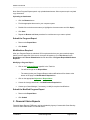
Save
•
Print a Voucher (see Printing a Voucher, below)
•
Click Submit
•
Mail the Voucher to the address at the top of the Voucher
Expense Reports
Creating an Expense Report
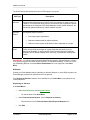
At the Grant Menu, under Financial Status Reports—
•
Select a grant component from the Expense Reports drop down list
•
Click Create
−
You will be brought to the Expense Summary page
Expense Summary
•
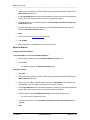
Click Edit
•
Select a name (the person to contact if DCA has any questions about this FSR) from the
Main Contact pull down list
•
Select Yes or No to indicate whether this is your Final Report (“final” FSR cannot
be submitted unless your agency has spent all of the cash-on-hand)
•
In the Payee Reference field, enter brief information to allow your accounting department
to apply the funds correctly when you receive the payment from DCA
•
Enter the dates for the Current Report Period (must be within the grant term)
−
You must enter four digits for the year
•
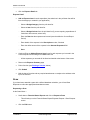
You may enter the text in the Comments to the Review Team from the Grantee field
(optional)
•
Save
11/28/2007
Grant Management
Page 42 of 58