1
Options
Configuring the E-Mail module
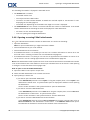
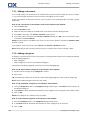
8.2.5.5. Vacation notice
If the vacation notice is active, the sender of an incoming E-Mail automatically receives an E-Mail which
contains the subject and text of the vacation notice.
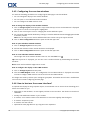
How to configure the vacation notice:
1. Click the Configuration icon
in the title bar.
2. Click on E-Mail in the folder tree.
3. Click on Vacation notice below E-Mail in the folder tree.
4. Configure the settings. A description of the settings can be found later in this chapter.
5. In order to save the settings click on the panel entry Save.
How to leave the page with the settings for the vacation notice:
Click another button in the title bar.
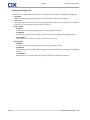
The following settings are available.
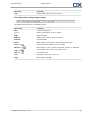
▪
Vacation notice is active
activates or deactivates the automatic vacation notice.
▪
Subject
contains the subject of the vacation notice.
▪
Text
contains the text of the vacation notice.
▪
Number of days between vacation notices to the same sender
Specifies an interval for sending a vacation notice if there are several E-Mails from the same sender.
▪
E-Mail addresses
Specifies the E-mail address to be used as the sender address for the vacation notice.
▪
First day
Defines the first day a vacation notice is sent. Enter the first day of your absence here.
▪
Last day
Defines the last day a vacation notice is sent. Enter the last day of your absence here.
Note: The input fields First day and Last Day might not be displayed if your E-Mail server does not
support these settings due to some reasons. In such a case, please contact your administrator or hoster.
180
© Copyright Open-Xchange Inc. 2012