1
Printing contacts
Contacts module
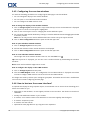
2. In the Edit panel tab click Edit. If using the compact panel, click the panel entry Edit. The Contact
window will open.
3. Edit the contact's data. A description of the data can be found in 4.5: Creating contacts (page 55). A
description of a distribution list's data can be found in 4.6: Creating distribution lists (page 58).
4. Click Save in the panel. The window is closed.
Result: The contact is updated.
If you do not want to accept the changes click Cancel in the panel.
Tip: In the Address card or Phone list view you can also edit contacts by using the context menu or by
double-clicking the contact.
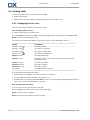
4.7.3. Printing contacts
There are the following possibilities for printing contacts:
▪
Printing a contact list
▪
Printing the contact's data
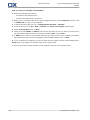
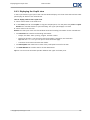
How to print a contact list:
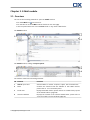
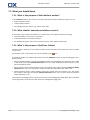
1. Select the Phone list view in the panel.
2. Select the contacts to be printed.
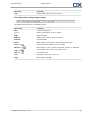
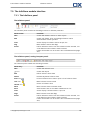
3. In the Edit panel tab click Print. If using the compact panel, click the Print panel icon. A new window
with the print preview and the Print system window will open.
4. If need be, modify the print settings in the system window.
5. Click Print in the system window.
Result: The contact list is printed.
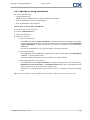
How to print a contact's data:
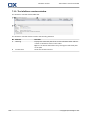
1. Display a contact in the Detail view.
2. In the Edit panel tab click Print. If using the compact panel, click the Print panel icon. A new window
with the print preview and the Print system window will open.
3. If need be modify, the print settings in the system window.
4. In the system window click Print.
Result: The contact's data is printed.
4.7.4. Copying contacts
You can copy contacts to the same folder or to another folder.
Note: When copying contacts from a source to a target folder you need to have the folder permission
for creating objects in the target folder.
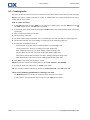
How to copy contacts:
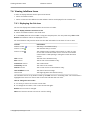
1. Select one or several contacts in the Phone list or Cards view.
2. In the Edit panel tab click Copy. If using the compact panel, click the Copy panel icon. The Select
folder window will open.
3. Click a contact folder in the Select folder window. You can only click on folders you can copy contacts
to.
© Copyright Open-Xchange Inc. 2012
61