1
•
•
•
Then click on the button Browse next to the field Select a file to select the form saved as a PDF file
in stage 1.
Click on the button Upload this file. You might receive the message: Your file name contains illegal
characters. These will be deleted. Do you want to continue? If you click on the button OK these
characters will be removed from the file name (see stage 1). The contents of the file will remain unchanged!
You will now return to the window Project update – Appendices, where you can see the attached
file. If you wish you can now attach another file.
Stage 3: Submit to STW
•
•
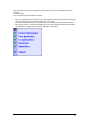
Once all of the attachments have been added click on Submit in the flow diagram. The window
Project update – Send will open.
Enter your pincode and click on the button Submit to STW.
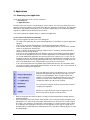
5.1.2. Adding a product
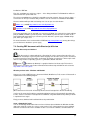
Products produced within the framework of the project can be registered at STW via Iris. Products are
categorised into articles, contributions to books, monographs, PhD theses, patents and other output.
The sending of attachments is optional for all products. You can add a product as follows.
•
•
Follow the stages described in section 5.1 Add a project update.
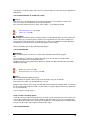
Click on one of the buttons with the description of your product. The associated window will open.
Stage 1: Update project information
•
•
•
•
Complete the requested fields.
Dependent on the window add an author, editor or producer by clicking on the appropriate button.
The associated window to be completed will open.
Enter the personal details and click on the button Save & back.
Finally click on the button Save at the bottom of the window. Stage 1 in the flow diagram will now be
ticked off.
Stage 2: Attachments
This stage is optional. For example, you can send your article or book contribution as an attachment.
•
•
•
•
•
•
Now click on Appendices in the flow diagram. The window Project update – Appendices will open.
Click on the button Add file. The window Project update - Appendices - Select and attach the file to
be attached will open.
Complete the field File description.
Then click on the button Browse next to the field Select a file to select the form saved as a PDF file
in stage 1.
Click on the button Upload this file. You might receive the message: Your file name contains illegal
characters. These will be deleted. Do you want to continue? If you click on the button OK these
characters will be removed from the file name (see stage 1). The content of the file will remain unchanged!
You now return to the window Project update – Appendices, where you can see the attached file. If
you wish you can now attach another file.
Stage 3: Submit to STW
•
•
Once all of the attachments have been added click on Submit in the flow diagram. The window
Project update – Send will open.
Enter your pincode and click on the button Submit to STW.
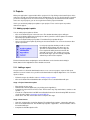
5.2. Changing a project update
As long as an update has not been sent to STW then this can still be changed. After sending this is no
longer possible!
|10