1
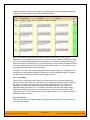
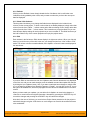
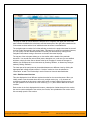
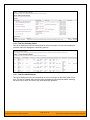
Once you have chosen the destination project and clicked the <Export> button, the test cases will
be exported from the current project to the destination project. Any file attachments will also be
copied to the destination project along with the test cases.
5.1.13. Adding Test Cases to a Release or Test Set
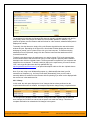
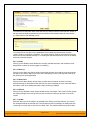
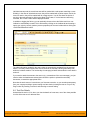
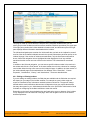
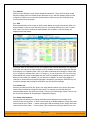
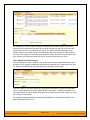
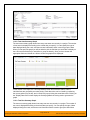
To quickly add a series of test cases to either a Release or Test Set, all you need to do is select
the check-boxes of the appropriate test cases and then click Tools > Add to Release / Test Set.
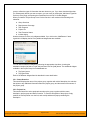
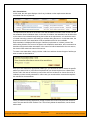
This will then bring up a dialog box displaying either a list of available releases, or a list of
available test sets (depending on which option was chosen):
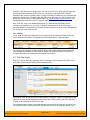
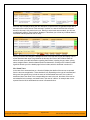
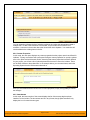
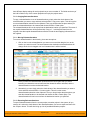
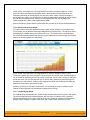
Once you have chosen the destination release / test set, clicking <Add> will add the selected test
cases to the destination release / test set.
5.1.14. Viewing the Test Status for a Release
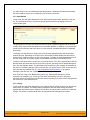
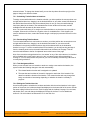
By default, when you view the list of test case cases, it will display an aggregate status for all
releases of the project. I.e. the test list will include all the test cases in the system (regardless of
which release they apply to) and the execution status will reflect the most recent test run –
regardless of which release it was for.
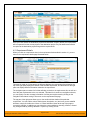
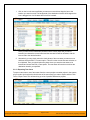
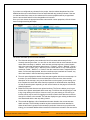
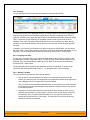
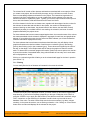
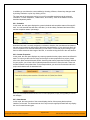
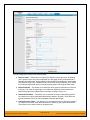
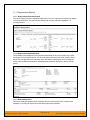
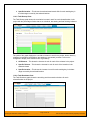
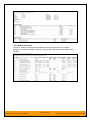
To change the test case list to just display test cases and execution status for a particular
release, simply change the release selected in the drop-down list located below the toolbar (on
the right-hand side) from “Any” to a specific release:
© Copyright 2006-2009, Inflectra Corporation
Page 42 of 121
This document contains Inflectra proprietary information