1
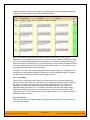
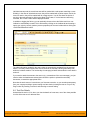
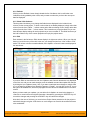
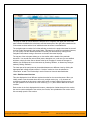
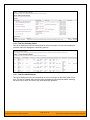
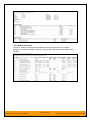
The incidents in this list are ones that a user has decided are relevant to the current one and has
created a direct link between them. In the case of requirements and test cases, the association
can be either due to the creator of an incident directly linking the incident to the requirement or
test step, or it can be the result of a tester executing a test-run and creating an incident during the
test run. In this latter case, the check-box to the left of the association will be unavailable as the
link is not editable.
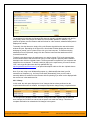
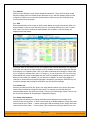
Each association is displayed with the type of artifact (requirement, test step, test run, incident),
the name of the artifact being linked-to, the name of the person who created the association, and
a comment that describes why the association was made. In the case of an indirect association
due to a test run, the comment will contain the name of the test run.
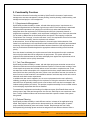
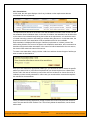
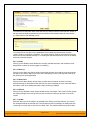
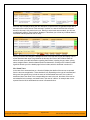
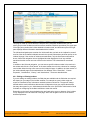
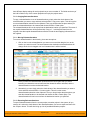
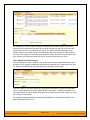
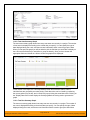
To create a new association, simply click the <Add> icon and then choose the type of artifact you
want to create an association to:
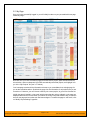
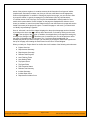
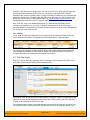
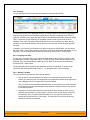
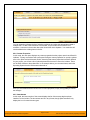
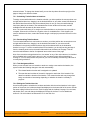
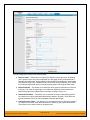
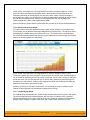
Once you have selected the appropriate artifact type, you will then be able to choose the specific
artifact you want to link to. In the case of requirements you choose the item from a hierarchical
list-box, and in the case of incidents you can either enter the incident ID or choose from a list of
incidents you have recently submitted. In either case you can also add a comment that explains
the rationale for the association:
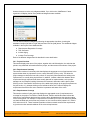
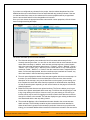
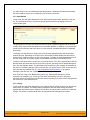
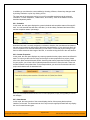
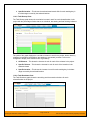
Finally, to delete an existing association (except for those due to test runs) select the check-box
next to its name and click the <Delete> icon. This will only delete the association, not the linked
artifact itself.
© Copyright 2006-2009, Inflectra Corporation
Page 75 of 121
This document contains Inflectra proprietary information