1
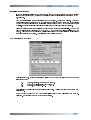
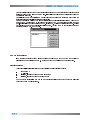
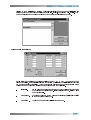
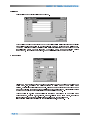
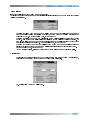
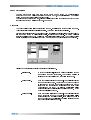
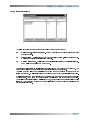
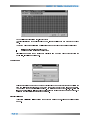
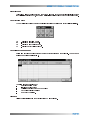
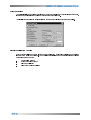
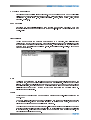
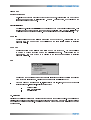
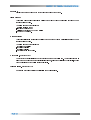
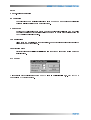
VIEW MENU RefreshCurrentMap Re-displays background graphics for the current map area. This function can be accessed through the menu system by selecting View - Refresh - Current Screen, or by clicking on the 'Refresh' smart icon (Spray Can). DisplayInitial Map Recalls and re-displays the initially loaded default area or the most recently selected area. This function can be accessed through the menu system by selecting View - Refresh - Initial map, or by clicking on the appropriate smart icon. The currently selected zoom factor will be reset. Zoom In Enables enlargement of the selected area using a zoom factor of 2. This function can be accessed from the menu system or by clicking on the 'zoom in' smart icon (magnifying glass with a 'plus'). ZoomOut Enables reduction of the selected area using a zoom out factor of 2. to perform a 2 times reduction beyond the original image area. accessed from The system allows This function can be the menu system or by clicking on the 'zoom out" smart icon (magnifying glass with a 'minus'). Pan Enables to move to a different area of the currently loaded image without changing the selected zoom factor and loaded image. Panning can be performed in the following ways: - keyboard driven by pressing keys l, r, u or d (to pan left, right, up or down) across all registered images. Alternatively, select "Pan" and then; - Point and Click - Telemetry destination - Mobile location Co-ordinates Displays the calculated Latitude and Longitude for the current mouse pointer position. These values are displayed in the 2 rightmost sections of the status bar located at the bottom of the screen, with the Latitude on the left and Longitude on the right. The values are updated whenever the mouse pointer is moved over the image area.



![hank yo_fo buyil_gaSamsung (}a_Te_a ]hs](http://vs1.manualzilla.com/store/data/005691502_1-2e8e29ffb67d0c8f7d0d701e3cb644b7-150x150.png)